
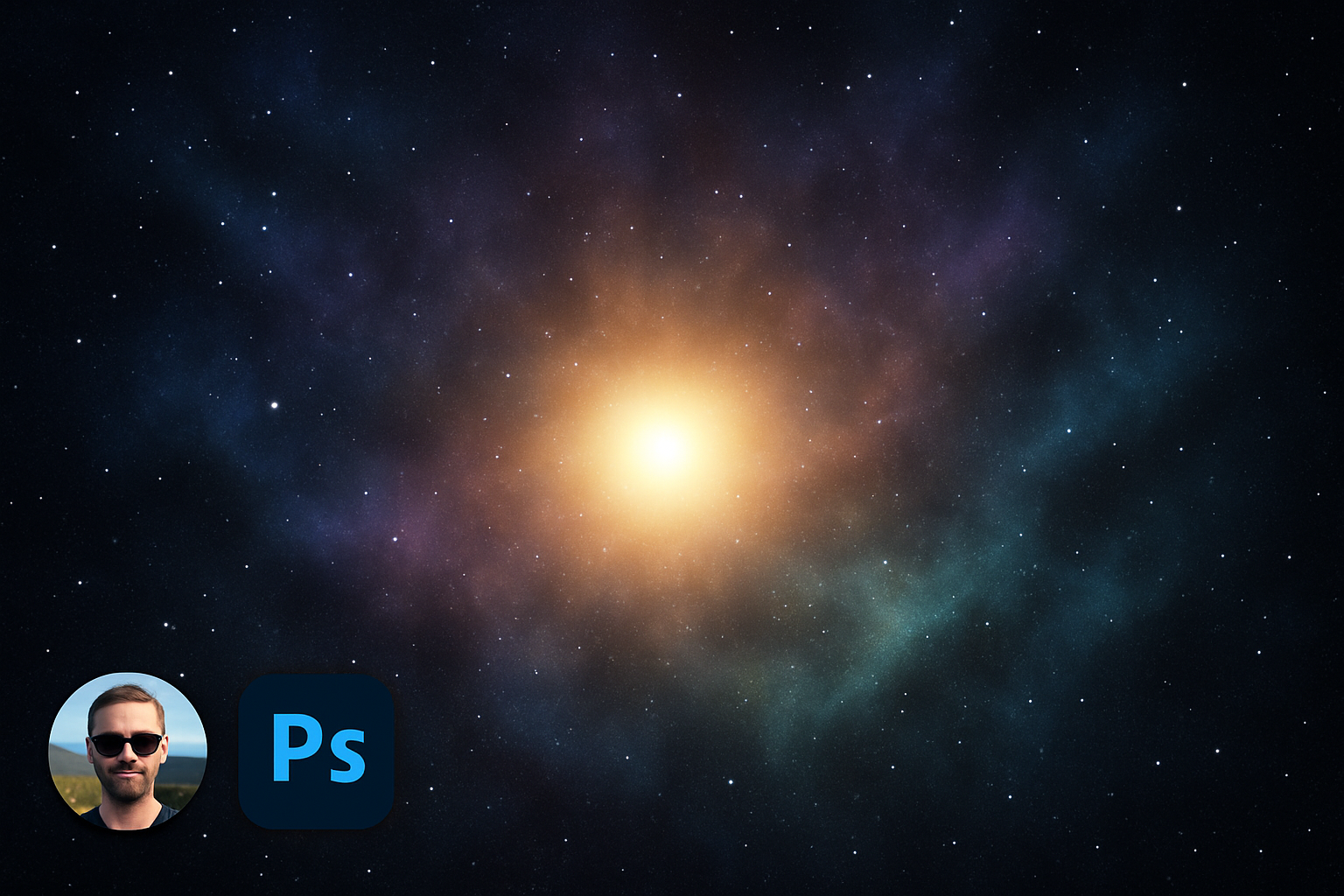
Dive Into the Cosmos: Crafting Your Very Own Digital Nebula
Photoshop is limitless, especially when it comes to unleashing your creativity on a cosmic scale. If you've ever looked up at the night sky in wonder, it's time to bring that awe-inspiring vision to your screen with a nebula so vast and detailed, it'll leave viewers starstruck.
But first, before we delve into the mysteries of the universe (or in this case, Photoshop), check out the video below for a step-by-step visual guide on crafting your personal slice of deep space:
Starting With the Stars
Creating the right foundation is key to any great work of art, and our cosmic journey is no different. Begin by crafting the starfield against a dark, mysterious backdrop that sets the stage for your space epic.
- New Document: Open a new document (Ctrl + N on Windows, Command + N on Mac) sized at 2500×1400 pixels, with a resolution of 72 DPI. Choose an RGB color mode and make sure your background is set to black. This will be your celestial canvas.
- Smart Stars: By converting your base layer into a smart object, you maintain flexibility, letting you tweak brightness and the density of your starfield as you see fit.
- Adding Noise for Stars: Inject randomness, creating a field of stars by applying noise (30%, Gaussian, and monochromatic).
Star Gazing with Style
Once your starfield is set, it's time to get creative with layers, introducing far-off galaxies and nebulae that shimmer through the ether.
- Galactic Noise: Transition from noise to a blurred, ethereal quality using a Gaussian blur set at 0.3 pixels. Your stars are barely perceptible now but will soon twinkle into prominence.
- Levels of Luminosity: Manipulate contrast using levels (enter 80 in the input shadow field) to make your stars more apparent, setting the stage for the nebula's glow.
Nebula Narratives: Painting the Cosmos
Once you've laid down the stars, it's time to add the brilliant, hypnotic colors of a nebula.
- Nebula Brushes: Open the bespoke sand dust and powder brush sets, laying cosmic textures across your sky with brushes sized as large as 2600 pixels.
- Layer Lingo: Craft layers, using color modes like color burn and soft light, to introduce depth and layers of light across your celestial scene.
Shining Bright: Accentuating the Stars
Now, give your galaxies a glow with a bit of color and vibrancy.
- Outer Glow: Using layer styles, craft an ethereal outer glow around stars and galaxies with settings tailored to your preference (50% opacity, soft technique, and 10px size).
- Duplicate and Scale: Copy and scale layers with precision, blending them seamlessly to mimic real astronomical phenomena.
Adding Depth: Highlighting and Contrasting
The universe isn’t just about light—it’s about the dance between shadows and stars.
- Color Casting: Add dimension to your creation by introducing a distant bright star with a gentle color cast, achieved via hue/saturation adjustments clipped to your star layer.
- Curves and Depth: Finally, utilize curves to add contrast, adjusting tonal ranges to ensure your nebula pops against the sea of stars.
Crafting His Majesty: The Cosmic Conclusion
With each brush stroke and adjustment, you’re not just creating an image—you’re breathing life into a universe, made entirely your own. Whether you’re aiming for photorealism or abstract artistry, Photoshop’s suite of tools lets you bring boundless creativity to the vast void of space. So go ahead, create that epic deep space nebula and watch as both stars and viewers gravitate to your astral artistry.





