Evoke the Chills of a Moonlit Night with Atmospheric Text Effects
Picture this: your text emerges slowly through a dense and mysterious fog, seemingly ripped from the pages of a spine-tingling ghost story. The moon hangs high, casting eerie shadows as the letters come to life with an ethereal glow. Welcome to the art of crafting spooky text in Photoshop—where creativity meets the spectral void!
Whether you’re working on a Halloween project, a suspenseful novel cover, or just want to add a gothic flair to your digital toolkit, creating atmospheric text effects can elevate your design work to a whole new level. Today, we’ll unravel the mystic secrets behind making this spooky text effect with Photoshop, ensuring your designs will haunt the dreams of your audience. Curious? Let’s dive in.
Setting the Stage for Spectral Spookiness
First up in our witch’s brew of Photoshop sorcery is preparing your workspace. You’ll start by concocting your canvas. Set your document’s dimensions to 1920×1080 pixels and adjust the resolution to 150 pixels per inch. Keep the color mode in RGB with 8 bits per channel, to ensure your colors glow darkly yet vividly.
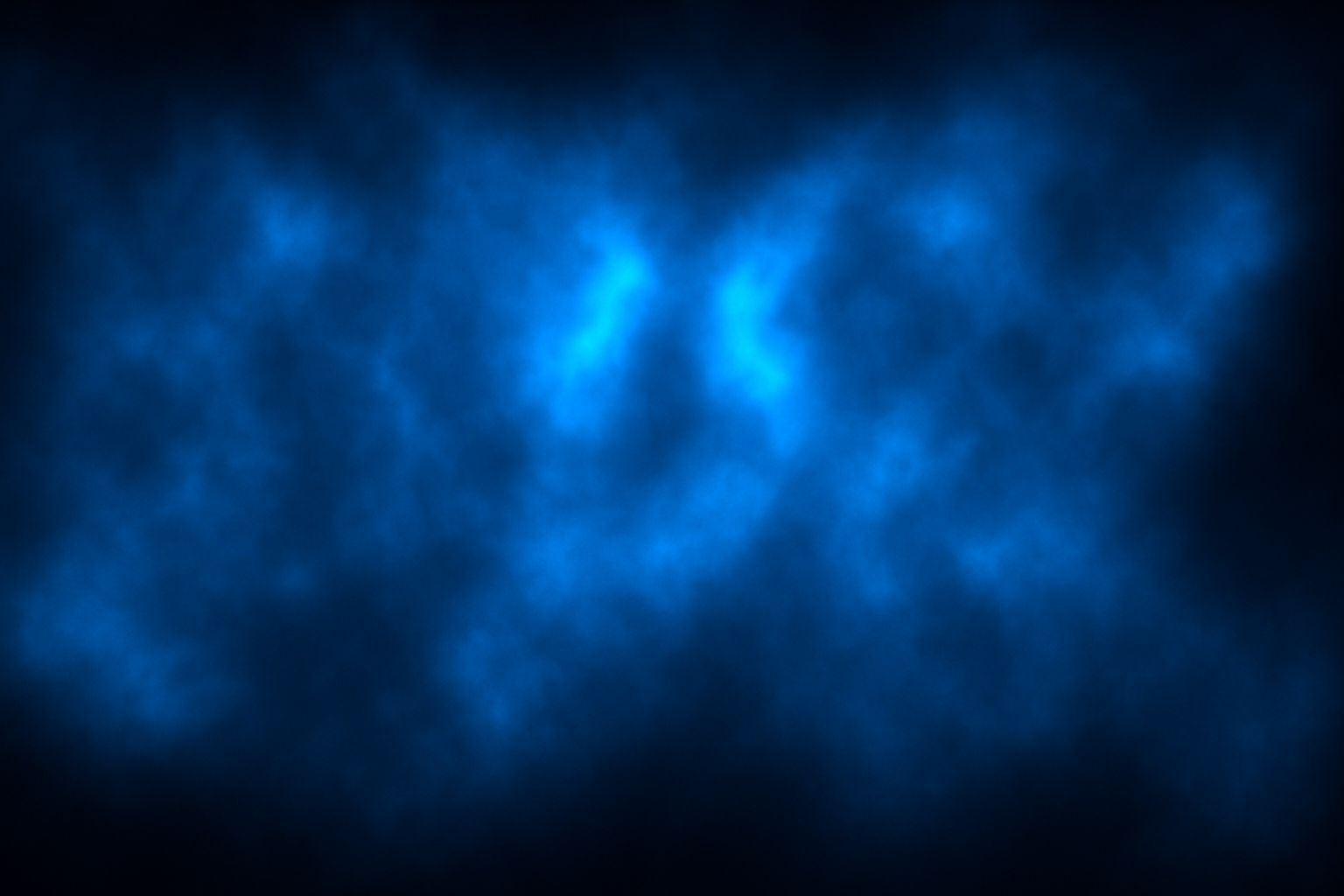
Next, behold as the mist descends! Utilize the “Render Clouds” function to add…
Key Settings for Document:
– Width: 1920 pixels
– Height: 1080 pixels
– Resolution: 150 pixels/inch
– Color Mode: RGB, 8 bits per channel
Foggy Ambience with Filter Magic
With clouds filling your screen, we tweak the eerie layers by changing their blend mode to “Color Dodge.” This effect turns mundane clouds into vapor, lending your graphics a spectral silkiness. Create an additional dark layer beneath, solidifying your otherworldly landscape by filling it with black.
As the clouds drift across, prepare your palette for painting shadows in a shade represented by the hexadecimal color #013586B. This dark blue hue is your spectral brush—set its opacity and flow wisely for that haunting deep sea mist effect.
Crafting the Ghostly Glow
Let the spirits whisper their secrets as you adjust the opacity and flow settings to perfect your text’s phantasmal glow. Understanding these parameters is crucial:
– Opacity affects how much of the underlying content we can see.
– Flow dictates the rate at which our spectral essence builds on the canvas.
Apply this insight by brushing two lines over your dark canvas, adjusting their transparency to expose different levels of haunt.
Enlarging the Enigma
Enhance the ethereal presence by transforming (Ctrl/Command + T) your cloud borders, scaling them to 150% of their original size. Manipulating the size will empower you to dial up the essence of mystery.
The Text That Haunts
Summon your typography skills and evoke eerie atmosphere with your font choice. A font like “Paranoia” drips with tension. When you’re spelling out “Dark Prophecies” or other menacing phrases, font choice can speak volumes—or scream, as it were.
Make full use of Photoshop’s character settings to kern, track, and lead your text. The distance between letters, lines, and characters affects readability, but also adds to its mystical aura. With the evil spirits at bay, convert your text to a smart object—thus enabling future iterations without disturbing the harmony of effects layered upon it.
Manipulating the Mist
To intensify the ghostliness, apply “Motion Blur” (90 degrees, 100 pixels) followed by a Gaussian Blur of 2 pixels, conjuring the visuals of something unnatural yet beautiful. To animate the fleeting forms, distort them further using wave filters with parameters as mystical as they are technical:
– Wavelength: 106
– Amplitude: Set between 1 and 100
– Scale: 100%
– Type: Sine wave, with edges fading into spectral oblivion
Summit the Display of Darkness
Once you’ve captured your text in all its uncanny majesty, finalize your telekinetic tableau by rasterizing one of the layers. This allows you to use the smudge tool, lending the words an ethereal quality. Remember, smart filters can be limiting when manipulating these gossamer wisps of form, so rasterizing is key.
Fill your nights and your canvases with the cries of echoes past. Using brush tool magic, adjust the brightness as your ethereal brush flits across the text, creating highlights and shadows that contrast like day and night. Play with size and transform until your spectral scene is harmonized, haunting, and ready for your grand reveal.
Now, with this knowledge, paint the night with whispers of mystery and explore the limitless realm where design meets the supernatural. Whether for an art project or personal endeavors, this spooky text effect will surely etch a lasting impression—or haunting memory—upon all who gaze upon your creations.