
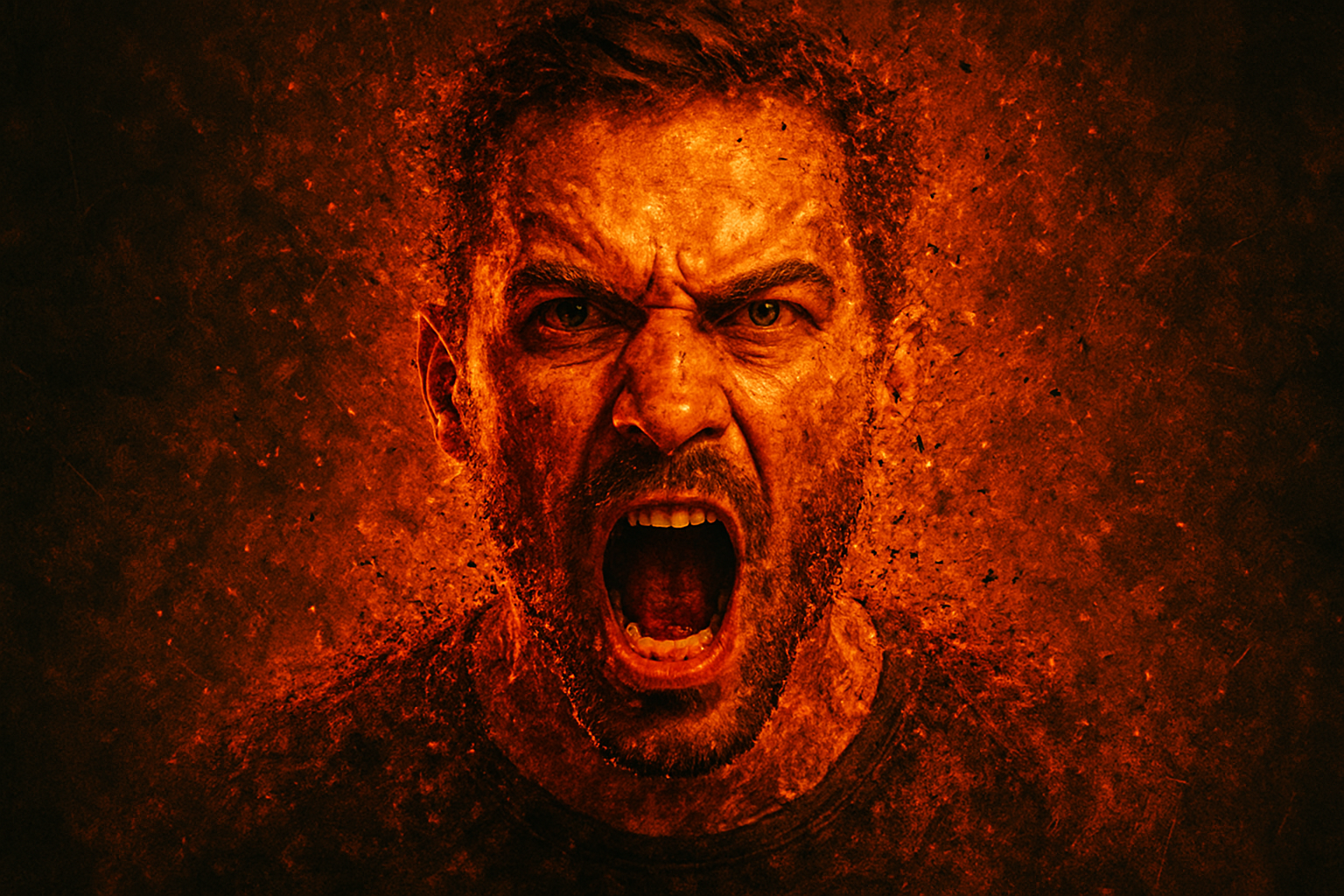
Unleash the Power of Photoshop with a Stunning Dispersion Shatter Effect
Have you ever wondered how to add a bit of explosive energy to your digital art? Well, hold onto your creative hats because we are diving headfirst into the mesmerizing world of dispersion shatter effects in Photoshop. This effect can transform any photo into a dynamic piece bursting with motion and drama. Plus, it gives off that liberating, everything-is-breaking-but-in-a-cool-way vibe. Perfect for giving your creations that electrifying touch.
Setting the Stage: Gathering Your Assets
Before you embark on this creative escapade, ensure you’ve got all the essentials. For this tutorial, you’ll need a striking image of your choice—our pick is a boxer mid-action to capture that kinetic energy. Alongside, prepare to gather flames for a dash of color and a custom brush set designed to mimic shattered glass. These assets are your trusty sidekicks in bringing this digital whirlwind to life.
Separating the Star from the Background
First things first: we need to separate our subject from its background. By employing the Quick Selection Tool, you can isolate your main character, allowing them to take center stage. If Photoshop misses a spot or two, a quick drag over the area will iron out any issues. This process is all about detaching your subject so you can add those spectacular effects later.
Let the Fun Begin: Wiggle and Warp
With the subject isolated, it’s time to get a bit playful. Think of this as the Photoshop equivalent of doodling in the margins. Use the Liquify filter to warp the edges of your subject, creating those wavy, distorted lines that will soon turn into your dispersion trails. The more fluid and chaotic, the better; you want your subject to look like they’re being pulled apart by some creative force.
The Heart of the Effect: Shattering Glass Galore
This is where the magic happens. With your brushes loaded up with shattered glass designs, begin clicking along the edges of your subject. This isn’t about precision; it’s about creating that appearance of fragments flying off. You can dance between a myriad of brush sizes and styles to make the shatter appear organic and, importantly, incredibly cool.
Adding Some Fiery Flair
What’s dispersion without a little flame to light it up? Overlay a flames image to inject some color and enhance the explosive effect. Set your flames layer’s blend mode to Overlay and adjust its opacity to ensure it mingles seamlessly with the rest of the artwork. This technique injects intensity and adds an extra layer of vibrancy to your final image.
Perfecting the Blur and Focus
We all know drama loves a bit of blur. Gaussian Blur is your tool of choice when it comes to distinguishing between sharpness and softness, helping create that dreamy, ‘fitting out of focus’ look often associated with speed and motion. When the blur catches those pieces just right, you’ve got a masterpiece that screams movement and life.
Final Adjustments: Crafting the Illusion
Your dispersion effect is coming together, but like any artist, you know it’s all in the details. Perhaps some fragments are too dominant? A little tweaking here and there with your brush can reign it back into digital serenity. Create balance within chaos until you reach that aesthetic sweet spot.
The Finishing Touches
The final step is about visualizing distance and depth, accentuated by enlarging certain shards through the Transform Tool as if they’re escaping into the void beyond the frame. Like an artist applying a splash of paint for contrast, make sure that softer elements gently fade, adding richness to the overall piece.
And there it is! Your very own piece of digital dynamism—a photo no longer static but alive with the energy of shattering glass and vibrant flame effects. Each click and stroke brings a piece of it into the real world, bursting with the creativity only Photoshop can release.
From start to finish, we hope you found this exploration into dispersion effects exhilarating, challenging, and ultimately, rewarding as you showcase your craft in the vivid glow of your imagination. Until next time, keep creating and above all, keep advancing your digital art skills to push the boundaries further than ever before.
Go forth, and shatter expectations!





