
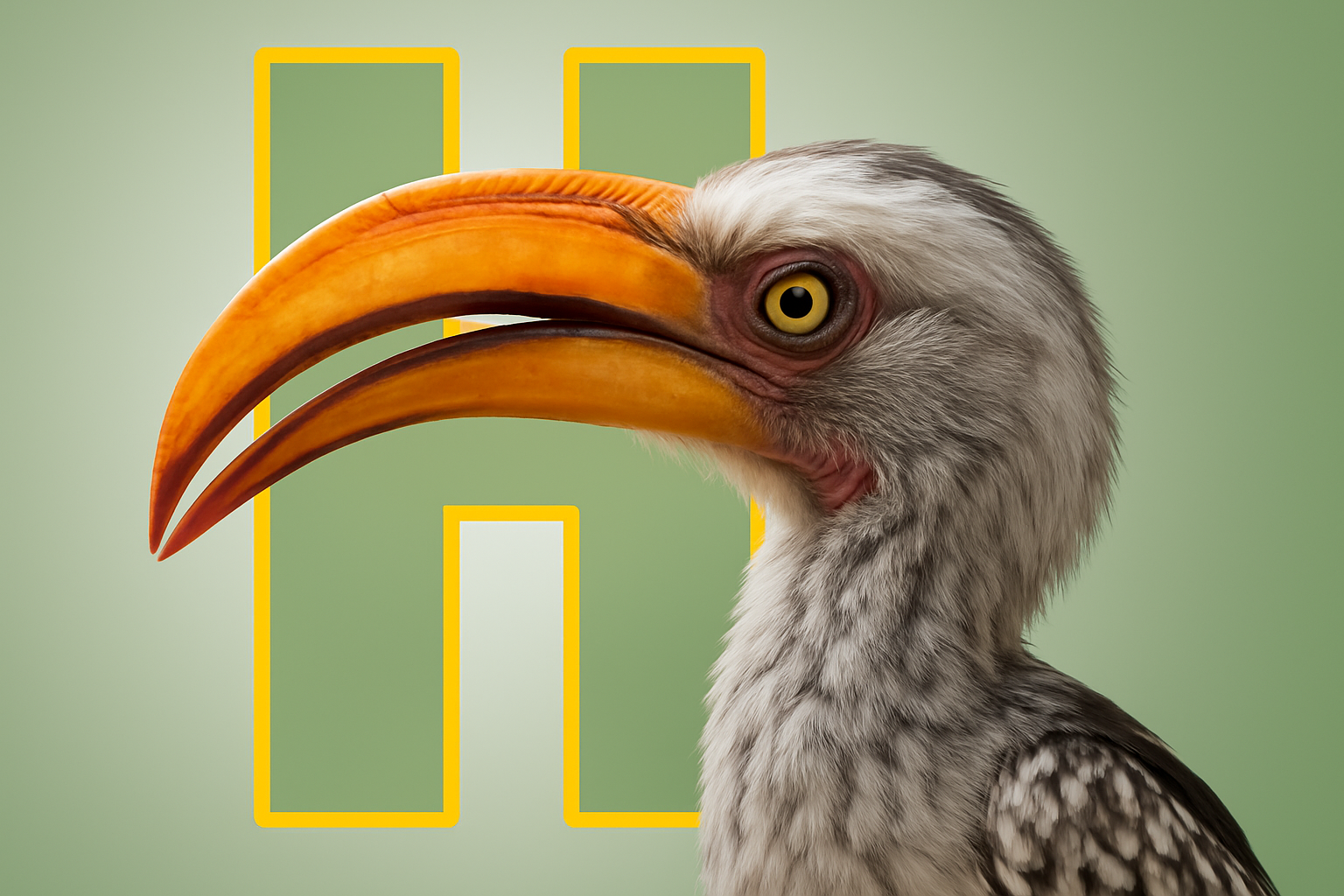
Learn how to make your graphics pop with this unique poster design technique
Are you searching for an eye-catching way to spruce up your graphic design projects? Look no further—today, we’re unveiling the secret sauce to create stunning pop-out letter poster designs in Photoshop. We’re diving into how to masterfully blend photography and typography to make any layout you work on absolutely pop. Bonus: You don’t have to be a Photoshop whiz to achieve this!
Introducing the Art of Pop-Out Letter Designs
Pop-out letter designs are exactly what they sound like—bold letters that seem to leap off the page, perfectly showcasing the creative synergy of images and typography. In our session today, we will use the image of a hornbill and a chunky font to bring this spectacular effect to life.
The magic lies in using Photoshop’s layering and masking tools to artfully frame your subject within the text. This design not only adds depth and dimension but also highlights the theme of your artwork. The beauty is that you can use any subject of your choice, be it your initials or a favorite object, allowing endless variations to reflect your style.
Setting the Stage—Preparing Your Canvas
Before you jump into the joy of design, the first step involves setting up your Photoshop canvas. Start by creating a new layer and filling it with white. This establishes a neutral background that ensures your primary subject maintains all the attention.
Prepare your workspace by double-checking your foreground and background colors. Is the default black and white? If not, a simple tap on ‘D’ will rectify that. An inverted color palette can be corrected by pressing ‘X.’
Choose Your Weapon—Selecting the Font
Typography forms the backbone of this design. Opt for a bold, chunky font so that the image beautifully fills inside the letters. Set your chosen font size to approximately 280 points, which you can adjust further as per your own aesthetic needs.
Layer Magic—Infusing Your Letter with Life
Here’s where we make things lively. Input the first letter of your subject’s name and ensure it’s perfectly centered. Once centered, head to your layer style window to turn up the visual allure with a stroke feature, marking its position outside the letter for an extra-bold effect.
Shadows and Highlights—Crafting Depth
Add a drop shadow with a blend mode set to ‘multiply’ and tweak the opacity to 30%. This step expertly creates depth, casting realistic shadows for enhanced 3D effect. You don’t need to be fiddly about the exact angle—132° with a distance of 60 pixels and size of 30 pixels works just splendidly.
Bringing In Your Subject—Images Through Letters
Clip your chosen image over the letter layer. This allows you to see the subject through the letters themselves. You can move or resize the image until it perfectly aligns, creating that seamless “inside the letter” effect.
Refining Edges—Define Your Subject
For people who’ve ever zoomed into layers with hawk-like concentration, the ‘select and mask’ feature will be your best friend here. It helps to separate your subject from the background with immaculate precision. Explore this feature and witness that Photoshop wizardry in action.
Layers and Masks—Dodge the Drop Shadow
To ensure your shadows remain purposeful and intentional, mask out any areas where the drop shadow interferes with your design narrative. This focuses shadows to only where they’re most effective—outside the letter.
Finish with a Flourish—Gradient Backgrounds
Complete your masterpiece by adding a subtle radial gradient in your background. Pull in colors from your subject for thematic consistency and set the gradient scale to your liking for that snug, polished look.
The Pop-Out Letter Design Finale
There you have it—a step-by-step guide to creating dazzling pop-out letter poster designs. By mastering this technique, you’re setting yourself up for design gold on your next creative project. Whether for a poster, a logo, or any art that calls for that extra bit of visual drama, this approach has you covered.
No longer will your letters lie flat and lifeless! With just a few layers and some Photoshop finesse, you can create designs that not only speak to your audience but leap out and capture their attention.
Feeling inspired yet? Watch the video above for visual insights, follow along with your Photoshop, and let those creative juices flow. Happy designing!





