
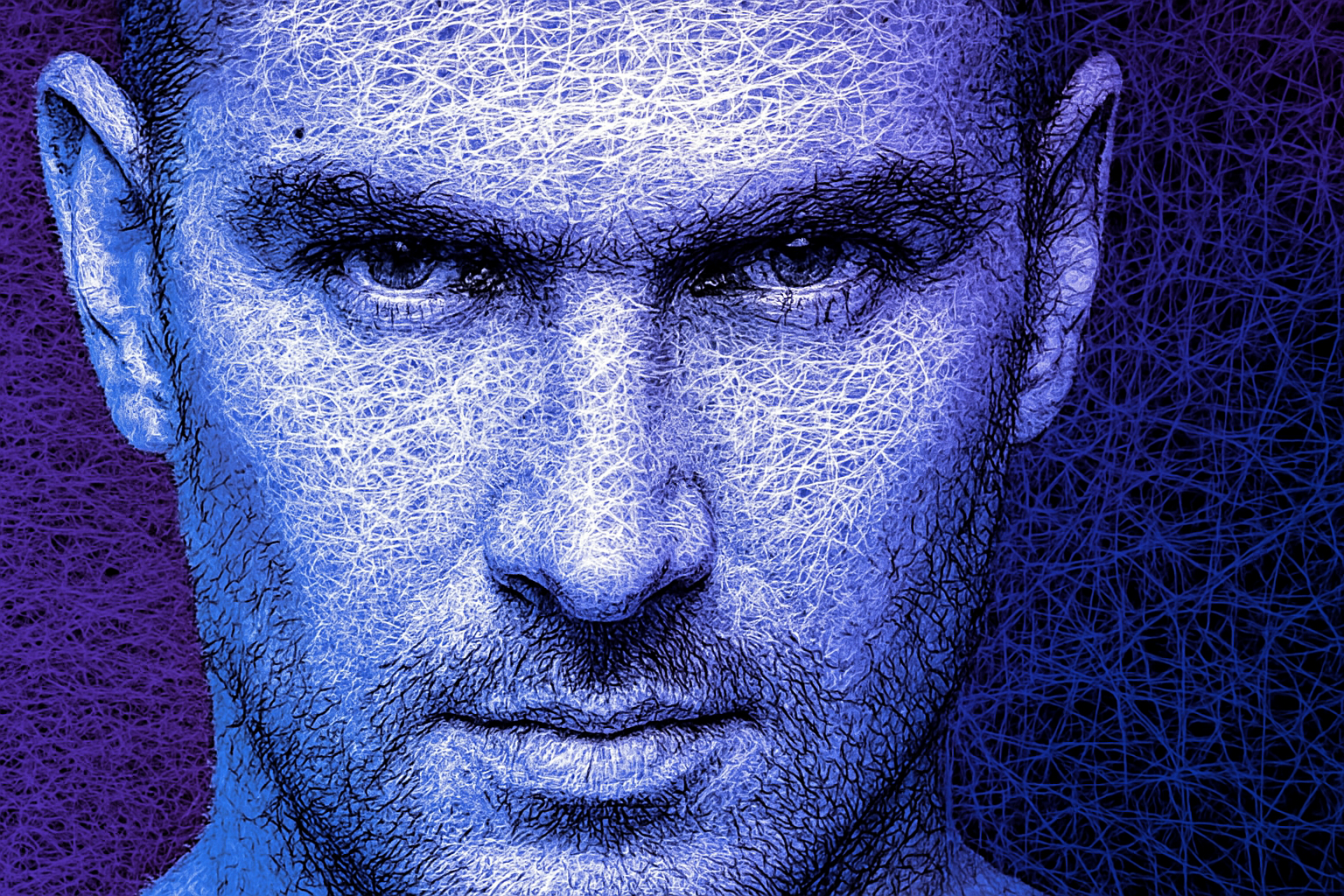
Unleash Your Inner Doodler with Scribble Art
Who said you need to be a natural Picasso to create mesmerizing art? In today’s digital age, armed with Photoshop and a sprinkle of creativity, even a snapshot from your last family barbecue can transform into a dazzling piece of scribble art. This tutorial (watch it here) dives into the realm of digital artistry and guides you through crafting flamboyant scribble art from any photo—even that slightly embarrassing one from last Thanksgiving.
Prepping Your Canvas: Subject Selection
Before we can unleash our scribble zen, we first need to prepare our canvas—or, in this case, our photo. The initial step is separating your subject from the background. Photoshop offers slick, time-saving tools like the Quick Selection tool, where simply clicking “select subject” does most of the magic for you. Pro tip: Pop into Quick Mask mode by pressing ‘Q,’ which lets you view and refine your selection with precision. Voilà, you’re halfway to scribble stardom.
Smart Objects: Your Art’s Safety Net
Photoshop Smart Objects are like having a safety net for your creativity: they allow for all fun, no mistakes. By converting your selection into a Smart Object, you ensure that you can tweak your art non-destructively at any point. Want to swap out your photo but retain your edits? Smart Objects have your back, negating the need to start from scratch every time inspiration strikes.
Layer Play: Adding Depth and Dynamics
Art isn’t just about the subject—it’s also about the interplay of light and color. By adding a black layer below your subject, you instantly enhance contrast and depth. A splash of gradient maps—fun fact: these help tweak how lightness transitions in your photo—fuels your image with that electrifying scribble vibe. Docker further into layer adjustments with Posterize and Gradient Maps to fine-tune the edgy contrast that scribble art thrives on.
Custom Brushes: Crafting Texture Magic
Time to unleash your chaotic inner child with custom brushes! Grab your digital brush and draw a randomly delightful scribble line. Doesn’t sound too complicated, does it? Define this line as a brush preset, aptly named ‘Scribble,’ and behold—your very own scribble-pattern magician’s wand.
Brush Settings: A Creative Kaleidoscope
Because every Renaissance artist tools their own paintbrushes, why shouldn’t you? Head over to Brush Settings (hit F5 on your keyboard) and wench up that angle jitter. Wiggle a little here, shake a little there—with a quick brush over your black canvas, the result is a quirky unveiling of your subject. Imagine it as scribbles revealing a hidden treasure.
The Science of Layer Masks and Clipping Masks
If you’ve made it this far, congrats! You’re practically fluent in Photoshop lingo. Layer masks work as reversible stencils, allowing for selective revealing (white) and concealing (black) of parts of your image. Our goal is to blend your scribble art seamlessly into the photo, so you might need to apply the divine art of clipping—which restricts adjustment layers to affect specific underlying layers only. Layer masks and clipping masks: two celestial Photoshop tools that’ll have you feeling like the boss.
Gradient Fills: Chromatic Bliss Unlocked
Now, get a load of eye-popping color. Add gradient fills to your background or subject, tweaking the gradient’s angle and scale. Tweak colors by opening the gradient bar, where the psychedelic spectacle of colors awaits. Marvel at how amplifying or tweaking colors can shift your art’s mood, from serene Sunday afternoon to party-on-Saturday-night.
Polishing the Masterpiece: Final Touches
By now, your scribble art stands boldly with flair and color. Except it’s missing one last touch: blending modes. Try setting the blend mode to ‘Luminosity’ to harmoniously meld your subject with the gradient below, blending form with hue in an orchestra of visual poetry.
Like the true art pioneer you are, remember to flex some opaqueness adjustments here and there—the cherry on your artistic sundae. Within moments, you’ll find your scribble art gracing the walls of not just virtual worlds but who knows, perhaps even your living room.
With these Photoshop tricks, not only have you transformed a simple photo into a burst of creativity, but you’ve also added a splash of fun, elegance, and personalization to your digital art toolset. So what are you waiting for? Break out those photos, mix and match styles, and flick a scribble brush over your masterpiece like the Instagram grid depends on it! Happy scribbling!





