
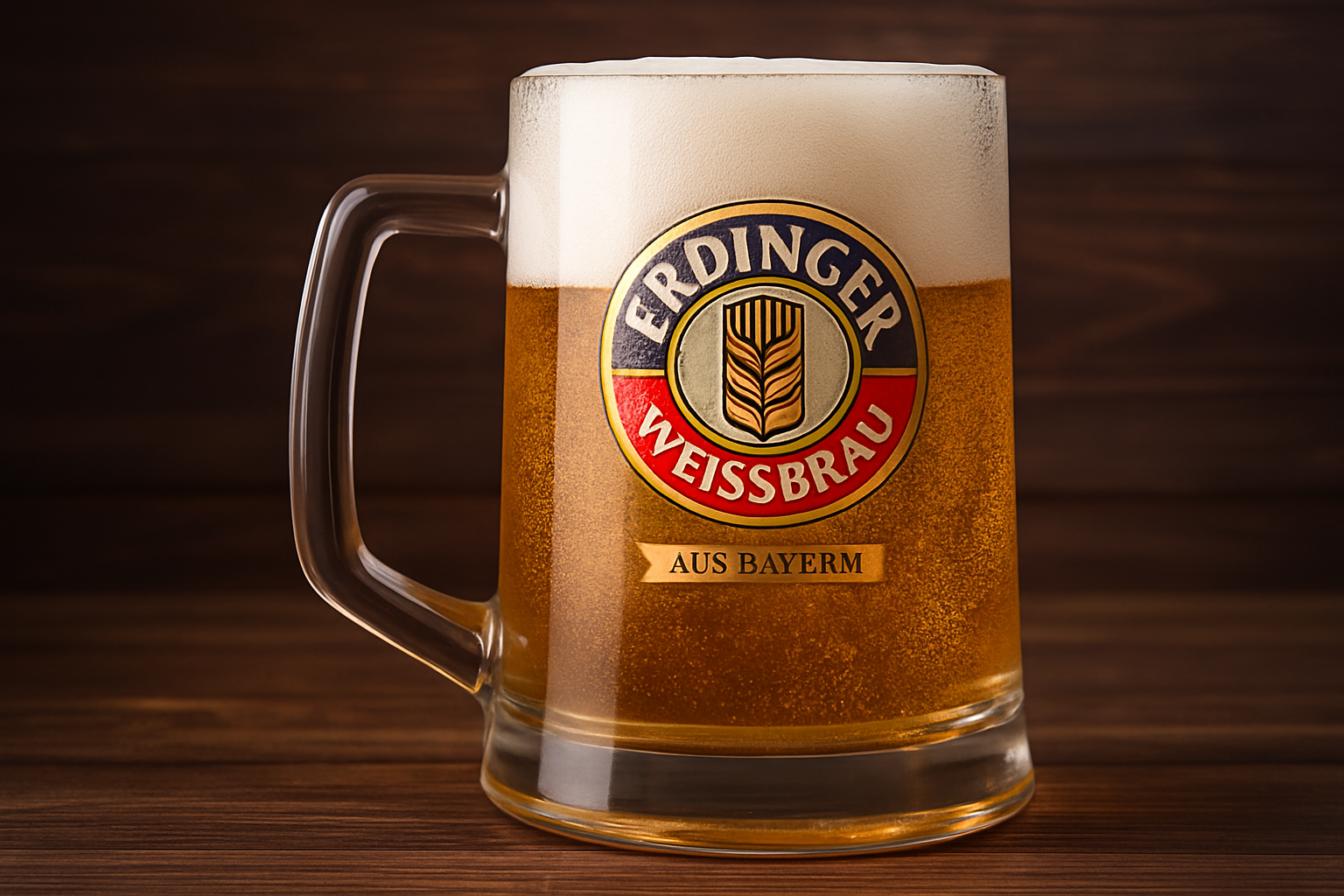
Mastering the Art of Logo Placement on Curved Surfaces
You know what they say, one cannot simply slap a logo onto a curved glass surface in Photoshop—well, not without a little finesse and a few Photoshop tricks up their sleeve. Today, we’re diving into the world of digital design to guide you step by step on how to seamlessly place your logo or design onto a curved glass surface. It’s a magic trick that can bring a new dimension to your product mocks, making them look as intricate and real as can be. So, let’s get those creative juices flowing!
Unpacking the Magic Wand’s Capabilities
The first magical tool at your disposal? The good old Magic Wand Tool. This tool allows you to effortlessly separate your logo from its background. Select the Magic Wand Tool and set your Sample Size to 5 by 5 Average—this increases the averaging of the colors of the pixels. Then, adjust the Tolerance to 10 to cover a larger area in one swoop. Make sure the “Contiguous” box is unchecked to free up all the white pixels in your image for selection. Once you select the white background with a click, hit Q to see your selection through a quick mask.
Quick Mask and Fine-tuning Your Selection
Have you ever felt like a sculptor? This step might give you that vibe. Use the Quick Mask mode to visualize what’s inside your selection. Areas filled with quick mask will remain, while others vanish into oblivion. If you notice bits you want to keep aren’t covered, simply use the Paint Bucket Tool with black as the foreground color and click the necessary areas. Alternatively, the Brush or Pencil Tool will do the trick if you’re more Picasso than Van Gogh.
With these tools, zoom in by pressing z and drag to get up close and personal with your image. Need to make a move? Hold down the Spacebar to reposition your image on the canvas. Once satisfied, revert the mask back into a neat selection with Q.
Transforming the Logo’s Destiny
With our logo set free, it’s time to drag it into its new home. Use the Move Tool to drag your logo onto the tab of your chosen photo, then down into place on the glass surface when your mouse is still held down. Now, to perfectly size it, wave your magic wand—or rather press Ctrl (Cmd on a Mac) + T. Hold down Alt (or Option) and drag a corner inwards until your logo fits snugly.
Converting to a Smart Object and Introducing Warp Transform
Why stop at merely squeezing your logo onto the mug when we can go full-blown Smart Object? Converting to a Smart Object means our work is non-destructive and fully swap-able for later. Just click the Layers panel icon, and bam, you’re all set! Next up, the Warp Transform. Open the Transform Tool and take a detour to the Warp Transform icon at the top. Select “Squeeze” from the Warp Presets list, then adjust the Bend slider to get the logo wrapping naturally with the mug’s curves. If needed, you can further tweak using the “Custom” option, manipulating the Transform’s anchor points for precision.
Blurring the Lines, Literally
Ever zoomed too close and realization hit that your logo outshines the photo’s actual pixels a little too harshly? This is where the Gaussian Blur steps into the spotlight. Navigate to Filter > Blur > Gaussian Blur, and give your logo a subtle blur at 0.5 pixels to mesh it seamlessly with the photograph.
Color Harmony & Vibrance Adjustments
If your logo looks like it’s been on an Instagram filter bender, decreasing its vibrancy might be in order. Create a Vibrance Adjustment Layer and clip it to your logo. Decrease the Vibrance to -60 and the Saturation to -20. Remember, vibrance affects muted colors, while saturation targets all color intensities—balance is essential.
The Final Act—Blending with the Background
Here’s the finish: blend everything smoothly using the Blend If sliders. Double-click an empty area of the logo’s layer to access Layer Style and check out the “Blend If” section. Adjust the sliders under “This Layer” and “Underlying Layer” to ensure the logo’s shadows and highlights blend organically with the glass surface.
Engaging this technique gives the illusion of the logo adhering perfectly to the glass’s curvature and reflections—like magic! By the end of this process, you’ll possess the skills to transform any mundane logo placement into a sophisticated optical masterpiece. So, let your layers dance, your pixels paint, and your logos imprint the glassy canvas of your digital realm!





