
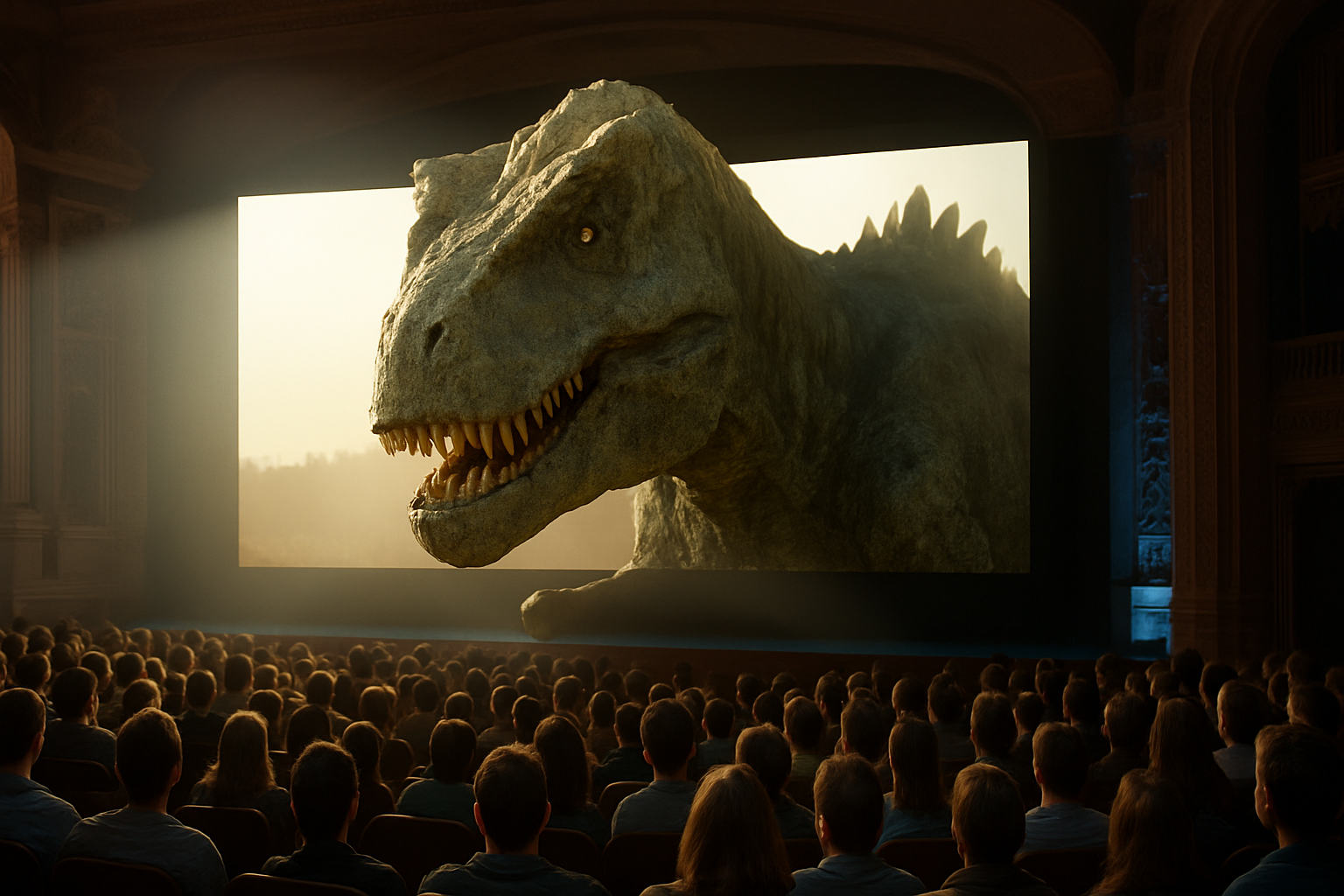
Bring Your Subjects to Life With a Stunning Pop-Out Effect
We’ve all experienced that thrilling moment in a 3D movie where an image seems to leap out of the screen and into our laps. What if I told you that you could recreate this dynamic effect in your artwork using Photoshop? Today, we’ll delve into the magical world of creating a 3D pop-out effect that will make your chosen subject stand head and shoulders above the rest—literally! Whether it’s a fearsome dinosaur or your cherished puppy photo, let’s learn how to make it jump out of the frame and directly into the hearts of your audience.
Setting the Stage: Choosing Your Images
To begin, you’ll need to select the perfect background and subject images. Imagine yourself in a wide-screen movie theater—this will be your backdrop. The echoing space gives each element room to breathe, enhancing the depth of the effect. Any object can serve as your pop-out star, whether a dinosaur or that beach ball from last summer. Choose something with a shape that can effectively defy the virtual confines of the canvas.
Positioning and Arranging the Scene
With your images in hand, it’s time to set the scene. Start by placing your chosen subject onto your movie theater background. The trusty Move Tool, summoned by the simple press of the ‘V’ key, is essential here. As you drag your subject onto the theater image, you’ll be framing this digital dinosaur (or your creature of choice) within the screen space.
After setting it up, navigate to the Channels panel and select the thumbnail of the movie screen’s shape to create a precise selection. Then return to the Layers panel to generate a layer mask. This ensures that your subject fits perfectly within the dimensions of the on-screen space, but we’re about to break those boundaries. Unchain the layer mask icon for a dynamic resizing ability, and with a gleeful Ctrl or Cmd + T, you can adjust your subject to its desired proportions.
Pushing Boundaries: Creating the Pop-Out
Here comes the magic! To really make your subject pop, you’ll need to reveal areas beyond the confines of the background screen. Hide the layer mask temporarily and grab the Quick Selection Tool, ideally around 10 pixels in size. Gently trace over the areas you want to break free from the digital screen, like the inquisitive snout of a dinosaur.
With the selection in place, feather and contract it for a smooth transition. This refinement helps in blending the detailed edges of the leaping subject. Then, revisit the Layer Mask, apply a soft, round brush with a tenderness reminiscent of a makeup brush, and watch as your subject comes to life before your eyes.
Enhancing Realism: Layer Masks and Smart Objects
Artistry lies in detail. Convert your piece into a Smart Object to allow for creative flexibility and non-destructive edits. Apply a radial blur to add that in-motion feeling to the background, enhancing the illusion of your subject’s surge forward. Careful masking will ensure your subject remains clear and distinct amidst the blur.
Duplicate layers help bolster depth perception. Try adjusting modes like Linear Dodge and play with opacity to achieve the perfect intensity. It might sound complex, but this attention to detail is what sets apart merely ‘good’ work from ‘mind-blowing.’
Finishing Touches: Adding the Final Flair
To complete the 3D illusion, let’s add a bit of theater magic—a projection light effect. With deft strokes of the Pen Tool, sketch out a projection path and feather it to allow light to spill naturally across the scene. Adjust opacity to avoid overbearing brightness, then tuck this layer beneath your subject to give it an authentic glow.
And there you have it, a dynamic scene that pushes boundaries and challenges perspectives. You’ve transformed a static image into a cinematic masterstroke!
In Conclusion
Creating a pop-out 3D effect in Photoshop isn’t just a technical achievement; it’s a gateway into designing more interactive, visually engaging art. Whether experimenting on personal projects or sprucing up professional presentations, this technique invites viewers to see the world you’re crafting in a new light. Take the plunge—your canvas is waiting.
Start exploring your creativity today, and don’t forget to check out more tutorials and connect on platforms fostering artistic ingenuity like ours. Keep your cursor hovering over subscribe for the latest in transformative design tips and tricks!





