
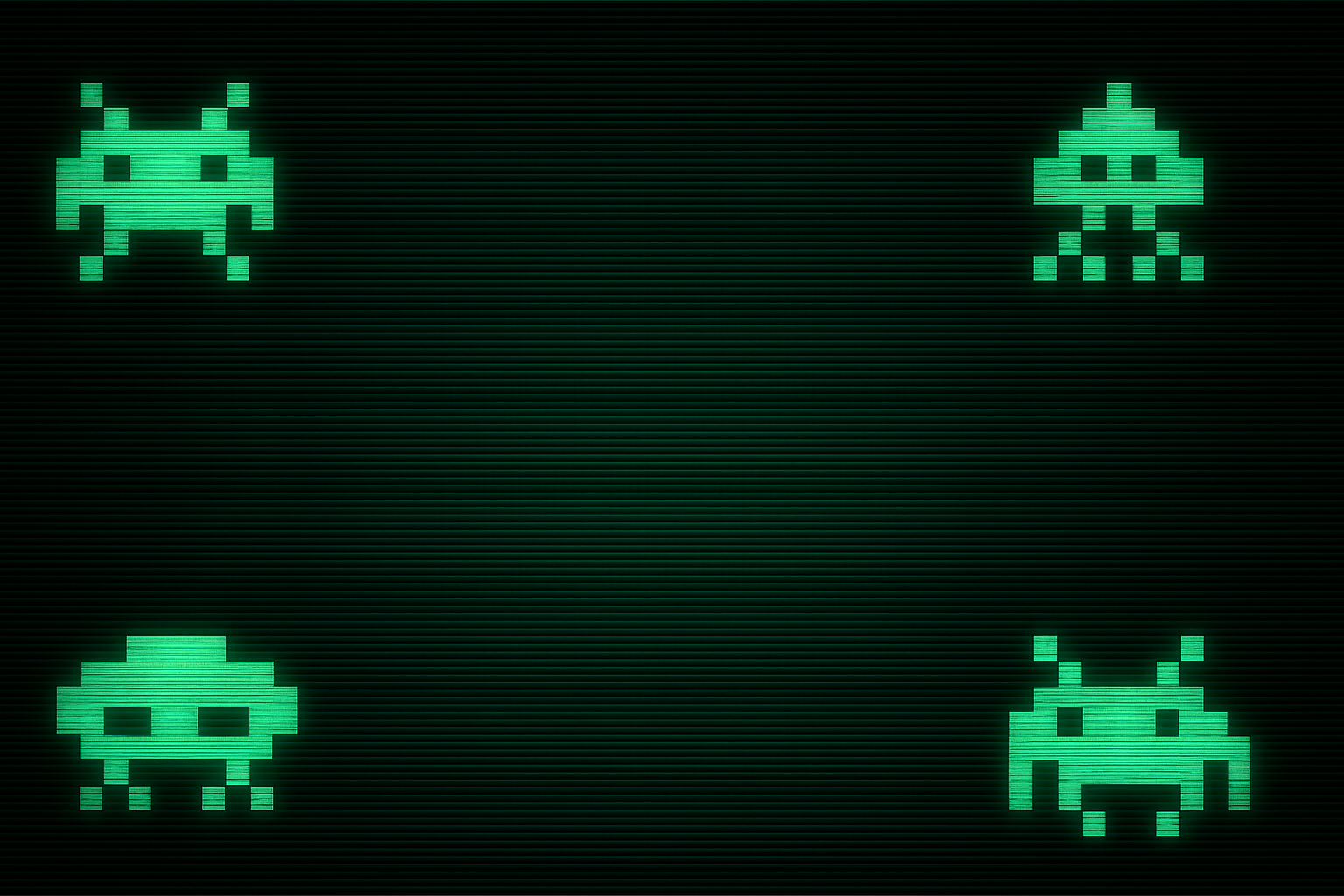
Dive Back to the Glory Days of Pixelated Gaming
Ah, the golden era of arcade gaming—where the bleeps and bloops of machines like Pac-Man and Defender resonated through dimly lit rooms, enticing players into their pixelated worlds. While those days may be long gone, the retro charm of classic arcade screens can easily be recreated in your own digital projects. In today’s Photoshop tutorial, we’re cranking back the time machine and stepping into the art of creating a retro, classic arcade video screen effect that’s perfect for adding that nostalgic touch to any design.
Gather Your Retro Arsenal
Before we start mimicking those old CRT screens, you’ll need a few assets:
- Noisy Scanlines Texture: Produces that classic monitor artifact.
- Space Invader Icons: Classic additions that scream ‘old-school cool’.
- Kemco Pixel Bold Font: For that authentic pixellated typeface.
- Color Texture Pattern: Adds depth to your chromatic scheme.
These resources are your ticket to recreating the arcade vibe. Hunt them down in the video description or supplement them with your own findings from the vast, pixel-populated corners of the internet.
Channel Your Inner Pixel Artist
Start by setting your color palette to black and white, which will lay the groundwork for our retro text. Simply press ‘D’ on your keyboard—this sets black as the foreground and white as the background color.
Now, pick up the Type Tool and select the Kemco Pixel Bold in your Type Picker. The beauty of this font lies in its pixel-perfect precision. Adjust the size according to your message and screen requirements while leaving aliasing as “None” for a razor-sharp style.
Let’s talk text placement. You can choose any alignment you fancy, but centering your text often creates that balanced arcade aesthetic. If you’re tossing in some Space Invader icons, this is the time to decide if they fit your vibe. Not feeling them? Shove them away by hiding the layer.
Building the Retro Foundation
With text at the ready, it’s time to situate it centrally by using the Move Tool. Hit Ctrl or Cmd + A to select everything, and align vertically and horizontally. No stray text character should disrupt the structured nature of a retro masterpiece. For positioning? Hold Shift while dragging to keep your lines straight and true.
Kerning (the space between characters) and leading (spacing between lines) are key in typography. Play around with Alt or Option and the arrow keys for precise kerning. For leading, double-click the type layer’s ‘T’, employ the character panel, and drag that scrubby slider like a retro pro.
From Text to Pixel Art
Transform your handiwork into a Smart Object. This conversion is not just for fancy titles—it allows alterations without losing any pixelated glamour down the line. With a smart object in hand, exploring text or graphic changes becomes a breeze.
Next, it’s gradient time. Slip in a new layer beneath your smart object and apply a radial gradient. Tinker with your gradient by setting the left color stop’s brightness to 65 and the right to 20. Set it to Radial, add a subtle blur via Filter > Blur > Gaussian Blur, and watch your gradient evolve.
Add a Glow (And Then Some)
What’s a retro screen without a little glow? Layer on effects like Inner Glow, Color Overlay, and Outer Glow. Play with blend modes and color fields to layer up that sweet, sweet neon look. The hex codes 91FFCA and 71FFFA are your guides in electrifying your visuals.
Shadows are crucial too—craft a serene white shadow through Drop Shadow settings for that vintage luminance.
The Final Flourishes
Enhance authenticity with a scanlines texture set to Color Burn. This step encapsulates the raw, imperfect display surfaces of yesteryears. Converting it to a smart object ensures it’s as malleable as our text, while a touch of Gaussian Blur keeps the lines natural.
Is the color a bit off? A swift adjustment through Color Lookup and the correct LUT—DropBlues.3DL—will strip excessive blues, swaying the balance toward a classic greenish hue. Lesson the saturation by adjusting opacity to 30%.
Keep Things Dynamic
Need to switch out the text or graphics? No sweat. Access the source content of your smart object, make the necessary changes, and hit save. Photoshop will take care of realigning your new content with all the enhancements and effects intact.
And just like that, you’ve got yourself a retro arcade video screen fit for any project needing a pixel-perfect aesthetic! So, crack open Photoshop, experiment with textures, layers, and settings, and transport yourself back to a time when gaming was raw, thrilling, and anything but perfect.
Feel free to share your finished creations or drop any questions below. Until then, keep creating!





