
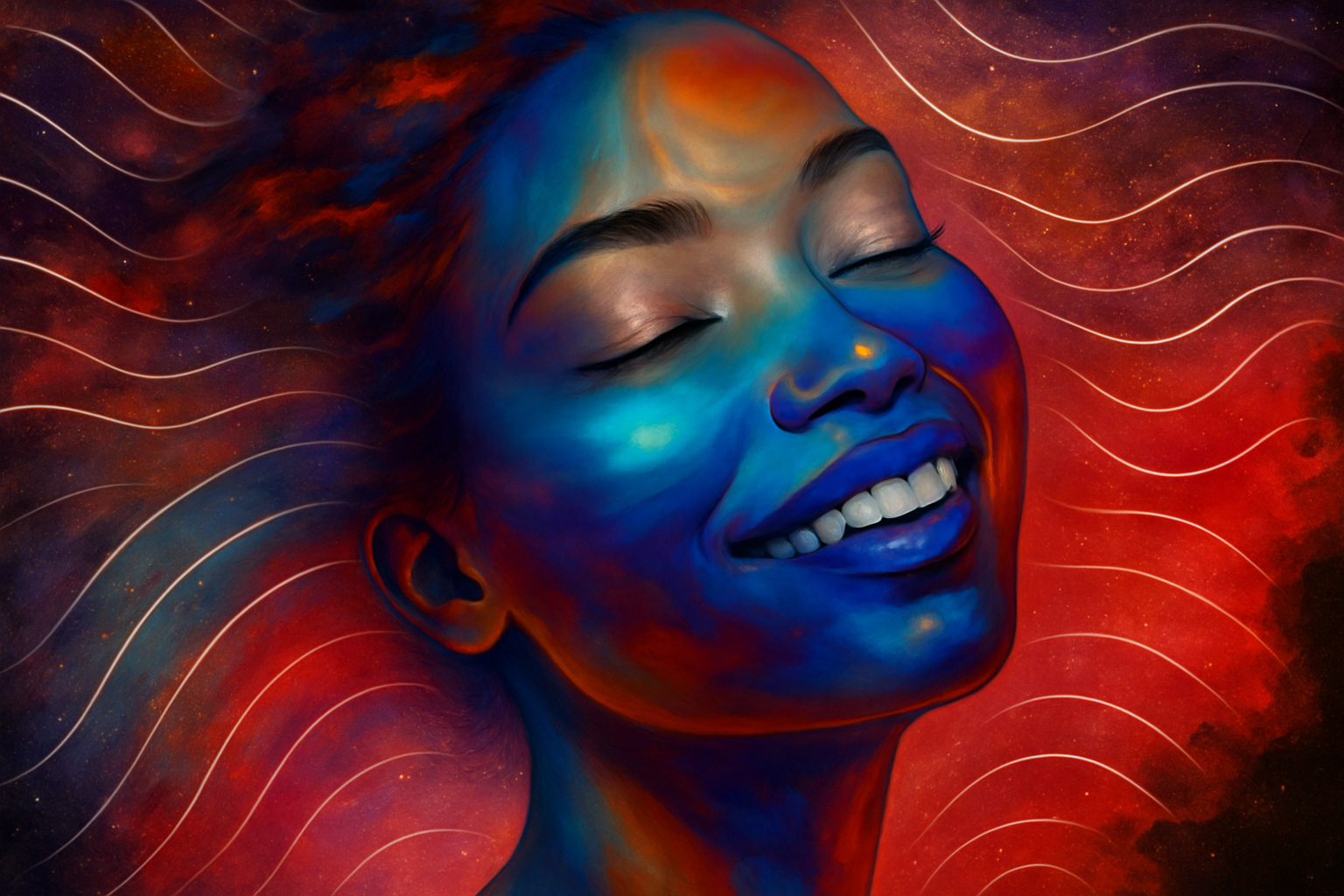
Unleashing Creativity: How to Craft Colorful Illustrative Portraits
In a world inundated with images, how do you make yours stand out? Well, Photoshop, in the hands of a creative genius, can turn a simple photograph into a vibrant piece of digital art. Today, we’ll dive into the enchanting world of colorful illustrative photo portraits—a style that’s as eye-catching as it is unique. This tutorial doesn’t just stop at transforming your photos; it also equips you with the tools to whip up quick and vibrant variations, expanding your creative repertoire.
From Photo to Portrait Art: The Basics
To begin, select a high-resolution, focused photograph as the canvas for your masterpiece. Not sure where to look? Websites like Shutterstock offer a treasure trove of images perfect for creative experiments.
The initial step involves separating your subject from its background. In modern versions of Photoshop, this is a breeze. Simply unlock your background layer and utilize the Properties panel to “Remove Background.” Photoshop’s AI will do the heavy lifting by generating a layer mask for seamless editing.
Harnessing the Power of Smart Objects
Working non-destructively is key to preserving the integrity of your art. Convert your visible image into a Smart Object via the Layers panel’s menu. This magical feature allows for total flexibility and reversibility—a godsend when experimenting with different effects or adjustments.
Mastering Selections and Masks
Selections are the unsung heroes of photo manipulation. Use the Quick Selection Tool to highlight your subject. For a polished finish, refine your selection further by choosing ‘Select and Mask’ or ‘Refine Edge,’ depending on your Photoshop version. Remember to check ‘Smart Radius’ to detect those tricky smooth and sharp edges.
Applying Transformative Filters
Now comes the fun part: infusing your subject with illustrative flair. Head over to the Filter Gallery and explore the ‘Brush Strokes’ folder. ‘Accented Edges’ offers a striking foundation by emphasizing the contours of your subject. Adjust the Edge Width, Edge Brightness, and Smoothness according to your image’s size and resolution for best results.
Textures: Adding Depth and Dimension
To elevate the artistry, incorporate ready-made textures into your subject’s face and hair. These images can be seamlessly integrated by dragging them into your document and using layer masks to confine them to particular areas. Layer blending modes such as ‘Multiply’ or ‘Difference’ provide a spectrum of stylistic options to fine-tune your work’s mood and tone.
Curved Contours: Creating Accent Lines with Precision
For that hand-drawn charm, manually add accent lines that follow your subject’s natural contours. The Curvature Pen Tool, available in Photoshop CC 2018 or later, automatically creates smooth, lovely curves. If you prefer old-school penmanship, the traditional Pen Tool offers an interactive approach, letting you manually adjust anchor points for a personalized touch.
Finishing Touches with Adaptive Blend Modes
With every essential element in place, toggle through your layers’ blend modes to see how each one interacts with your image’s unique characteristics. Blend modes like ‘Overlay’ or ‘Soft Light’ can add the final sheen to your portrait, enhancing texture without overpowering the underlying image.
Embrace the Journey of Iteration
Photoshop’s universe is as vast as your imagination. Each stroke, each filter, paves the way to innumerable interpretations of your original photograph. With these colorful illustrative photo portrait techniques, you’re not just enhancing photos—you’re storytelling through art, infusing emotion, personality, and life into every pixel. So, grab your digital brush and paint the world as you see it. Keep exploring, keep iterating, and who knows? You might just stumble upon your signature art style.
Inspired to try this out? Don’t just admire—create. Sure, it might take some tinkering, but that’s where the magic happens. After all, every great artist once started with a single brush stroke. Enjoy the process, embrace the creativity, and watch as your portraits come alive with color and character.





