
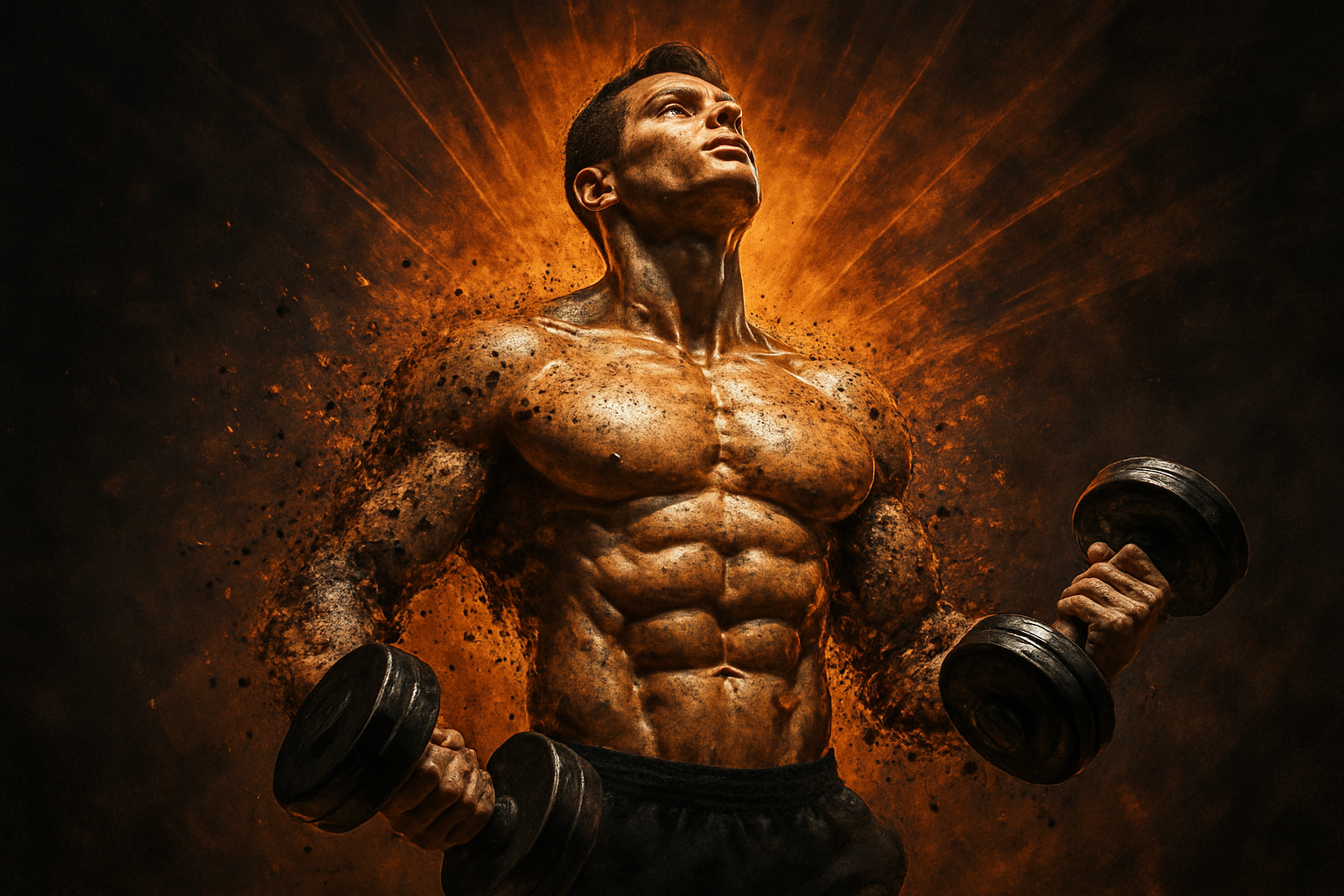
Create Mesmerizing Art with the Radial Dispersion Effect
Do you crave visually-stunning effects that make your artwork explode (pun intended) with energy and dynamism? Look no further! Today, we’re diving into the powerful world of radial dispersion effects—an innovative technique that breathes life into your images, making them appear as if they are bursting with movement and energy. If you’re seeking a unique method to enhance your digital art, this one’s for you.
Getting Started: Tools and Resources
First things first, let’s prep for our mesmerizing digital adventure. You’ll need a photo to work with. For demonstration purposes, we used one downloaded from Shutterstock. And, to make life easier, there are three custom brush sets: explosion, powder, and broken glass. These downloadable brushes (details available in the YouTube video description) add layers of texture and depth to the dispersion effect.
Unlocking the Potential of Your Image
The initial step in creating the radial dispersion effect is separating the subject from the background. Depending on your version of Photoshop:
- Photoshop CC 2020 or Later: Click the lock icon to unlock your photo. Navigate to the Properties panel and select Remove Background to automatically create a layer mask of your subject’s shape.
- Photoshop CC 2018 or 2019: Utilize the Quick Selection Tool and hit Select Subject.
- Earlier Versions: Manually drag the Quick Selection Tool over your subject.
Once your subject is neatly cut-out, make a copy, hide it, and revert to the original.
The Radial Blur Effect
Creating the radial blur is where the magic happens:
- Add a new layer under your subject, fill it with black, and make sure your foreground color is set correctly—press D if not.
- Navigate to Filter -> Blur -> Radial Blur. Set the Amount to 100, choose Zoom as your Blur Method, and maintain the Quality at Best.
- Duplicate this process multiple times for a consistent effect. Use Ctrl + Alt + F or Cmd + Ctrl + F up to nine or ten times.
To intensify, duplicate your radial blur layer and merge them as you go.
Adjusting Brightness and Blend Modes
Now, let’s enhance your image’s allure by playing with levels and blend modes. Click the Adjustment Layer icon, set it to Levels, and use the following for Input Levels:
- Black: 20
- Midtones: 1.2
- White: 120
Transform this into a clipping mask so it only affects the radial blur layer. Combine these adjustments and switch their Blend Modes—Hard Light for intensity and Overlay for subtle depth.
Adding Textures: Smoke and Explosion
Pack your new creation with immersive textures:
- Create a new layer named Smoke and select the Powder Brush set. Scattering powder effect in strategic spots can draw attention and add ambiance.
- Next, utilize the Explosion Brush set for disguised transitions and extra flair.
- Modifying the brush specifics, such as Angle Jitter and Spacing within the Brush Settings panel, enables personalized creative control.
Layer Manipulation for Dynamic Results
Continue to refine by adjusting your layers:
- For the smoke layer, click and apply the brushes that mimic smoke and explosion.
- On the Overlay layer, use the broken glass set to create a shattering effect.
- Rotate layers for additional effect, dropping opacities, or flipping them to create diverse, dynamic adjustments.
Final Touches
Once you’ve meticulously brushed up your art, it’s just about stepping back and letting the creativity simmer. Feel free to revisit and rework any segments—it’s all about your unique artistic touch.
This is the ethos of Blue Lightning TV: meshing practical technique with creative flair. Don’t just take our word for it—experience it yourself. If you’re keen for more Photoshop masterpieces, subscribe for more captivating how-tos just like this. Feel free to check out these rich textures and vibrant dispersions, and let your visuals soar to new heights!





