
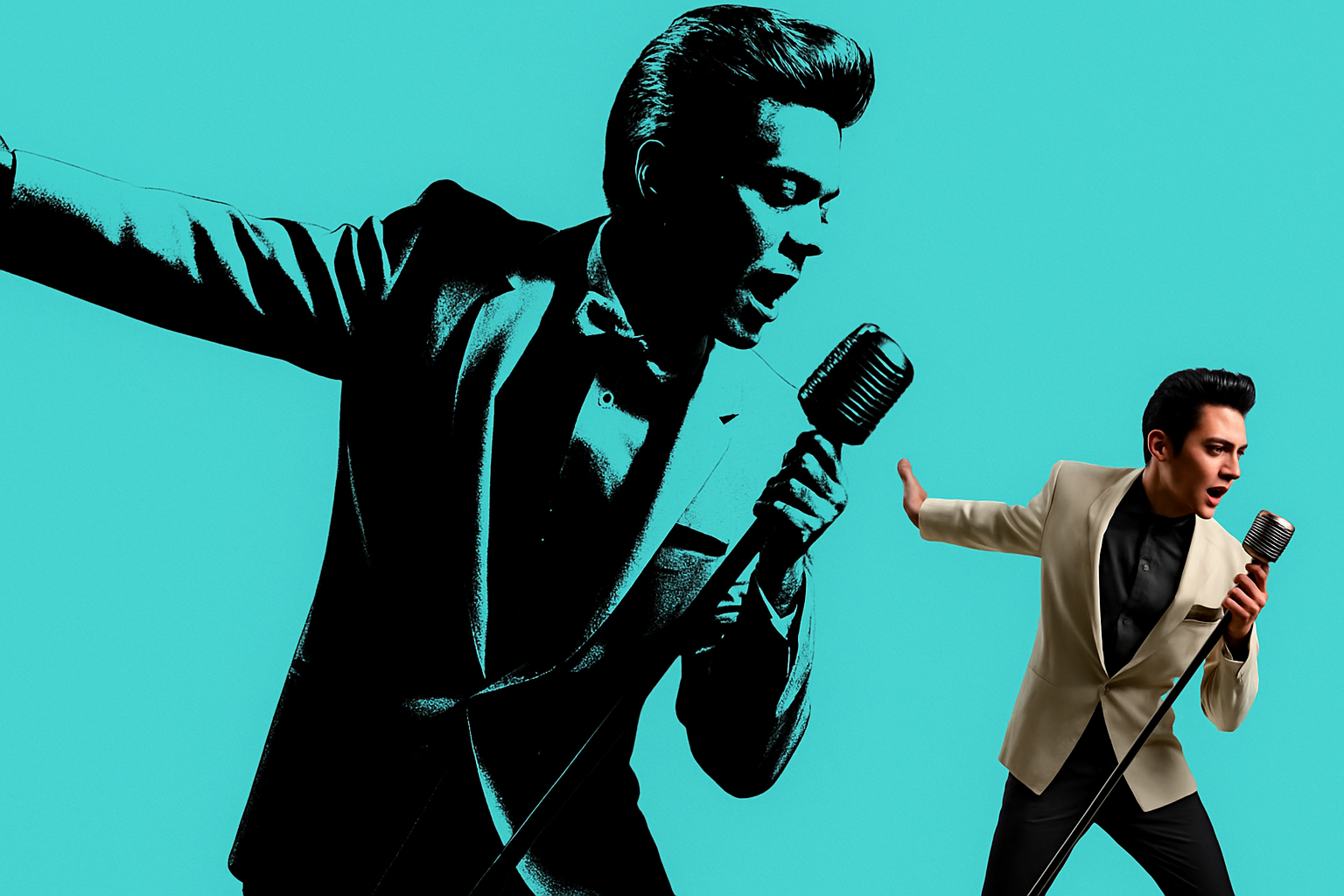
Unleashing the Vibrant World of Pop Art
The pop art movement has dazzled us with its bold colors, striking contrasts, and iconic imagery. With its roots deeply embedded in popular culture, it’s a style that demands attention and leaves a lasting impression. But have you ever wondered how to capture that nostalgic yet vibrant essence in your own digital portraits? Enter the realm of Photoshop magic—where photo editing meets artistic transformation.
With just a few modifications, your photos can morph into a classic retro pop art portrait, evoking the legendary works of Warhol or Lichtenstein. This approach is not only cool—it’s nostalgic, fun, and sparks a creative vibe like no other.
Start with the Perfect Canvas
To begin your journey into pop art, the first step is finding the right photograph. Whether it’s a picture of yourself, a friend, or your favorite pet, choosing an image with a clear subject and contrasting background will set you up for success. If you’re looking for a stock image as a starting point, consider platforms like Shutterstock that offer a vast array of high-quality images.
Make That Subject Pop
In Photoshop, the key to turning your everyday photo into a pop art masterpiece is separating your subject from its background. Utilize the Quick Selection tool—especially if you’re using CC 2018 or later—to analyze your image and automatically select your subject. For those with earlier versions, dragging the tool across your subject will achieve the same result. A few clicks with the Alt or Option key will help tweak your selection to perfection.
Once your subject stands proud without its original background, you can create a layer mask, essentially cloaking unwanted areas while protecting your subject.
Smart Objects: Your Non-Destructive Allies
Transforming your image into a Smart Object is like etching your edits in sand rather than stone. This feature allows for non-destructive modifications, meaning every change is reversible. Convert your cropped and masked image into a Smart Object by using the context menu—a simple yet essential step in retaining your creative flexibility.
Define and Enhance with Thresholds
The lining on the cake—threshold adjustment—is where your photo transitions into high-contrast black-and-white. This tool converts all pixels lighter than a set threshold to white and darker pixels to black. It’s a toggle of artistic allowance: Do you lean towards a more pronounced contrast or a softer interplay of shades? Either way, with a Smart Filter, adjustments can be fine-tuned to your liking without a sweat.
Layering for Depth and Detail
Pop art isn’t flat—it thrives in layers. By duplicating your threshold layer, you can manipulate details further. Drag the threshold slider to enhance detailed areas, like flowing hair or intricate patterns, revealing them gradually through your stencils—layer masks. Adjust these selectively to maintain artistic control and add depth.
Infuse with Color
Now, it’s time to bathe your image in the vivid colors synonymous with the pop art style. Enter the Gradient Map, where you can colorize your artwork. Toggle between white and your chosen colors to watch your monochrome creation burst into life. This method offers you real-time color visualization, ensuring no surprises—only happy little accidents, as Bob Ross might say.
The true magic lies in your hands—pick colors that scream your style or whisper in harmony. The cheerful yellows, the audacious reds, or the calm blues—the palette is your playground.
Final Flourish
The final phase of your pop art odyssey is refining. Conjure a snapshot of all layers combined, then wage war on any unwanted spots or blemishes with precision. This meticulous clean-up, albeit the unglamorous part of the process, ensures your final piece is exhibition-ready.
In transforming a simple photograph into a pop art portrait, you aren’t just editing an image. You’re crafting vivid nostalgia. Who knew channeling the essence of pop culture could be this straightforward? Now, you can strut that unique pop art piece—the glorious collision of past and present.
The pathway to creating iconic, pop art imagery isn’t merely technical—it’s an exhilarating journey through color and contrast, placing your creations alongside those legendary, illustrious pieces of art history. So why not go forth? Paint that digital canvas with the heart of pop art.





