
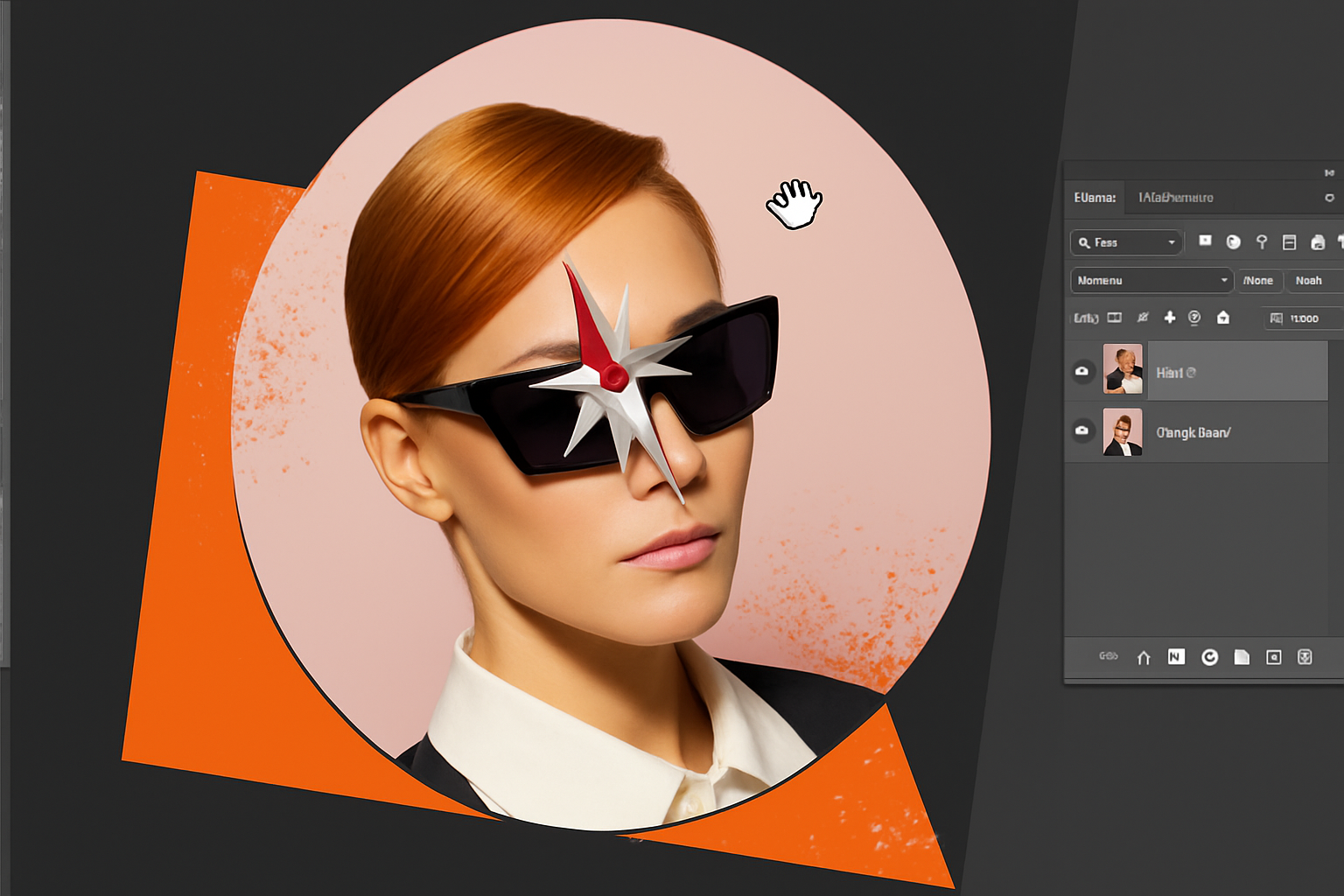
Change Your Perspective with a Simple Keyboard Shortcut
If you’ve ever wished for a way to rotate your canvas while working on an image in Photoshop, it’s time to rejoice. This seemingly simple trick can significantly enhance your workflow, especially if you often find yourself needing a different perspective or alignment for intricate designs. Don’t let your creative process get caught in a rut; let it roam freely with the R key.
The Magic of the R Key: Instant Canvas Rotation
When you’re deep in your creative zone, the canvas you’re working on is your universe. And sometimes, you need to tilt that universe to get just the right angle for your creative stream. This is where our friend in Photoshop, the ‘R’ key, plays its role. By pressing and holding the R key on your keyboard, you can seamlessly rotate your canvas to see your work from different angles.
Why should you care? Well, particularly when using a custom brush tool, the ability to rotate your canvas comes in handy. For instance, if you want to stamp a brush on the opposite corner of your canvas, but desire the brush to be flipped around, you have two options: either rotate the brush itself, potentially resetting your settings, or you can simply rotate your canvas.
Applying the Rotation: A Practical Example
Imagine you’re using a custom brush and need it flipped 180 degrees for the perfect effect on the other side of your image. You have two ways to achieve this:
- Option 1: Open your brush tool and rotate the brush circle by 180 degrees. While effective, this can disrupt the aesthetic flow of your brush strokes.
- Option 2: The hassle-free method—rotate your canvas with the R key, and hit ‘B’ to bring back your brush tool. Voilà! Your creative workflow remains intact, and your artistic vision is unhindered.
Resetting Your Canvas: The Shift + R Solution
Once you’ve rotated your canvas and achieved your creative goals, it’s important to know how to snap your canvas back to its original state. As you continue to rotate with ease, pressing and holding Shift + R returns your canvas to its default position. This ensures that any adjustments are temporary and non-destructive to your original view.
Enhancing Brush Dynamics
Did you know that if you drag in either of the dots appearing on your brush circle, you can squeeze in or distort the shape of your brush too? Talk about having painting agility right at your fingertips. This is especially powerful when trying to adapt different textures or similar brush effects without leaving the present mode, making everything about your brush strokes dynamic and reactive.
For those feeling enlightened by this neat trick, don’t forget to click that like icon and subscribe for more Photoshop quick tips and tutorials. Your creativity deserves to expand beyond boundaries, and we’re here to make sure it does. Whether it’s finding shortcuts or unraveling hidden gems within Photoshop, we aim to maximize your creative potential without the headaches.
Remember, the universe of digital art is vast and ever-changing. So stay curious, keep experimenting, and let your creativity flow.
Stay creative, folks!





