
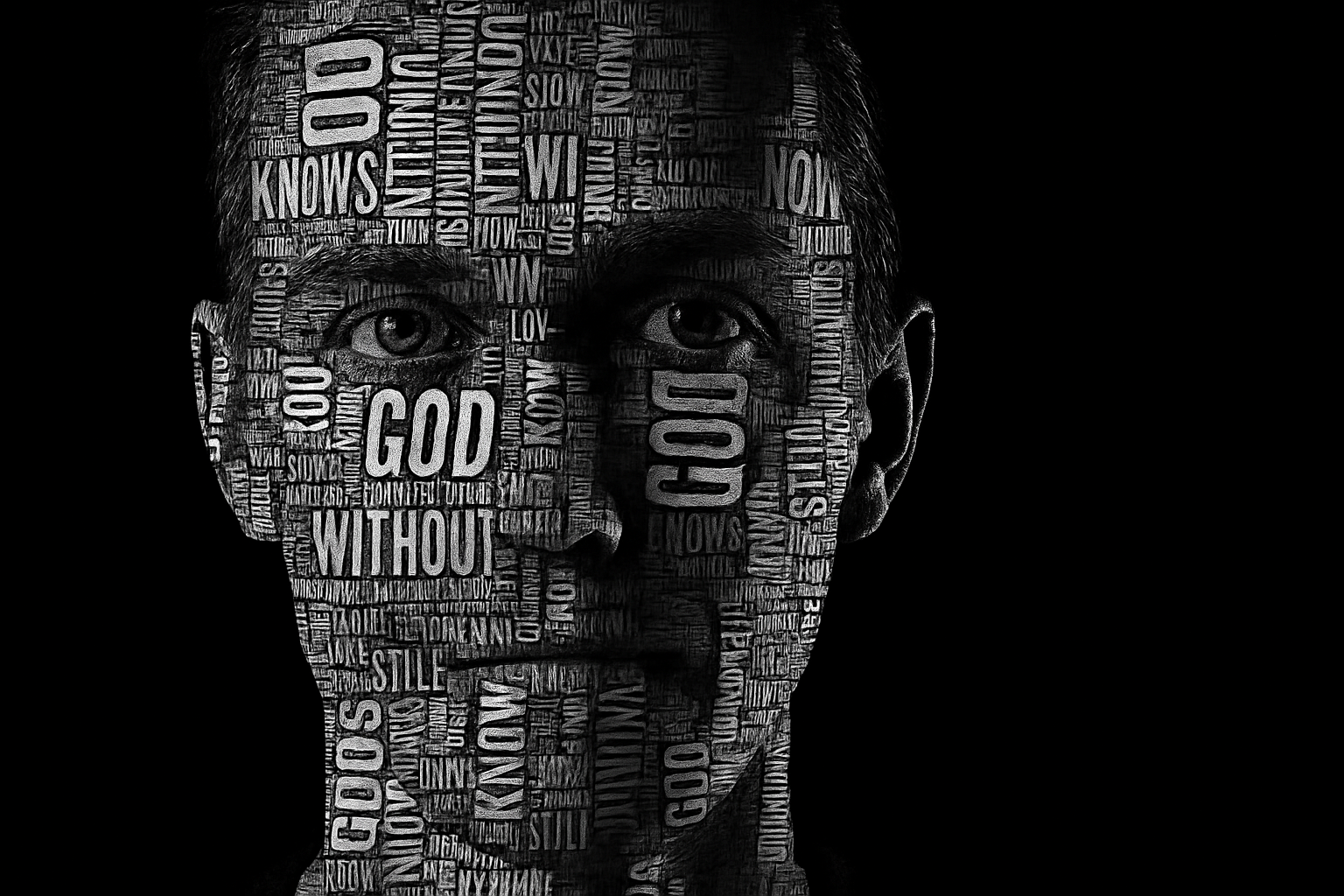
Transform Your Photos into Artistic Masterpieces with Word Cloud Text
Ever fancied turning a regular photo of a face into something truly artistic—something that not only reflects an image but also resonates with words neatly arranged in the likeness of its contours? Welcome to the world of text portraits with word clouds, a nifty technique that’s both head-turning and surprisingly straightforward. Let’s dive into how you can impressively transform your photos into wordy art pieces using word clouds, blending tech and artistry like a pro.
The Buzz Around Word Clouds
At its core, a word cloud is essentially a fun visual representation of text data, where the importance of each word is shown with font size or color. What’s cooler than scattering words artistically around your favorite photo? Whether you’re writing lyrics, a motivational quote, or just reiterating your favorite words, word clouds can add that extra zing to personal projects.
Step-by-Step Text Portrait Creation
- Select Your Photo: Start with a clean, high-resolution image of a face, preferably with some distinctive shadows on one side to accentuate the text effect. Black backgrounds work wonders here—or you can manually adjust your photo’s background to black for optimal contrast.
- Refine the Subject: Next, refine the edges of your photo. Photoshop’s Quick Selection tool and its subject selection gimmick are your best friends here, especially if your version is newer than CC 2018. Older versions can use the Refine Edge tool to tidy up feathery areas, like hair, with finesse.
- Create a Displacement Map: Crafting a displacement map is crucial since it curves your text beautifully around the photo’s contours. Blur it slightly to ensure a seamless fit later on.
Generate the Word Cloud
For this tutorial, we’re leveraging the magic of WordArt.com—a nifty and user-friendly site to whip up word clouds.
- Text Selection: Pick a text base—it could be lyrics or a quote that resonates. Paste your selection into WordArt, turn on a few parameters, and voila! The platform intelligently sizes words according to their frequency.
- Design the Word Cloud: Customize your cloud! From font styles to layout and color selection, you have plenty of control. Make use of the high-contrast black-and-white scheme for a dramatic effect.
Integrate Word Cloud into Your Photo
- Pattern Creation: Once your word cloud is ready and saved, make it into a repeating pattern by smartly cropping around the text.
- Overlay with Photo: Apply your pattern over the face silhouette using Multiply blend mode to ensure it melds naturally into the photo. Adjust brightness and contrast for added depth.
- Word Wrap Effect: Use displacement techniques to make your text contour perfectly around the subject’s features. Adjust horizontal and vertical scales to your liking!
Final Artistic Touches
A wordy face needs a finishing flair. Adjust layer opacities, tweak contrasts, or add an artistic color overlay to achieve the perfect look. Did someone say second displacement map? Yes, please! It’s the chef’s kiss of artistry—adding nuance by playing with rotations and even more personalized touches.
Becoming a visual storyteller through text and image has never been easier. With some creativity and a sprinkle of Adobe magic, your ordinary photos can become spectacular narrative pieces. So, let the words flow and bring your unique message to life with this text portrait technique. Snap, click, and create your world through words like the digital artist you are!





