
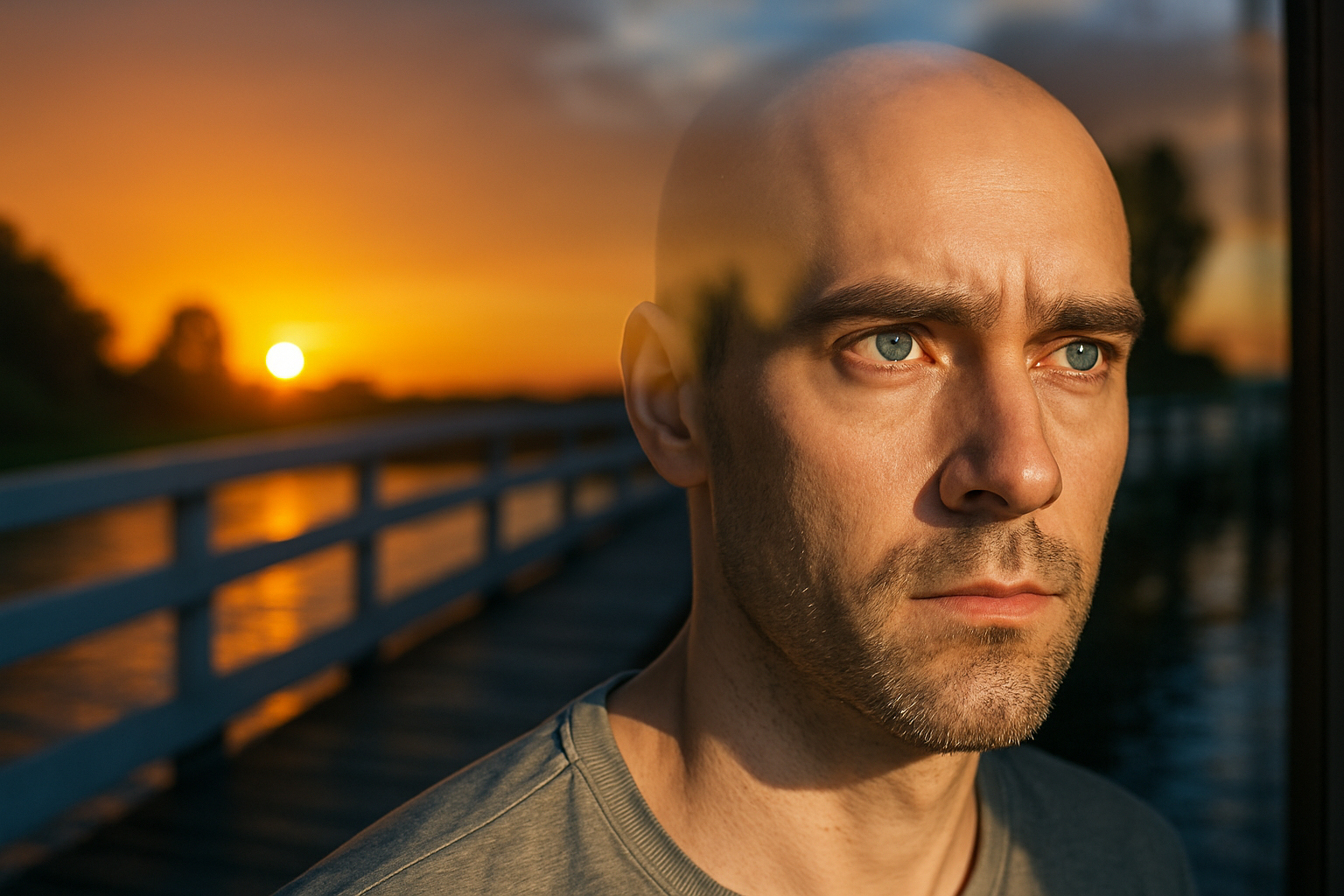
Bring Your Images to Life with Glass Reflection Effects
Ever wondered how to make a photo look like the subject is peering through glass, with the outside world artfully reflected on that glass? Well, buckle up, because we’re diving deep into this Photoshop technique that will transform your images from mundane to mesmerizing. It’s time to get those creative juices flowing and make your photos pop with reflection magic.
The Secret to Reflections: It’s All About Darkness
To start, you’ll need a photo of a subject with a background that’s predominantly dark. Why the darkness, you ask? Because the magic of reflections happens best against those shadowy backdrops. They allow the external environment—a whole other image—to reveal itself through the “glass” with stunning clarity.
Open up your desired photo in Photoshop. Once you’re ready, grab an external environment image that you want to be reflected onto this “glass.” From bustling cityscapes to serene natural vistas, your choice sets the stage for creating this illusion.
Placing Your Environment: The Move Tool is Your Friend
Now that you have your images at the ready, it’s time to merge the two worlds. Use the Move Tool (shortcut: “v”) to drag the external environment image onto the subject’s canvas, making sure it covers the subject entirely. Reduce the opacity to see where you’re heading and help align everything perfectly. While you’re at it, resize the external photo with the Transform Tool (Ctrl or Cmd + T) and position it just right.
Here’s a nifty tip for versions older than Photoshop CC 2019: hold down Alt or Option + Shift while resizing. If you’re on the later versions, just Alt or Option will do the trick.
Non-Destructive Editing: The Role of Smart Objects
Once your environment is in place, crank the opacity back to full throttle. Convert that photo into a Smart Object. Why go smart, you ask? Smart Objects allow you to edit non-destructively, meaning all your tweaks and experiments remain as tweakable and non-permanent as you wish.
Embracing the Blur: A Peek into Photoshop’s Blur Gallery
If every inch of your environment image is in focus, creating a sense of depth becomes crucial. Enter the Blur Gallery. Navigate to Filter > Blur Gallery > Tilt-Shift. Here, Photoshop lets you blur further away elements, enhancing the illusion of depth.
If Tilt-Shift is grayed out, fret not. Adjust your image mode to RGB color with 8 bits per channel. Still seeing zilch? Enable all Filter Gallery options under Preferences > Plug-ins.
When inside Tilt-Shift, get familiar with the solid and dashed lines. Areas between the solid lines remain sharp, while transitions to blur occur between the solid and dashed lines. Spin that Blur Ring, and watch as the outside world fades elegantly into the background.
Customization: Brushing Technique for Enhanced Focus
If any portion of your background intersects with the foreground, Smart Filters have got you covered. Utilize their accompanying Layer Mask to brush back focus onto those areas seamlessly. Nab a soft, round brush, keep its hardness to 0%, and set opacity around 35%. Gently brushing over intersecting regions brings back the original, unblurred background.
The Final Flourish: Color Adjustments for Seamless Integration
For the cherry on top, ensure that the subject harmonizes with this reflective marvel. Temporarily transition your subject into a Smart Object, then introduce color adjustments. Consider dabbling in “Shadows/Highlights” under Image Adjustments to unveil those shadow-hidden details.
Next, replicate any external Camera Raw adjustments like Dehaze onto the subject and integrate them. When all adjustments sit just right, bring back visibility to your reflection layer and adjust it using a “Screen” blend mode. Set the reflection opacity to anywhere around 70%—personalize until it screams perfection for your composition.
Lighting Magic with Photo Filters
Match your subject’s hue with the scenic backdrop using Photo Filters. With options ranging from “Warming Filter (85)” to cooler tones, tweak densities to blend the subject flawlessly into your digital diorama.
And just like that, you’ve executed a visual symphony that even the sternest art critics would admire. Unleash your inner Photoshop maestro and masterfully transform your images into masterpieces with the courageous glass reflection effect. Now go on, create, and conquer those pixels!





