Unveiling the Elegance of Marble Carved Text with Photoshop
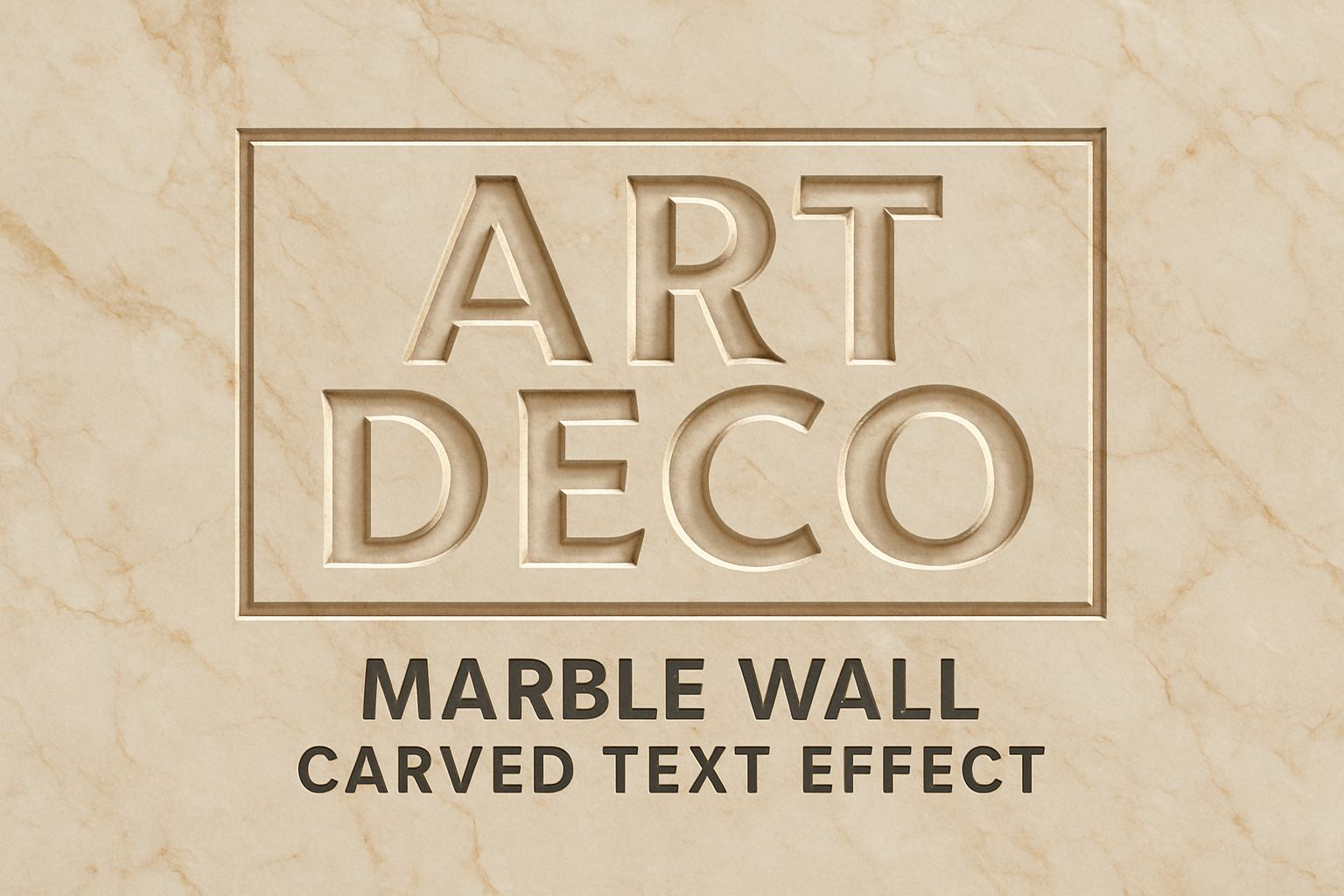
Turn your digital projects into timeless pieces of art by mastering the look of dramatic carved text in marble using Photoshop. In this guide, we’ll explore the intricate process of transforming mere text into a visually captivating spectacle, resembling classic engravings on a luxurious marble surface. If you’re an enthusiast of digital artistry, this tutorial is tailored just for you.
Getting Started with the Basics
To begin, you’ll need the right texture to simulate the look of marble. Our video provides a link to download a high-resolution marble texture that serves as the canvas for your carved text. Once you’ve acquired your texture, it’s critical to make a copy of it in Photoshop by pressing Ctrl (Cmd for Mac) + J. This duplication allows you to manipulate the layers without affecting the original image.
Choosing the Perfect Font
Selecting the right font is crucial for achieving the classic carved effect. For this demonstration, we suggest using “Selznick Normal NF Regular.” Not only does it add sophistication, but it also ensures your text remains prominent even after the effects are applied. Setting the font size to a robust 275 points helps maintain the text’s impact, ensuring no details are lost when you later emboss and cast shadows.
Centering Your Design with Precision
Aligning your text in the center of your document is another vital step. Using the Move Tool, you can achieve a precise center alignment by selecting your text layer and pressing Ctrl/Cmd + A. Then, click both the Align Horizontal Centers and the Align Vertical Centers icons. This technique keeps your text perfectly centered, critical for a harmonious design.
Sculpting the Frame: The Foundation for Depth
Creating a frame around your text adds to the illusion of depth, mesmerically drawing attention to your focal message. Activate the Rectangle Tool within Photoshop, select “Shape,” and set your stroke color to black while keeping the fill color absent. Customizing the stroke width and corner options further enhances this effect.
Ensuring your text doesn’t spill over the boundaries of the elegant frame involves using guide lines strategically. Use rulers to set these guides, which align your frame perfectly around the text, maintaining clean edges.
Emphasizing Details with Bevel & Emboss
The “Bevel & Emboss” settings in Photoshop are what truly shape your text into exquisite carved stone. Adjust the inner bevel, technique, and size settings until you find the perfect combination that gives your text the chiseled appearance of a master sculptor’s handiwork.
Similarly, apply these settings to both your text and frame for a uniform look that amplifies the three-dimensional illusion. Adjusting the lighting via Highlight and Shadow Modes adds richness and realism, further immersing viewers in the illusion.
Shadow Play: Enhancing the Marble Aesthetic
The interplay of light and shadow is critical to mimicking the real-world look of carved marble. By layering inner shadows on your marble texture, you can replicate the appearance of light casting delicate yet stark shadows within the carvings. Varying the opacity, distance, and size of these shadows ensures they appear naturally formed.
For that extra depth, add multiple inner shadows with varying degrees of opacity. This trick helps simulate the range of shadows found in real-life engravings, where the light source softly cascades over the intricate details.
Bringing Highlights and Angles into Focus
To enhance realism, consider introducing additional light sources that strategically brighten or dim certain parts of your design. This technique adds drama and mimics the way light interacts with marble.
Finally, by transforming the perspective, you can shift the angle of view, inferring a vantage as if observing the work from below. It creates a sense that the text is towering above, further enhancing the dramatic effect.
Concluding Thoughts
Creating dramatic carved text in marble using Photoshop opens a world of possibilities for digital artists and designers. Whether you are designing a logo, a headline, or a digital art piece, mastering this technique allows you to add sophistication and timeless elegance to your projects.
Engage with this tutorial to unlock not just a skill, but the ability to infuse your work with a touch of classic artistry. With each step—from text alignment to beveling and shadow manipulation—you’re crafting an illusion that is as mesmerizing digitally as it would be in a physical stone medium.
Embrace the creative potential of Photoshop, and let your projects speak with the weight and allure of carved marble. Happy crafting!