
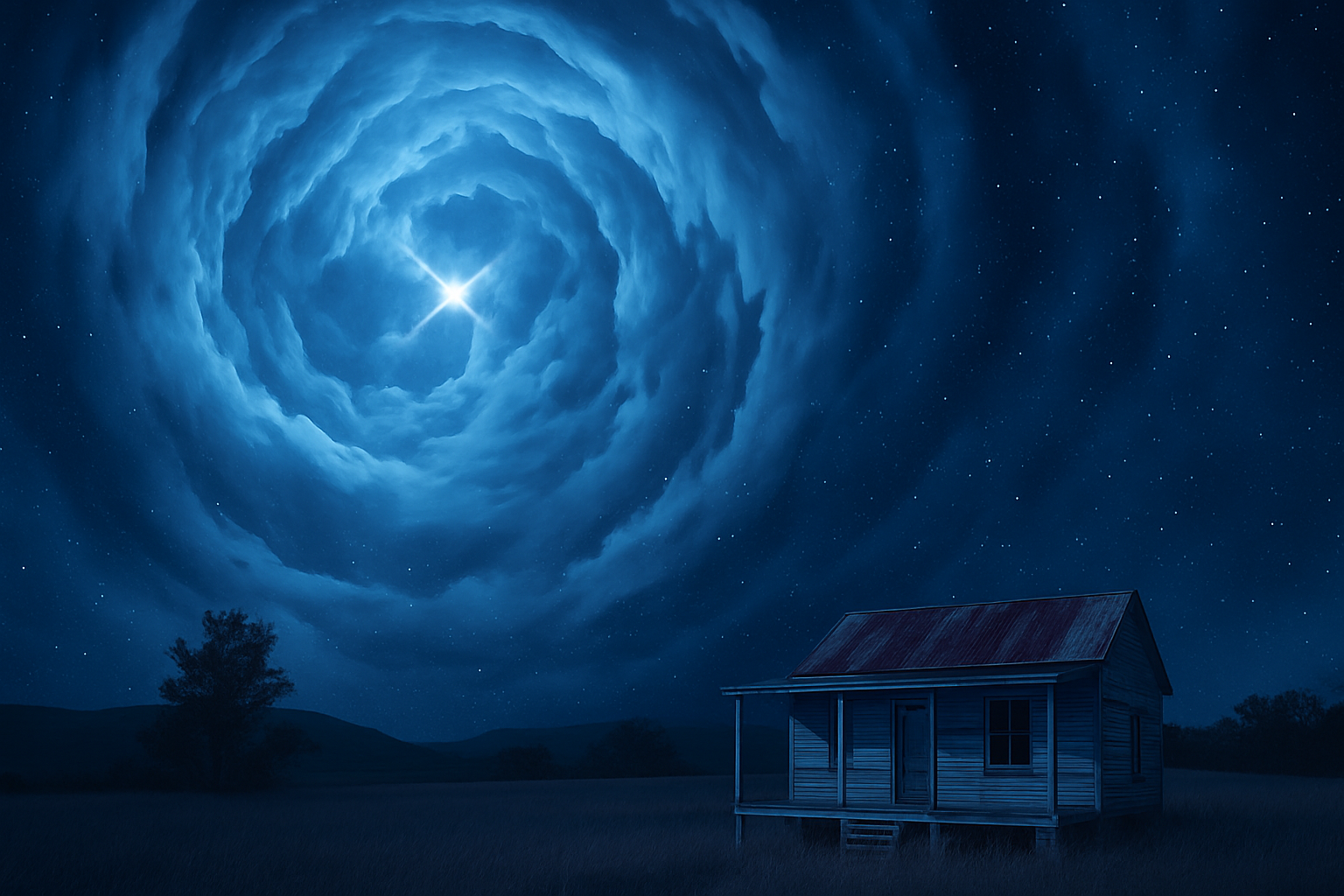
Dive Into the Universe of Photoshop With This Sci-Fi Wormhole Effect
Do you think your Photoshop skills are out of this world? Well, prepare to take them to another galaxy. Today, we’re going hands-on with a unique tutorial that will guide you, step-by-step, on how to create a breathtaking sci-fi wormhole effect that’s bound to amp up your design portfolio.
Begin With Your Base Images
Before we blast off into the editing realm, let’s gather our essential resources. You’ll need two images: one of clouds and another of a tiny shack under the night sky. These images form the canvas where you’ll paint your wormhole masterpiece. You can download these images from the links provided below the video description or from the project files.
Separating Sky From Landscape—A Love Story in Photoshop
Separating the sky from the landscape can be tricky, especially when dealing with dark images. It’s like trying to break up the longest-standing celebrity couple in Hollywood—messy without the proper tools. Photoshop’s “Quick Selection Tool” is here to save the day. Make a copy of your original image using Ctrl (Cmd) + J, and then adjust the levels (Ctrl (Cmd) + L) to distinguish the landscape clearly. After our friend “Quick Selection Tool” does its magic, invert that selection (Ctrl (Cmd) + Shift + I) and refine the edges.
Sky’s the Limit… or Is It?
Bring in your crop tool to adjust the aspect ratio, providing ample sky space for your wormhole. Add some black on the new area of your layer mask—this acts like a mysterious black hole waiting to engulf the universe.
Unleash the Wormhole Effect
With all the cosmic dust-stars aligned, we move forward to transform your clouds into a wormhole effect. By distorting the cloud image, you use the “Polar Coordinates” tool, flipping it from rectangular to polar. Once you get the hard line, feather it with the lasso tool and smooth it using the clone stamp.
Enhancing the Wormhole’s Drama
Double up your wormhole, reduce the opacity, rotate it 180 degrees, and merge the layers. It’s important to desaturate the colors (Ctrl (Cmd) + Shift + U) and get into the levels vortex to adjust its intensity for dramatic effect.
Add the Cosmic Shine
To really dial up the sci-fi, let’s introduce a brighter center with curves adjustment and a more vivid landscape through color lookup filters like “Moonlight 3D.” Ensure the vibrancy doesn’t make the landscape look like a misplaced Instagram filter by balancing it with layer masks.
Light Years Ahead… With Stars
What’s a galaxy scene without stars? Add some noise to emulate cosmic particles and blur through gaussian blur at just 1 pixel to keep it subtle. Using levels, customize the stellar appearance and adjust the gradient to fade stars towards the horizon.
The Final Touchdown
Finally, layer up your cosmic elements by rendering the wormhole onto the canvas of the night landscape. Adjust for proportions with the transform tool, ensuring everything sits right where it belongs.
And voila! With all elements in place and a touch of creative genius, you have successfully created a mind-bending sci-fi wormhole effect in Photoshop. So pull out your space suit, creatives, and get ready for takeoff. These techniques will transform not only your skills but also your perception of creative possibilities in digital art.
Now go forth and sprinkle your cosmic creations across the universe of internet portfolios. In the world of design, there truly are no limits, so keep exploring!





