
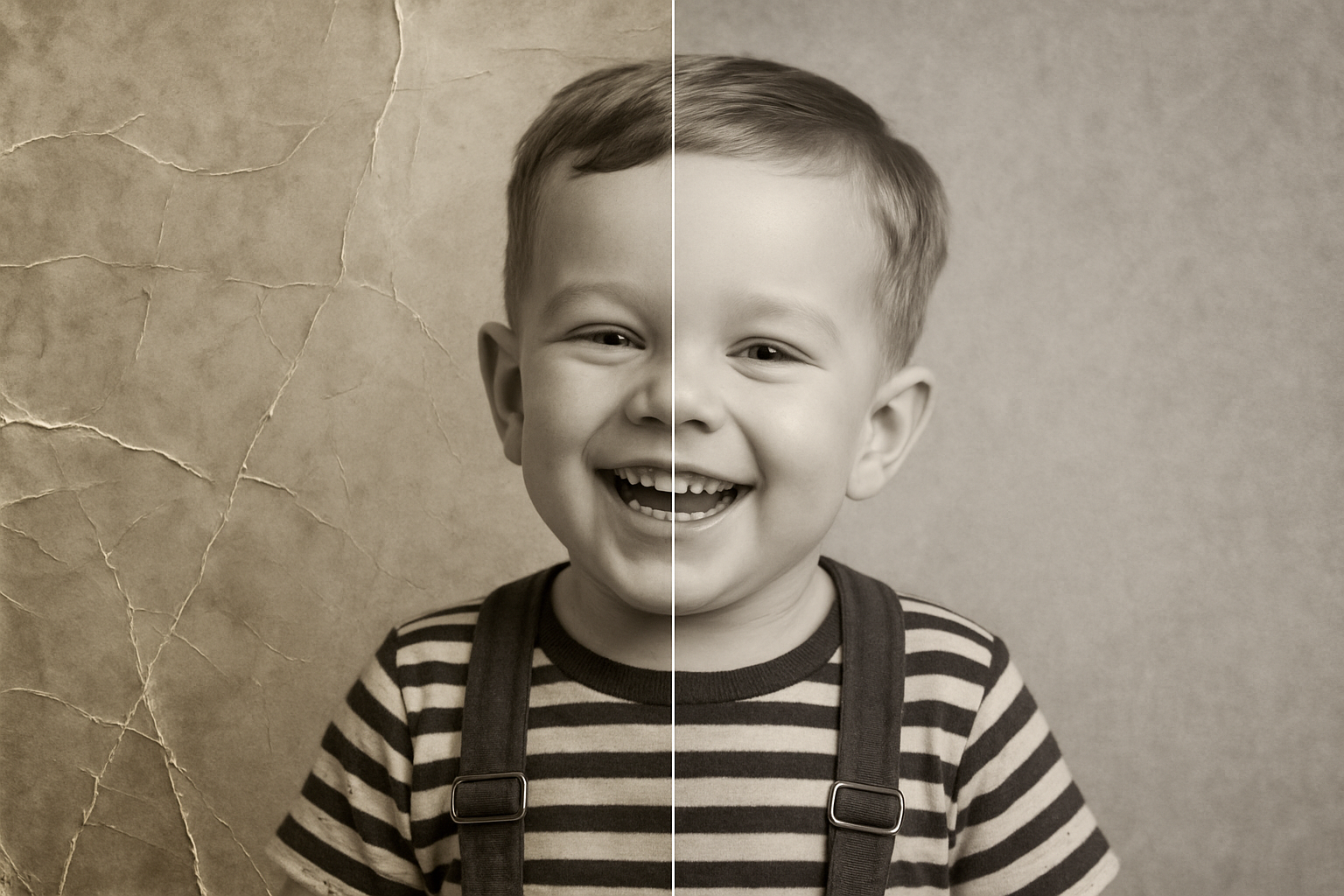
Unlocking the Secrets to Restoring Vintage Photos
Ah, the charm of the old black and white photograph—a window into the past, capturing moments long gone. Unfortunately, time hasn’t always been kind, leaving our treasured images marred by creases, cracks, and tears. Fear not, fellow nostalgics and creative maestros, for today we dive into the artistry of photo restoration, revealing how to transform these relics into pristine works of art using the power of Photoshop.
The Glamorous Yet Tedious Journey of Restoration
Restoring old photographs is a delicate blend of art and patience. The process is relatively simple once you get the hang of it, but brace yourself for a time-consuming endeavor. The magic lies in your mastery of four vital tools: the Spot Healing Brush, Healing Brush, Patch Tool, and the Clone Stamp Tool.
Getting Started: The Initial Touch-Ups
Begin your photo restoration adventure by tackling the basics. First, remove any undesired color cast by desaturating your image using Ctrl (Command on Mac) + Shift + U. This step will give your image a neutral base. Next, tweak its brightness and contrast for optimal visibility. Open the Levels window by tapping Ctrl (Command) + L, and adjust the sliders to ensure shadows and highlights aptly frame the details of your photo.
The Workhorses of Restoration
Let’s break down the key players in your Photoshop toolbox:
- Clone Stamp Tool: The unsung hero of photo restoration allows you to copy specific areas of your image to seamlessly patch over imperfections. Simply hold
Alt (Option)and click to define your sample area. Once set, paint on top of blemishes as if wielding an invisible brush. - Spot Healing Brush: This ingenious tool uses content-aware technology to blend the selected area with its surrounding texture. Perfect for small imperfections like creases.
- Healing Brush: Much like the Spot Healing Brush, but with manual sampling. Define your source point near an imperfection with
Alt (Option) + Click, then gently swipe over the flaw. - Patch Tool: A favorite for dealing with larger problem areas—draw around the patch to be fixed and drag it over a clean area. Photoshop will apply magic to blend and replace.
Noise Reduction: Making the Magic Stick
Even when major repairs are complete, a keen eye will notice dust and scratches still lurking in the shadows. Here’s where our filters come into play:
- Dust & Scratches Filter: Navigate to Filter > Noise > Dust & Scratches. Adjust the radius to define detail versus smoothing, but careful not to blur away essential details.
- Reduce Noise Filter: Found in versions from CS2 onwards, focus your efforts with sliders like strength and preserve details to refine the balance between noise reduction and detail retention.
- Despeckle Filter: This one-click wonder softens noise without sacrificing edge details. Go to Filter > Noise > Despeckle and enjoy a quick visual tune-up.
- Camera Raw Filter: Under Detail, use the Luminance slider to manage noise levels—perfect if you’re used to working with raw image files.
The Art of Balance: Detail vs. Noise
Each filter comes with trade-offs. They effectively mask noise but at the possible cost of image sharpness and detail. You’re the artist here, deciding how much detail you’re willing to sacrifice for smoothness. Play with these settings to achieve your ideal restored look, knowing that every image demands a slightly different approach.
Patience, Young Padawan
Harnessing these tools will sometimes feel like you’re wielding a lightsaber—powerful and transformative. Yet, mastery requires practice. Play with them, experiment on different photos, and develop your touch. Every click is a step closer to restoring a piece of history.
Armed with these secrets, your creative potential stands limitless. Dust off those old family photos or browse through thrift store finds—your toolkit now includes the magic to bring old memories back to life. Happy restoring!





