
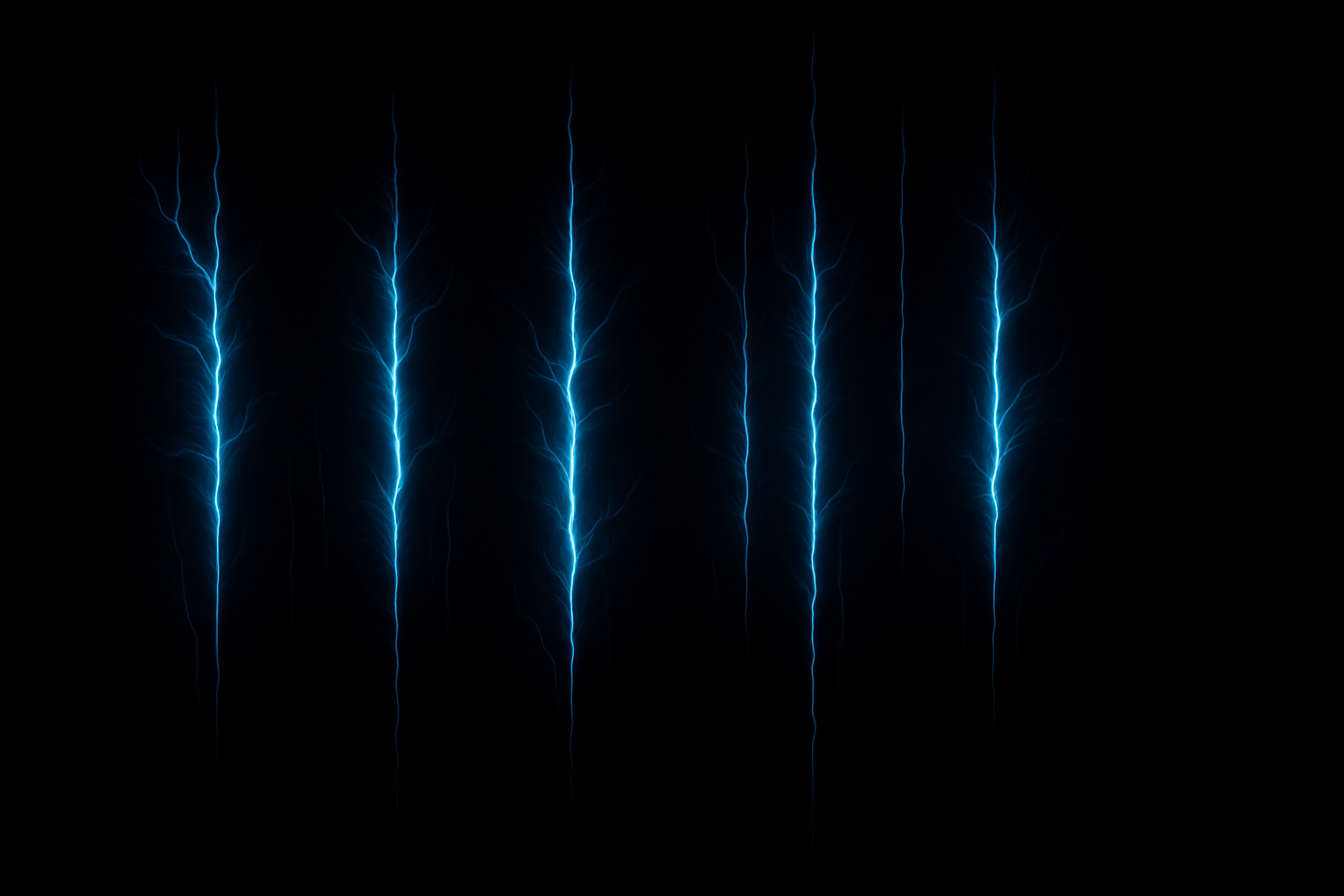
Unleash the Power of Electrified Text in Your Designs
Are you looking to add some electrifying flair to your text in Photoshop? Look no further! We’re diving into the electrifying art of transforming ordinary text into electric visuals that sizzle with energy. Get ready to impress your audience by infusing your designs with a little zap of creativity.
There’s no need to be a Photoshop wizard; this guide breaks down the electrified text creation process step by step. So, grab your digital toolkit, and let’s get your text sparking with life!
Creating Your Electrified Canvas
First things first, let’s prepare our canvas. Start by creating a new document in Photoshop. Ensure your canvas width and height are each set to 1500 pixels, with a resolution of 150 pixels per inch. Your color mode should be set to RGB, 8 bits per channel, and the background should be black. This setup provides the perfect backdrop for our electric text to stand out.
Setting the Stage with the Right Colors
Before we dive into crafting the text, it’s crucial to have your foreground and background colors set correctly. The foreground color should be white, and the background color should be black. If they’re not, press “D” on your keyboard for the default setting, and then “x” to swap them if necessary.
Crafting Your Electric Font
With your canvas and colors sorted out, it’s time to bring the text to life. Grab the Horizontal Type Tool in Photoshop and select a font that screams electricity. We recommend “Shock Therapy BB” for its bold and electrifying flair. You can find the download link for this font in the description of our video or in the project files.
Font Settings and Alignment
Set the font to a temporary size, such as 142 points, but feel free to adjust it depending on the font you choose and the length of your text. Ensure the text is set to sharp antialiasing and center alignment for a polished look. Click on your document to type out the text you want to electrify.
Once you’ve entered your text, center it by selecting the Move Tool and pressing Ctrl or Cmd + A to select the entire document. Use the Align Horizontal Centers and Align Vertical Centers icons to position your text perfectly in the center. Press Ctrl or Cmd + D to deselect the document.
Adding the Electric Effect
To give your text that electrified touch, you’ll need to convert it into a Smart Object. This will allow you to apply filters non-destructively. Open the Layers panel, click the options icon in the upper right corner, and select “Convert to Smart Object.”
Now, go to Filter > Stylize > Wind. The direction doesn’t matter—you’re setting the effect’s intensity. Click OK, and then duplicate the filter by pressing Alt + Ctrl + F on Windows or Option + Cmd + F on Mac. Repeat this step twice to intensify the effect.
Applying Multi-Directional Effects
It’s time to add depth with a vertical wind effect. Duplicate your text layer using Ctrl or Cmd + J, hide the original layer, and go to Edit > Transform > Rotate 90 degrees Clockwise. The wind effect appears horizontal, but we’ll rotate it back to achieve the vertical effect. Convert the copy to a Smart Object again before choosing Edit > Transform > Rotate 90 degrees Counter Clockwise.
After this rotation, the wind effect will look vertical. Make the original text layer visible again, shift-click to select both layers, and convert them into one Smart Object.
Ripple and Color: The Final Flourishes
To introduce a dynamic ripple effect, navigate to Filter > Distort > Ripple. Set the amount to 100% and size to Medium to give the text an electric wave.
Finally, infuse your electrified text with color. Click the Adjustment Layer icon and choose “Hue/Saturation.” Check “Colorize,” set the hue to 200, and crank up the saturation to 100. Play around with these settings until you achieve your desired electric color.
To admire your creation at full size, press Ctrl or Cmd + 1.
Who knew electrifying text could be this easy? With just a few clicks and some creative tweaking, you can transform plain text into a dazzling display of digital electricity. Whether you’re enhancing graphics for presentations, spicing up social media posts, or simply having fun experimenting with new skills, this electrified text effect gives your designs instant wow-factor.
We hope you enjoy experimenting with electrified text and adding that extra spark to your design projects. Stay tuned for more creative tips and techniques to elevate your craft!





