
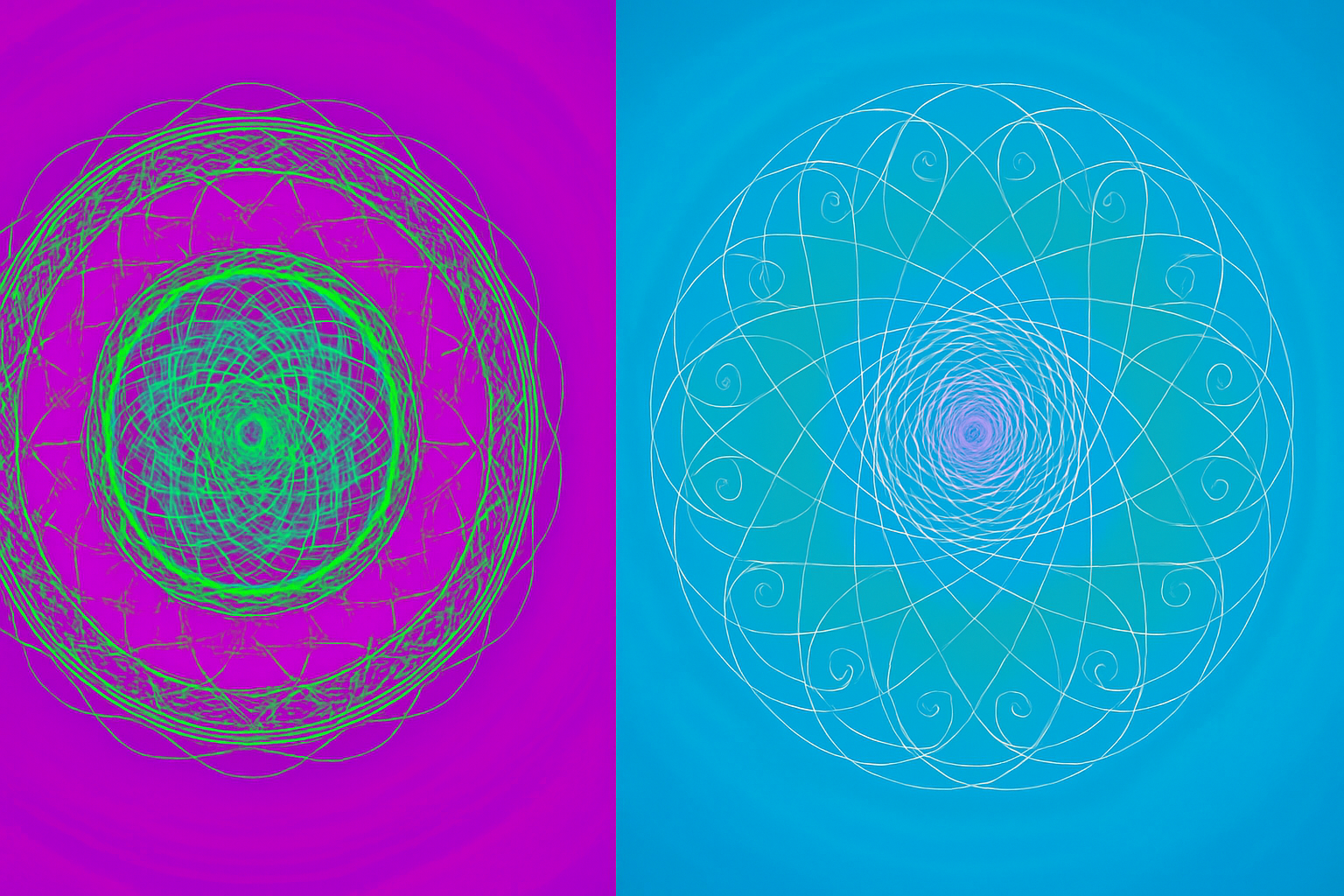
Unlock Your Creative Potential with Variable Radial Symmetry
Photoshop has long been the gold standard for digital creatives worldwide, offering them tools that are as expansive as they are innovative. But amidst its lush jungle of features, there’s a hidden gem that promises to elevate your artwork to mesmerizing new heights: variable radial symmetry. Wondering what that even means? Well, strap in—this feature lets you craft intricate spirographs and mandalas with your brushes and pencils, paving the way for artworks that blend precision with creativity.
Setting the Canvas for Symmetry
Before diving into this feature, the first step is to create a new document tailored for symmetry explorations. You might want to standardize with a width and height of 1000 pixels each, setting a resolution of at least 150 pixels per inch for a crisp outcome. Remember to keep your color setting in RGB and 8 bits per channel for optimal compatibility.
White Background: A Canvas Classic
For beginners, starting with a white background can help your mandala shine through without distraction. Should the default not be white, switch to it through the background contents option—your vibrant designs need a bright canvas to dazzle on.
Enabling the Symmetry Tool
Now, let’s turn on the magic. Navigate to your Photoshop preferences and enable the “paint symmetry” from the technology previews section. It’s a simple checkbox that unlocks a universe of creative potential at your brush tips.
Selecting Your Tools
With symmetry enabled, pick your weapon of choice: the pencil or brush tool. If you opt for the pencil, aim for a size between two to five pixels with full hardness and opacity. And if you’re on the 2018 version, the smoothing feature is your secret ally. It’ll banish those jittery lines and bring out the seamless creativity within you.
The Butterfly Effect: Choosing Symmetries
So, what makes this feature so addictive? The symmetry tool offers a buffet of options. Click the butterfly icon to explore. For today’s project, we’ll focus on creating stunning spirographs and mandalas. Select “new dual axis” symmetry to start. This creates a handy vertical and horizontal reference line to guide your symmetrical explorations.
Radial vs. Mandala Symmetry
As you tread deeper, you’ll notice the terms “Radial Symmetry 12” and “Mandala Symmetry 10.” The distinction? Radial symmetry allows up to 12 rotations, while mandala symmetry stops at 10. Each offers unique transformations for your creative whims. See the difference for yourself by painting and observing how Photoshop bends your strokes around your chosen axes.
Creating with Layers
Now, for the building blocks: layers. Head over to your layers panel, creating a new layer for each aspect of your mandala. The strokes prosper on an empty layer, while the original background remains untouched, ready to complement your artwork.
The real fun begins when Photoshop starts mirroring strokes, turning simple lines into complex kaleidoscopic wonders. With each stroke, your screen fills with captivating symmetrical beauty, all thanks to this marvel of technology we’ve unlocked.
Gradient Play: Adding Depth and Dimension
To elevate your design, experiment with gradients. An active background begs for some color play. Switch to your gradient tool, ensuring the radial gradient icon is highlighted. Browse the gradient thumbnails—whatever catches your fancy—and create a dazzling background by dragging gradients across your canvas. Feel free to overlay gradients on your mandala by creating a clipping mask with the magic shortcut Ctrl+Alt+G (or Command+Option+G on a Mac).
Final Flair
Complete your design with fresh gradient layers, filling your mandala with vibrant hues for added depth. Experiment with angles and let each stroke become part of a larger, cohesive masterpiece.
Photoshop’s variable radial symmetry feature truly is a world of its own, offering boundless opportunities for creatives seeking structure in their creativity—or creativity within their structure. Who knew symmetry could be so much fun? Whether you’re a digital veteran or a curious newbie, this tool is your invitation into a colorful, mesmerizing universe you never knew existed. Ready to explore?





