
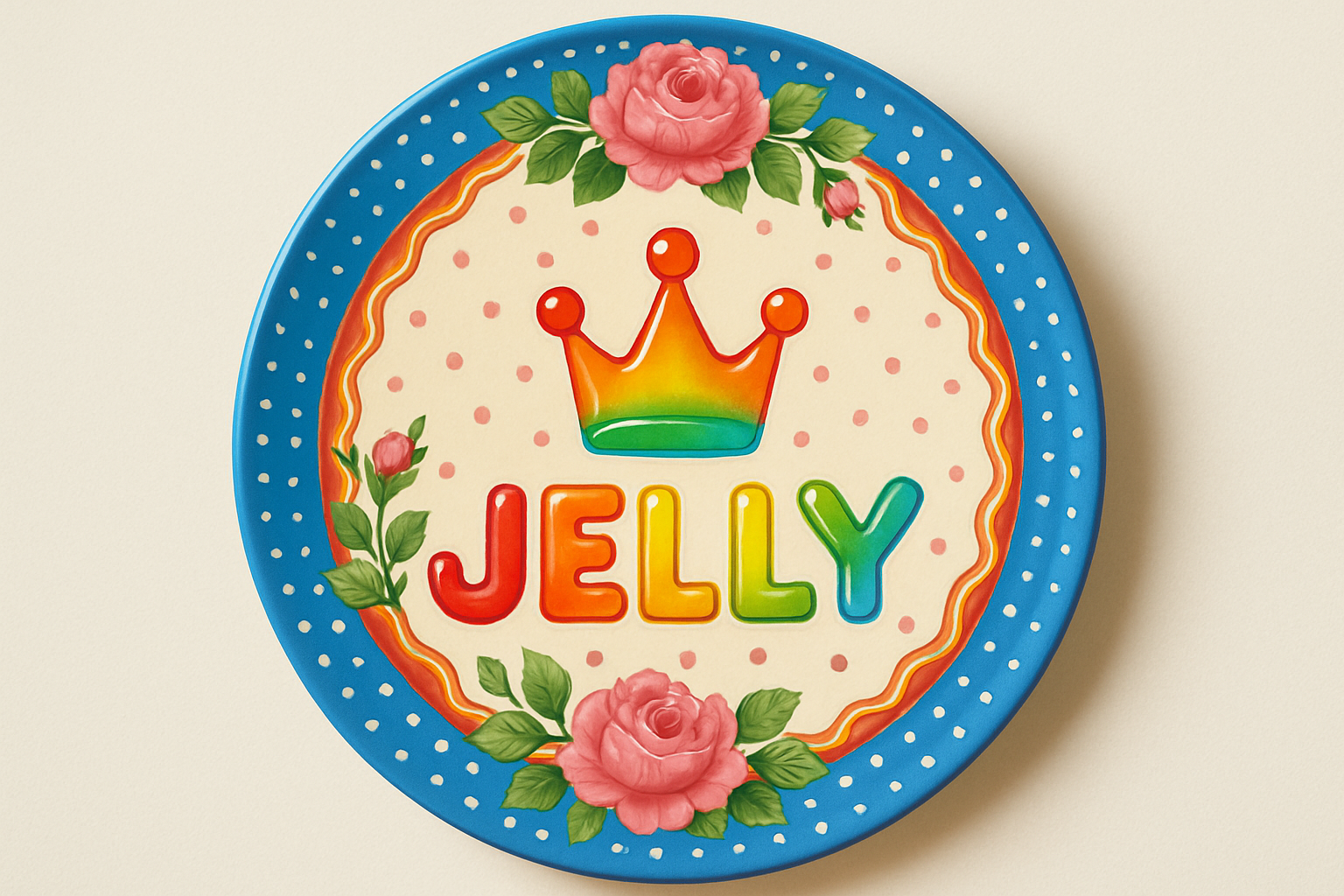
Transform Your Text into Delicious Jell-O Graphics
In the realm of graphic design, the ability to transform simple text into engaging visuals is an invaluable skill. It’s about turning the mundane extraordinary, and today, we’re diving into the delightful world of Jell-O text effects. In this guide, we’ll explore how to make your text and graphics look like they’ve just jiggled right out of a bowl of Jell-O using Photoshop. This isn’t just about aesthetics—it’s about mastering a technique that can be a game-changer in your design toolkit.
Why Jell-O Effects Matter
Jell-O text effects are the perfect tool when you’re looking to add a playful and dynamic element to your designs, whether for children’s graphics, fun advertisements, or any creative project that needs a bit of whimsy. The effect is both visually appealing and engaging, capturing the viewer’s attention with its bouncy, juicy look.
Getting Started: Setting Up Your Canvas
First things first, downloading the template provided in the video description is essential to keep up with the steps seamlessly. This gives you a head start, allowing you to focus on the creative process. Once you’ve made a copy of the template, it’s time to unroll your magical graphic skills.
Picking the Right Font
Choosing a font is crucial for achieving the desired Jell-O look. A relatively heavy font works best; here, we used “Cooper Black Regular”. Don’t worry about the font color yet, as we’ll be applying a “Color Overlay” to transform it into the desired hue later. Utilizing bold, rounded fonts gives your text that inviting, wobbly Jell-O appearance.
Aligning and Positioning Your Text
Once you’ve chosen your font, type out your text at a size around 285 points, set to ‘Crisp’ and center-aligned. Adjust its position on the canvas, leaving enough room for a graphic on top. If necessary, resize your text by manipulating the ‘T’ icon and reposition it with ease using the Move Tool.
Adding Graphic Elements Above Your Text
To accompany your text, utilize the “Custom Shape Tool” selecting “Pixels” if you’re using CS5 or earlier. Choosing a suitable shape from the presets adds a complementary visual element to your design. Ensuring it’s centered above your text creates a balanced composition, forming the base structure for our Jell-O effect.
Smart Object Conversion for Flexibility
By converting your text and shapes into a single Smart Object, you allow for non-destructive modifications. This is a crucial step, enabling you to replace the elements or adjust effects without starting from scratch. It’s one of those Photoshop features that save endless time down the line.
Applying Layer Styles for That Jell-O Look
Layer Styling Basics
Here, we’ll embark on the main course—making our Smart Object invisible initially, reducing its fill to 0%. This might seem counterintuitive, but it’s necessary for our layer styles and filters to shine through effectively.
- Bevel & Emboss: Set the style to ‘Inner Bevel’, technique to ‘Smooth’, and adjust the depth and size to 300% and 16px, respectively. Tinkering with these settings defines the smooth, rounded edges that give Jell-O its allure.
- Gloss Contour & Highlights: Selecting the ‘Ring’ contour enhances light reflections, vital for that glossy look. Adjust the shadow and highlight details to amplify depth.
Highlighting Jell-O’s Dimensionality
Duplicating the layer multiple times allows us to focus on different visual aspects—such as highlights and shadows—independently. For each layer:
- Various Highlight effects: This includes adjusting ‘Bevel & Emboss’ details like angle and size. These tiny tweaks might seem excessive, but they culminate in creating that striking, hyper-realistic Jell-O impression.
Sculpting Shadows and Glows
Creating depth with inner shadows and glows adds another dimension, enhancing realism incredibly:
- Inner and Outer Glow: Set your overlay blend mode to ‘Overlay’ to create an ethereal glow.
- Drop Shadows: Providing that essential support and depth by manipulating the distance, spread, and contour of shadows.
Refining the Final Look
- Gaussian Blur: Blur is your ally here, softening any harsh transitions and giving that homogenous, unified Jell-O illusion.
- Adjustments & Magnifications: Subtle color adjustments using ‘Hue/Saturation’ adjustments provide the final tweak, allowing you the flexibility to tailor hues to fit your project’s theme.
Conclusion: A Sweet Finish
Mastering the Jell-O text effect opens up a vibrant world of creativity where texture meets color in a whimsical dance. With these methods, your designs will boast a deliciously engaging appeal—perfect for standing out in the colorful chaos of digital content. Happy designing, and may your creations always jiggle with life and creativity!





