
Elevate Your Photography Skills with a Vintage Twist
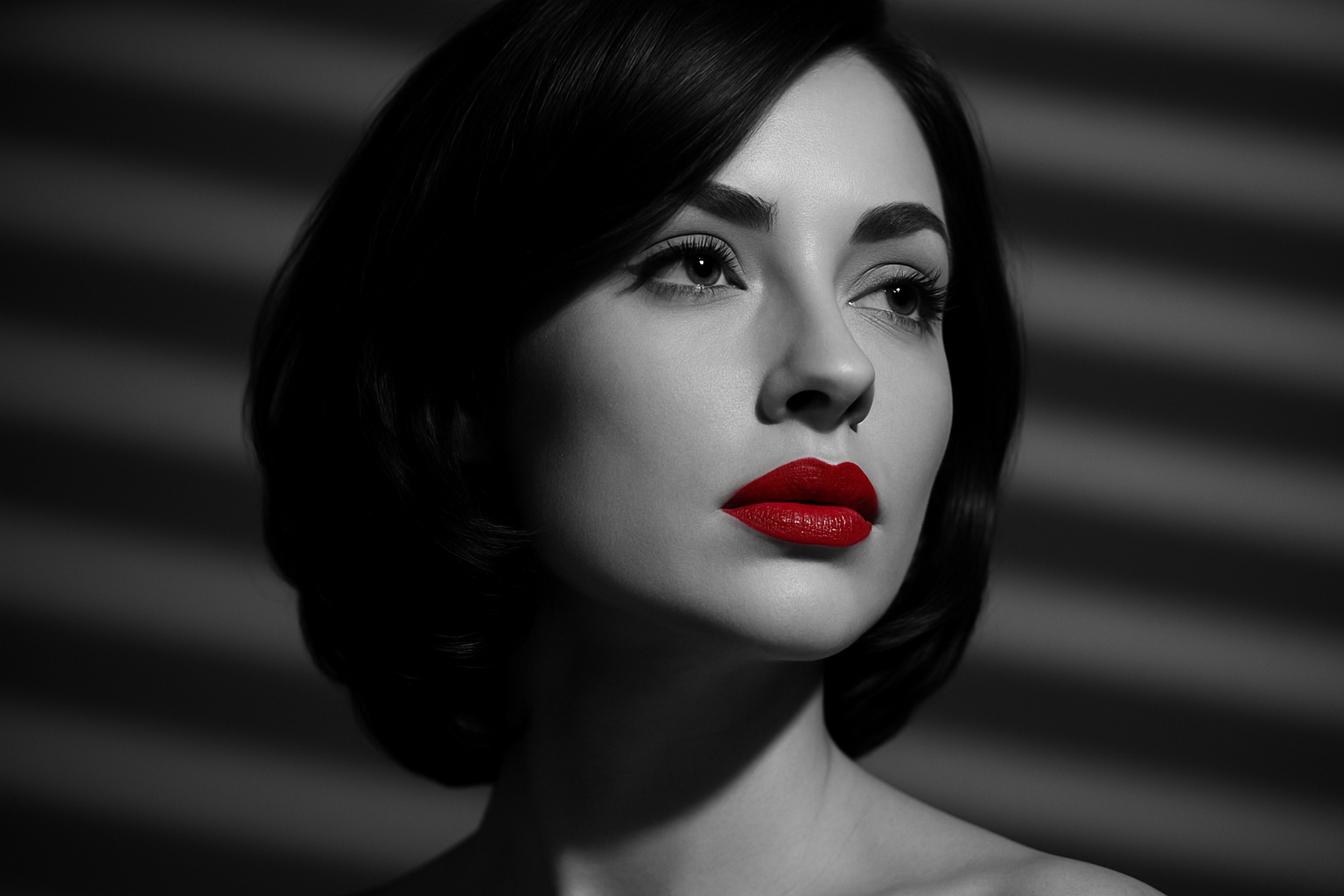
Have you ever wanted to capture the mystique of vintage film noir? That quintessential style, characterized by high contrast, dramatic lighting, and an aura of mystery, can now be at your fingertips with Adobe Photoshop. Whether you’re looking to elevate your portfolio, impress clients, or just have a bit of creative fun, turning a regular portrait into a film noir masterpiece is easier than you think. Follow along to dive into this creative process!
Selecting the Perfect Image
To start, choose a high-resolution photo where your subject is lit from one side. This helps in creating those iconic shadows and highlights. An ideal size would be around 1080 pixels in width and height with a resolution of 150 pixels per inch. The asymmetrical lighting will become the foundation of our film noir effect.
Creating a Displacement Map
A displacement map helps in adding realistic details to your images, like the shadow effects of shutter blinds. Here’s how you create one:
- Subject Separation: Use the Quick Selection Tool to select your subject. Drag the tool across the parts you want to include, and finesse areas like hair by holding down
AltorOption. - Refine the Selection: Click on ‘Select and Mask’ or ‘Refine Edge’ for older Photoshop versions to smarten up your selections.
- Save As New Document: Duplicate this layer and save it as a separate document. Name it ‘Displacement’ because that’s exactly what you’ll be displacing later!
Constructing the Film Noir Look
Once you’ve acquired your base, it’s time to work on creating the look:
- Smart Object Creation: Make your subject layer a smart object for non-destructive changes. Shift-click to select and convert.
- Convert to Black & White: Use adjustment layers to turn your photo monochrome. You might want to play around with contrast using ‘Levels’ adjustment to enhance the dramatic feel.
- Blur for Effectiveness: A light Gaussian Blur can smoothen out the image making it more cohesive.
Introducing Shadows and Light
Now for the heart of any film noir image: shadows.
- Gradient Layers: Creating a gradient layer can mimic lighting, especially if your subject’s original lighting is inconsistent.
- Add Patterns as Shadows: Creating a half-tone pattern can replicate shadows cast by blinds or other objects, enhancing that moody atmosphere. Use the Gaussian Blur sparingly to create a soft edge.
The Artistic Masking
Masking brings depth and focus:
- Select ‘Color Range’ to emphasize specific features (like lips or eyes) you want to pop against the grayscale backdrop.
- Refine the mask using brushes. Adjust brush hardness, size, and opacity to isolate the areas you want to highlight.
Adding the Final Touch
With your displacement map ready and patterns in place, go to Filter > Distort > Displace, and select the map you saved earlier. This allows the shadows to conform to the subject’s contours, boosting realism and depth.
Isn’t it fantastic how you can manipulate modern tools to channel the essence of a bygone era? Now, apply these principles to your creative projects and watch your work transcend to new levels of artistic expression!
To explore more about video editing, check out CyberLink PowerDirector, a tool designed to make producing stunning, professional-quality videos a breeze. An industry favorite, it’s been touted for its simplicity and reliability.
Filmoir photography offers an avenue for creative exploration and can be an exquisite addition to any artist’s repertoire. Unleash the film noir vibes and let your images narrate their mystery-filled tales! Enjoy editing!





