
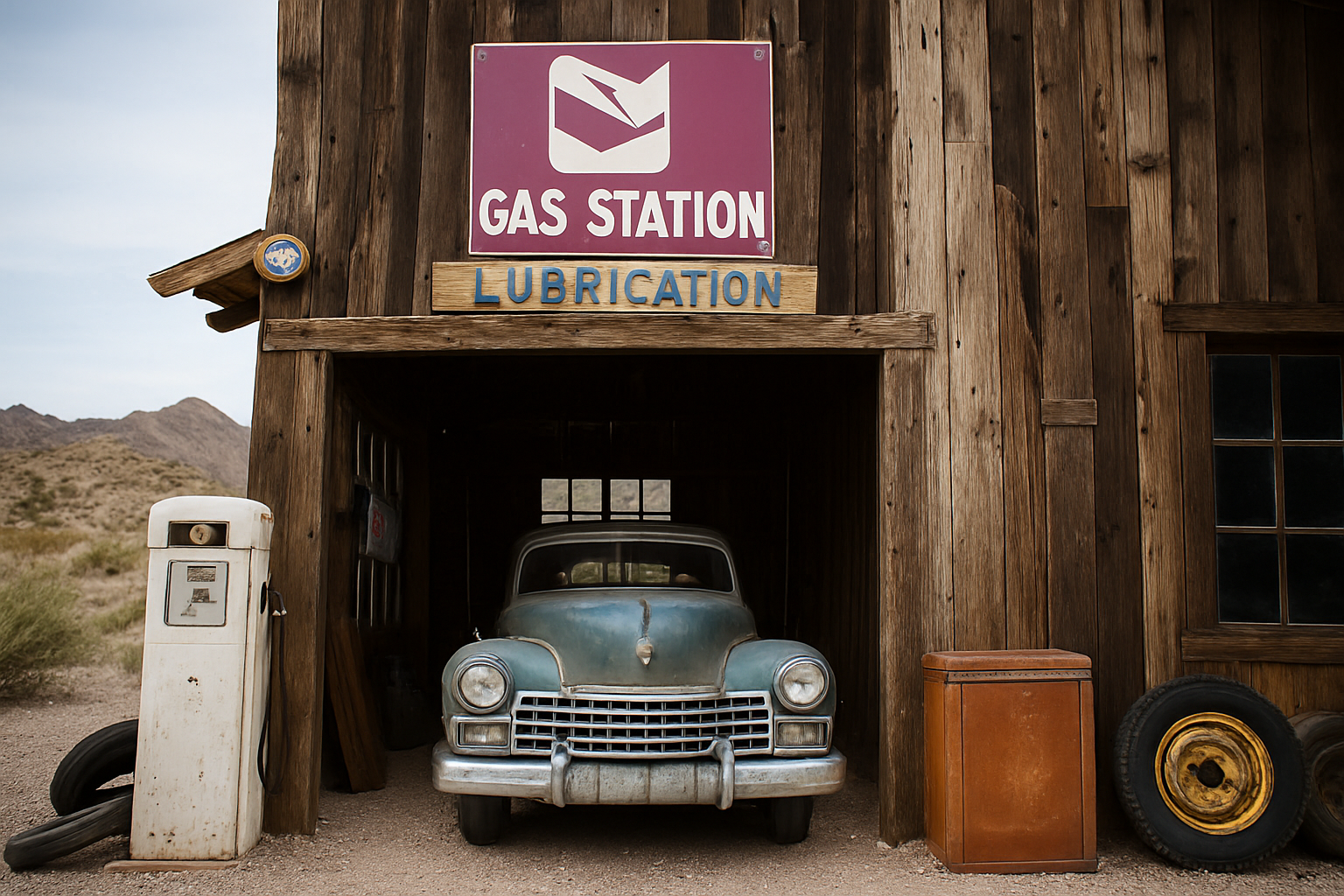
Dive into the World of High-Contrast Photography
Photography enthusiasts, gather ’round! Today, we’re about to embark on an exciting journey into the realm of vintage lomo-graph effects. Imagine transforming your regular photos into high-contrast, vibrantly colored pieces of art, reminiscent of a bygone era. Sounds thrilling, right? We’ve got you covered. This post will guide you through the entire process using a little Photoshop magic, and trust us, it’s like hopping into a time machine with your camera!
Unveiling the Lomo-Graph Look
Before diving into the technicalities, let’s talk about the charm of lomo-graphy. Characterized by heightened contrast and vibrant, sometimes unpredictable colors, lomo-graphs conjure an aesthetic often attributed to experimental film processing. More technically, this look is born from the cross-processing technique, where film designated for slides is processed in negative chemistry and vice versa. It’s a bit like making a culinary dish with the wrong recipe but ending up with an unexpectedly delightful result.
Preparing Your Image
First thing’s first: select a suitable photo for your lomo-graph transformation. Whether it’s a breezy landscape or a candid street shot, the magic relies on applying certain Photoshop techniques. For this tutorial, ensure your image resolution is set to 150 pixels per inch. This can be adjusted by navigating to ‘Image’ > ‘Image Size’. Setting this baseline is crucial to getting those crisp, popping results.
The Smart Move — Smart Objects
Converting your image to a Smart Object is the next crucial step, and here’s why: smart objects let you apply filters non-destructively, and you’ll have the liberty to tweak these effects any time you wish. To do this, head over to the Layers panel, click the focal icon on the upper right, and choose ‘Convert to Smart Object’. Voila, you’re halfway to mastering Photoshop wizardry!
Creating Depth with Vignettes
Contrast is at the very heart of the lomo-graph effect. To intensify that, we’ll start with a lens correction vignette. You can do this by going to ‘Filter’ > ‘Lens Correction’. Under the ‘Custom’ tab, drag the vignette slider all the way to the left. This engulfs your photo with a shadowy border, adding depth and drama — our homage to the iconic lomo style.
Blur, Sharpen, and Color — A Triad of Techniques
Iris Blur
With our vignette in place, it’s time to introduce a delicate blur. Visit ‘Filter’ > ‘Blur Gallery’ > ‘Iris Blur’. You’ll place the cursor on the blur ring and adjust its placement and size. A subtle blur of around 5 pixels is usually the sweet spot, but feel free to tweak according to the unique characteristics of your photo.
Unsharp Mask
Now, onto sharpening. Paradoxical as it sounds, Photoshop’s ‘Unsharp Mask’ is great for enhancing edges, providing that lomo punch. Navigate to ‘Filter’ > ‘Sharpen’ > ‘Unsharp Mask’. Set the Amount to 80%, Radius to 2 pixels, and Threshold to zero levels. This maneuver gives those edges an unmistakable zing!
Embracing Vintage with Color Lookup
Next, let’s get wild with colors. Click on the Adjustment Layer icon, navigate to ‘Color Lookup,’ and apply a 3D LUT preset. Try ‘Film Stock 50.3 DL’ and observe your photograph wormhole back in time — splendidly unconventional hues await!
Cool Things Down with Photo Filters
Don’t pack up your photoshop toolbox just yet! It’s time for some photo filtering. Add another adjustment layer, pick ‘Photo Filter’, and select ‘Cooling Filter 82’ for an added touch of vintage flair. Of course, your creativity is the limit — feel free to explore different filter options for diverse atmospheres.
Adding Light Leaks — The Final Flourish
To crown our masterpiece, let’s add some nostalgic light leaks. Create a new layer, set the blend mode to ‘Linear Dodge’, and pick a soft brush with hardness at 0% and opacity at 40%. Choose a bright red color for your brush and strategically dot around the image to mimic those charmingly random leaks.
And there you have it! From ordinary to extraordinary, you’ve just transformed your photos into exquisite lomo-graphics, making us a little nostalgic and ever more creative. Enjoy this vintage deep dive, let your creative juices flow, and paint your world with Photoshop. Want to become a Photoshop prodigy? Keep exploring creative techniques to develop your skill set further. Stay curious, my friends!




