
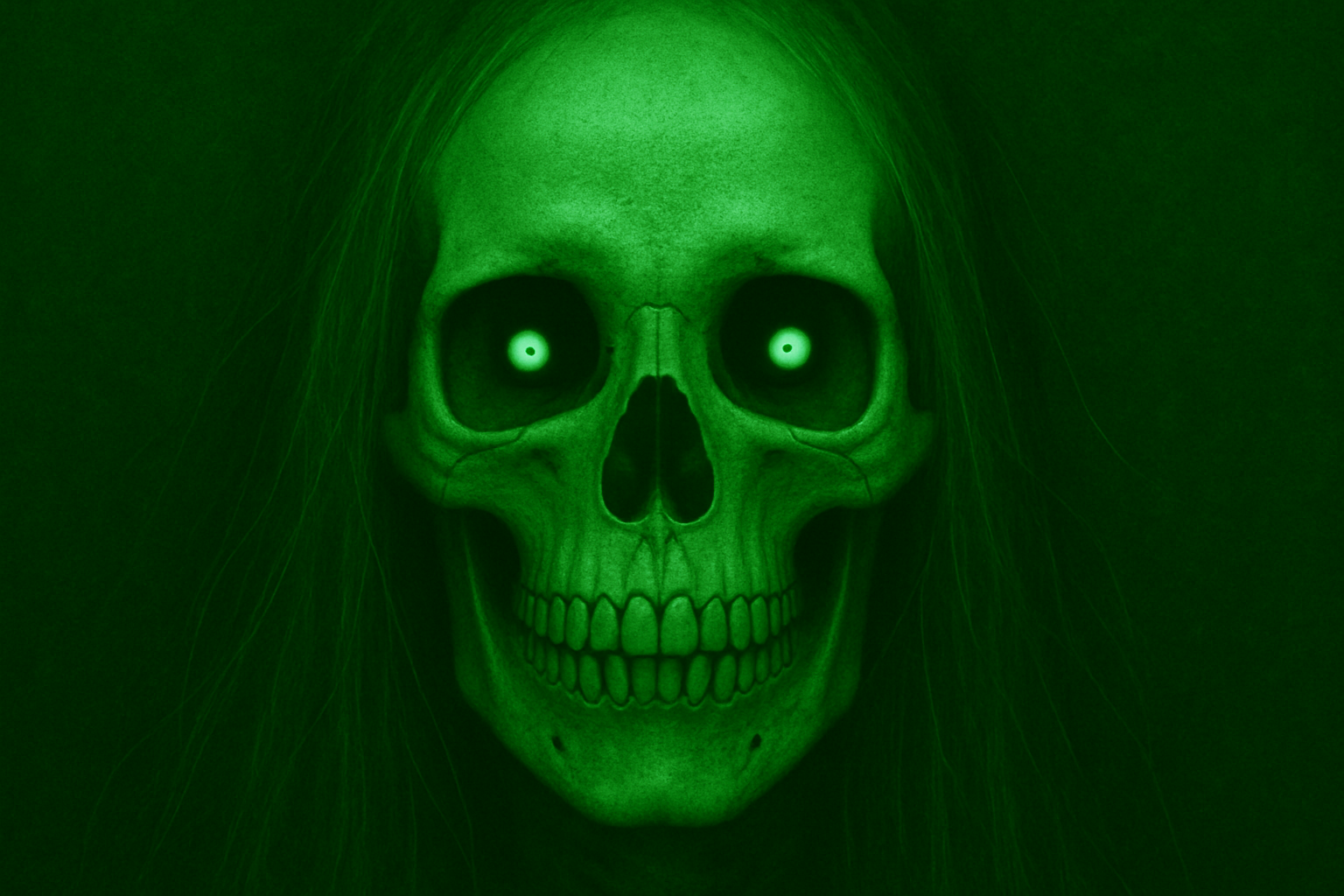
Turn Ordinary Portraits into Eerie X-Ray Art
Photoshop isn’t just a tool; it’s a universe brimming with vast and fantastical possibilities. For those who relish diving into the quirks and extravagances of digital art, we’re going on a dark, whimsical journey today—creating an eerie, bone-chilling x-ray effect of your favorite (or unsuspecting) subject. This updated exploration revisits a technique from an older Photoshop version and is sure to add a ghostly vibe to your repertoire.
The Essentials: What You’ll Need
Before we delve into the spooky art-making, let’s get our digital tools in order. First, if you don’t already have Photoshop, now’s a good time to consider jumping into the Adobe ecosystem. You can snag the latest Photoshop and Lightroom, along with 20GB of cloud storage, for an utterly tempting price of $7.99 per month. A click on a convenient link will lead you to Photoshop wonderland, complete with discounts. (Remember, discounts never creep up twice!)
To get started, you’ll need an image of a human skull and the upper part of a skeleton, both of which are generously provided in either the video’s description or project files. For your main subject, choose a well-lit portrait of someone looking directly into the camera. This image can be color or black and white—whichever serves your taste for spectral art.
Step-by-Step to Eerie
1. Smart Objects Are Your Friend
The journey begins with a Smart Object. To keep your edits non-destructive (because nobody wants to destruct while conjuring art), convert your subject’s image into a Smart Object. Find this option in the upper right corner of the Layers panel. Once your image sports the tell-tale icon, you’re good to go.
2. Lighten and Separate
If your subject features dark hair or skin, use “Shadows/Highlights” adjustments to brighten them up—and remember, every image is unique, so feel free to tweak settings as necessary. Next, employ the Quick Selection Tool to carve out your subject from their background. Remember, like in life, selections can be nuanced; use the Refine Edge function to refine your selection and output it as a new layer.
3. Craft the Background
Add a new similarity layer beneath your isolated subject. Fill this void with a light grey using the Color Picker, setting the brightness to 70%. Add texture (no eerie backdrop should be without some level of grain) with the Filter Gallery, and choose “Clumped” Grain for some cryptic vibes.
4. Merge the Macabre
Now for the creepy pièce de résistance—overlay the skull image onto your subject. Align the bizarre headgear so that it nestles perfectly into your subject’s eyes, nose, and mouth. Tweak the opacity for a semi-transparent look and refine the head shape using Warp Transform. This is precision horror at its finest, folks.
Follow the same haunting procedure for the skeleton image, ensuring this boney friend aligns with your subject’s neck and shoulders. Warp into position with maximum macabre.
A Dash of Color & Contrast
Let’s layer the ghoulish palette with a solid color adjustment over everything in shade 428E61. Change the blend mode to “Hard Light” to blend the surreal with reality, and max out the contrast for impactful visuals.
Finishing Touches
By now, your canvas should be vibrating with spectral charm, a testament to unmatched creativity. Play with opacity levels if you feel some areas are excessively spectral or not ghostly enough.
Congratulations, you’ve now elevated the art of portrait photography to the realms of enchanting eeriness. Whether it’s for fun, art shows, or an intricate Halloween decoration, this x-ray effect is sure to transform mundane images into captivating artwork with a touch of mystery.
And with these newfound Photoshop skills up your sleeve, who knows what other fantastical roads you’ll travel next?
Keep Creating With Us
As you continue to experiment with your creativity, remember that Photoshop is your digital canvas where the ordinary morphs into the extraordinary. Float back anytime to Blue Lighting for more eye-opening photo manipulation tutorials. Until then, keep creating with whimsy and a sprinkle of digital magic!





