Unlock the Magic of Photoshop’s Frosty Effects
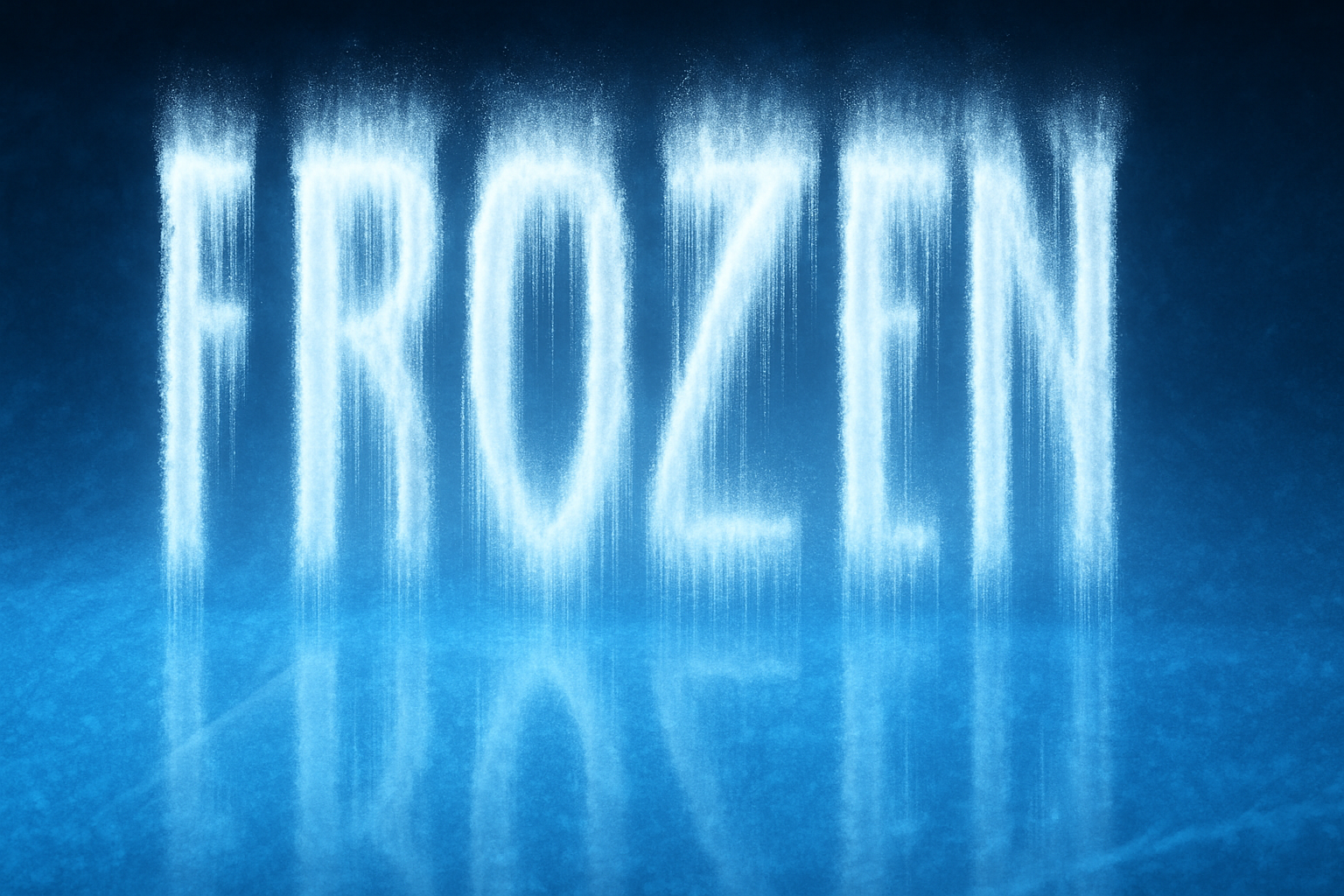
Photoshop enthusiasts, both seasoned and newbies, have an insatiable thirst for new techniques to elevate their craft. If you fancy bringing a wintry chill to your typography, look no further. This guide reveals how to conjure icy, frozen text in Photoshop, complete with a reflective twist on a sheet of ice. Whether you’re designing a festive card, a digital artwork, or trying to refresh your Photoshop skills, mastering this cool effect is a must. Let’s dive into creating this marvelous frozen spectacle!
The Frosty Foundation
To kick off your icy text adventure, you’ll need a cold, blue-toned ice background. It’s essential for setting the stage for your frosty creativity. If you haven’t grabbed your icy backdrop yet, download it from the provided link.
Once equipped, create a new layer for your text. We suggest a bold font that can handle the frosty texture—Rooney Tunes Revisited NF regular fits perfectly. In case it’s not on your system’s syllabus, check it out on FontRiver. Adjust the size to accommodate your artistic expression, and center your text in scintillating white for maximum impact.
Adding the Crystal Touch
Our journey begins with transforming the mundane into magical. A black layer becomes a smart object, allowing you to replace text seamlessly in the future. Proceed to add a ‘Crystallize’ filter set to seven, giving your artwork a jagged coolness similar to wintery landscapes. Preserve selections within your channels for later use — you’ll thank yourself as we twinkle down this icy path.
Whipping Up the Wind Effect
Rotate your text 90° clockwise, and apply the classic ‘Wind’ effect, ensuring you’re blowing from the right. Repeating this filter amplifies the chilly aesthetic. To keep winds from blowing in an unwanted direction, re-rotate your canvas counter-clockwise just like a skillful winter athlete.
A Touch of Inner Glow Magic
Ensure your text shines with inner glow effects, giving a sense of ethereal frost — a whisper of icy enchantment. Set ‘Inner Glow’ with a mode of ‘Dissolve’ at 75%, transform your canvas to ‘Edge,’ and let the hue of 74C7FB take center stage, adding a mystical gleam to your snowy typography.
Capturing the Final Frosted Beauty
With your glowing text, capture a composite snapshot, blending hues with vibrant saturation levels for that ultimate frozen look. The goal? Achieve a text reflection that elegantly dances on your ice sheet. Mastering layer masks ensures the icy effect remains chic without overcast icicle chaos.
Craft a reflection utilizing layer masks and the trusted ‘Gaussian Blur,’ giving your text a dreamy, ephemeral reflection — a touch reminiscent of thawing ice on a brisk morning.
Add the Fade to Black
Accentuate the realism by fading your text’s reflection on its icy background. Gradient tools slyly achieve a seamless vanishing effect. Should the reflective dance be too assertive, gradate that reflection line away.
By the end of this icy tutorial, you’ll have learned how to create a stunning frozen text with crisp details punctuating every snowfall-like shadow. Whether your aim is professional or playful, keep exploring Photoshop’s boundless ability to transform the imaginative into reality. An icy breeze or snowy chill is now at your fingertips!
Sneak this magical winter wonderland technique into your next Photoshop project and watch your creativity bloom a brilliant frosty blue.
Warm up those knack for new tricks, and let this cool skill be a highlight in your Photoshop repertoire. Perfect for festive imagery or just plain fun—this creation breaks the ice and levels up your graphic design game. So, what are you waiting for? Dive in and let your creativity cascade!