
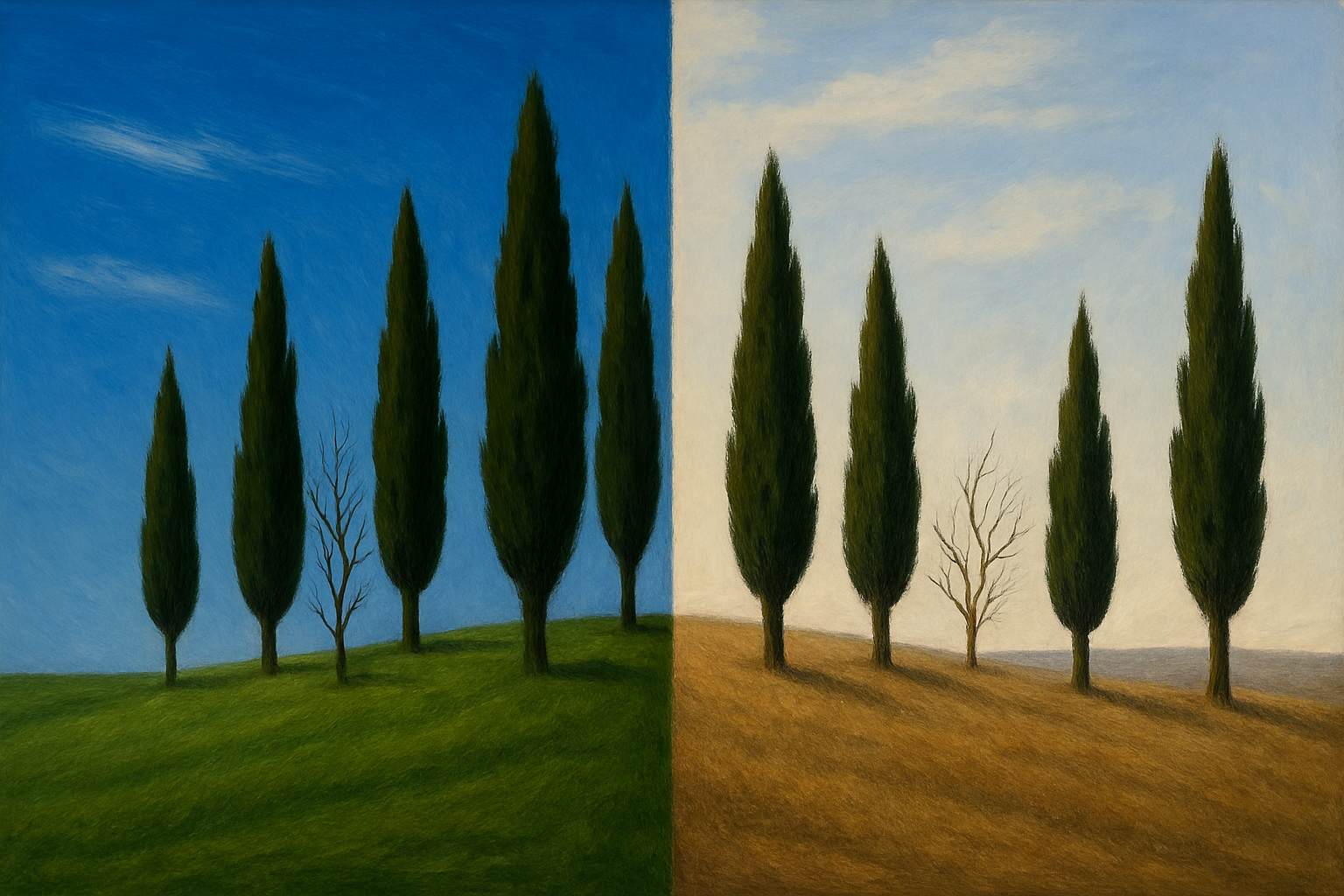
Discover the Art of Replacing Skies in Photoshop
Say goodbye to drab, washed-out skies in your photos, and hello to captivating azure skies dotted with fluffy white clouds. With the power of Adobe Photoshop, you can bring new life to your images by replacing dull backgrounds with vibrant, picturesque skylines. Whether you’re looking to enhance your travel photos or give your landscape shots that extra pop, replacing the sky can make a world of difference. Let’s delve into this exciting tutorial on sky replacement that takes advantage of Photoshop’s powerful features.
The Magic of Photoshop: A Step-by-Step Guide
If you find yourself staring at a photograph with a lackluster sky, fret not. Here’s a detailed walkthrough to replace it with a dreamy blue sky teeming with cotton candy clouds. This method uses a blend of tools and settings in Photoshop to achieve a seamless and natural-looking sky.
Preparing Your Image
First things first, open the photo you want to transform in Photoshop. To follow along with the tutorial, you can use the provided link in the video’s description for a sample project file.
Selecting the Sky
- Go to Select > Color Range: This tool helps isolate the sky. Choose Sampled Colors from the dropdown.
- Adjust Settings:
- Localized Color Clusters: Ensure this is unchecked.
- Fuzziness: Set this approximately between 95 to 100.
- Tick Selection to visualize what is being selected.
- Select the Sky: Click on the sky and hold Shift while clicking other areas to ensure the entire sky is white, indicating it’s selected.
- Invert the Selection: Press
CtrlorCommand+Shift+I.
Refining the Selection
- Go to Select > Refine Edge: This helps fine-tune the selection.
- Adjust Parameters:
- Check Smart Radius and increase it to about 4-5 pixels.
- Brush over the edges of your landscape to refine the selection.
- Output Settings: Choose Decontaminate Colors around 70% and output as a New Layer with Layer Mask.
Crafting a New Sky
Now for the fun part—creating your new sky.
- Make the Background Visible: Click the box next to the background layer to ensure it’s visible.
- Select the Foreground Color:
- Open the Color Picker and enter
#88B8FFin the hexadecimal field. This becomes your sky color.
- Open the Color Picker and enter
- Fill the Layer:
- With the top layer active, press
AltorOption+Deleteto fill with the foreground color.
- With the top layer active, press
Bringing in the Clouds
- Create a Copy of the Layer: Press
CtrlorCommand+J. - Render Clouds:
- Set default black and white foreground and background by pressing
D. - Go to
Filter > Render > Cloudsto add texture.
- Set default black and white foreground and background by pressing
- Overlay Mode: Change the blend mode to Overlay for a realistic cloud effect.
Perfecting Your Scene
- Modify the Clouds: Click the chain link to separate the cloud layer from the mask, allowing independent resizing or moving.
- Refine the Clouds:
- Adjust Blend If under Layer Style to make clouds less feathery.
- Use Transform tool (
CtrlorCommand+T) to stretch and place clouds in perspective.
Final Touches
- Adjust Blue Sky Intensity:
- Create a new layer and hold
AltorOptionas you drag a layer mask copy to the new layer. - Change the blend mode to Overlay.
- Create a new layer and hold
- Bluer with Gradients:
- Use the Gradient Tool with a black to transparent setting.
- Drag the gradient from the top down to create depth.
- Dodge Tool for Horizon:
- Using the Dodge Tool, lighten the horizon for a realistic sky fade.
Embrace the Power of Photoshop
With a few clicks and adjustments, your photos can undergo a stunning transformation. Whether you’re an aspiring photographer or a seasoned pro, understanding how to manipulate the skies in your imagery can help you craft the perfect shot. Dive into the digital darkroom with Photoshop and watch your creativity soar beyond the clouds!
For those curious about more creative tools and resources, check out Videoblocks. They offer a vast library of high-definition, royalty-free stock media accessible for creatives looking to elevate their work.
Sky replacement isn’t just about altering a photo—it’s about revealing a new vision and narrative within every image you capture. Embrace the tools, refine your skills, and let your pictures speak stories of vibrant horizons!





