
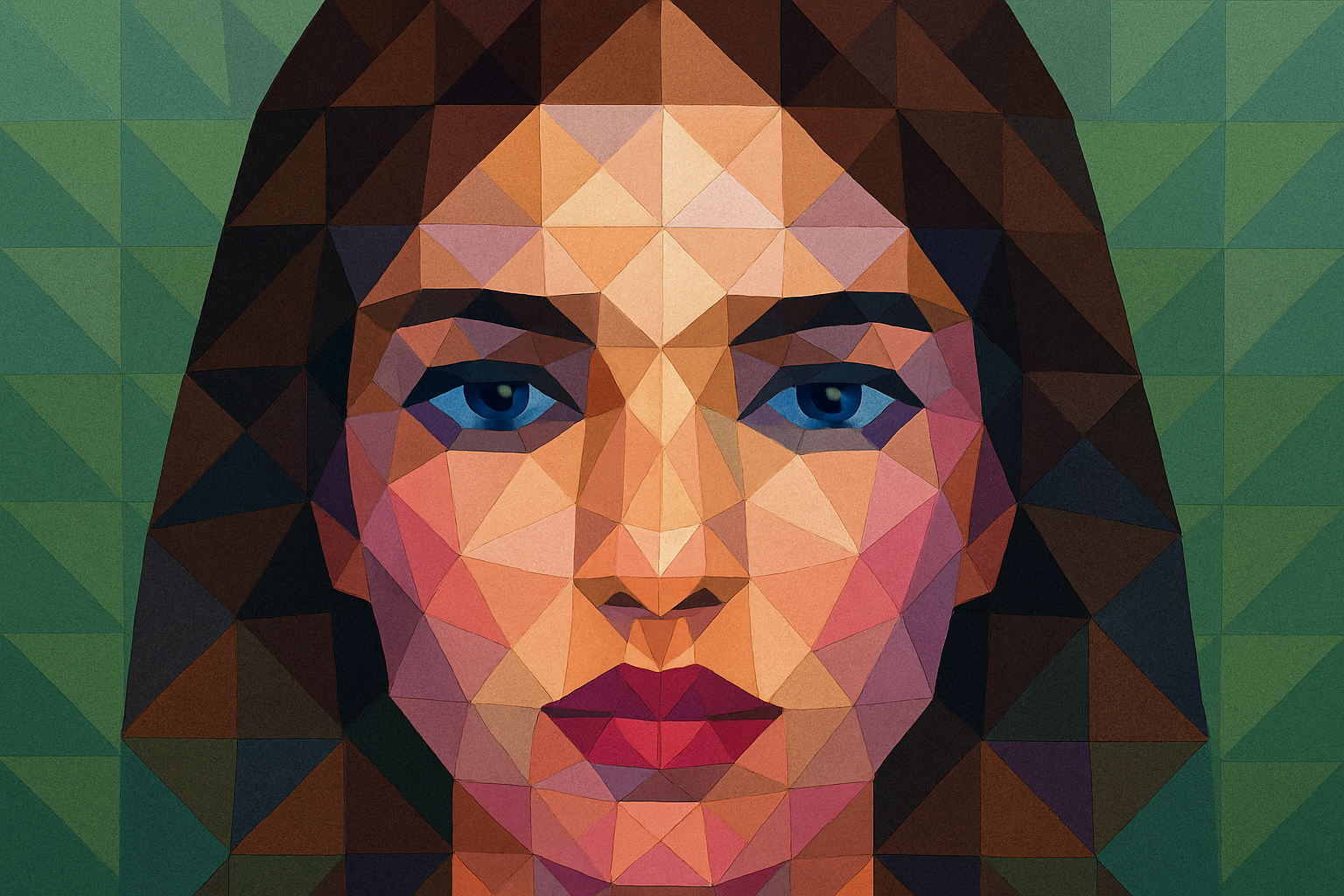
Mastering Low Poly Art: The Intersection of Simplicity and Creativity
Low poly art, known for its minimalist yet striking aesthetic, has taken the art world by storm. If you’re a digital artist looking to expand your repertoire, understanding how to create a low poly portrait may be your next thrilling endeavor. Low poly graphics are essentially polygon meshes containing a relatively small number of polygons. Though they originate from 3D computer graphics, these masterpieces can be emulated in 2D using software like Adobe Photoshop. But why go low when you can go high? High poly models contain millions of polygons, but the beauty of low poly art lies in maintaining visual appeal while using the simplest forms.
Embarking on Your Low Poly Journey
Whether you’re inspired by modern art trends or just want to create something reductively chic, the low poly art style represents perfection in imperfection. This tutorial takes you step-by-step through how to use Photoshop to transform any portrait into a low poly masterpiece with ease. Let’s walk through the essentials.
Step 1: Choosing the Perfect Image
Before diving into Photoshop, select a portrait where the subject faces directly toward the camera. This not only enhances symmetry but aids in mapping out polygons effectively. Shutterstock is one reliable source where you can find such high-quality stock images.
Step 2: Setting the Real Foundation
To ensure precision in your artwork, setting up the grid and guides is paramount. Make sure the gridlines in Photoshop are visible by heading to the View menu and ticking the boxes for Rulers, Snap, and Grid. Adjust the grid to feature lines every 20 pixels with one subdivision. Using a 50% grey to highlight the grid lines improves visibility without overshadowing your artwork.
Step 3: The Art of Polygoning
Here’s where the magic begins—selecting polygons over specific areas to maintain consistency in color and tone. A triangular shape works best because of its fundamental geometry and ease in covering areas that need to be represented, like angles or consistent color hues. Use the polygonal lasso tool, ensuring the anti-alias box is unchecked, to draw these geometric shapes, one careful click at a time.
Keeping it Consistent with Color Tones
Once you’ve created a section, blur and average the colors using the Filter > Blur > Average option. This converts selected areas into a singular matte color, achieving that flat polygonal look that low poly art is famous for. Repeat this over the areas you’d like to create texture and depth while maintaining simplicity.
Step 4: Replicate and Mirror
Understanding symmetry is key. After you’ve carefully worked on one half of the face, the next step is simple: copy that progress over. Use the Rectangular Marquee tool to select the half you’ve completed, press Control or Command + J to copy it into a separate layer, and flip it horizontally to mirror your work onto the other side flawlessly.
Enhancing Depth with Layer Effects
To finish up, add subtle adjustments by using Levels adjustment layers. By clipping the adjustment to the specific layer, you ensure the effect only applies where needed. Drag the input midtones to the right to darken half the face, enhancing the center edge with an impactful three-dimensional feel. It’s these subtle yet necessary tweaks that make low poly art pop.
Final Presentation
Now that your masterpiece is full, remove the grid with Control or Command + H so you can marvel at your work unimpeded by external lines. Admire the clean, edifying beauty of simplification.
Conclusion: Digital Simplicity in Practice
Learning to create low poly portraits isn’t just an artistic endeavor; it’s a journey into simplifying your creative thought processes. By taking complex scenes and reducing them to simpler shapes and flat colors, you unlock the potential for novel storytelling—a testament to the age-old adage: less is more. Let’s make this bold art form part of your digital toolbox today.
For more detailed guidance, resources, and creative inspiration, explore our tutorials on Blue Lightning TV or join our community of creatives on platforms like Patreon to unlock premium content and behind-the-scenes insights. Stay curious and keep experimenting with your craft.





