
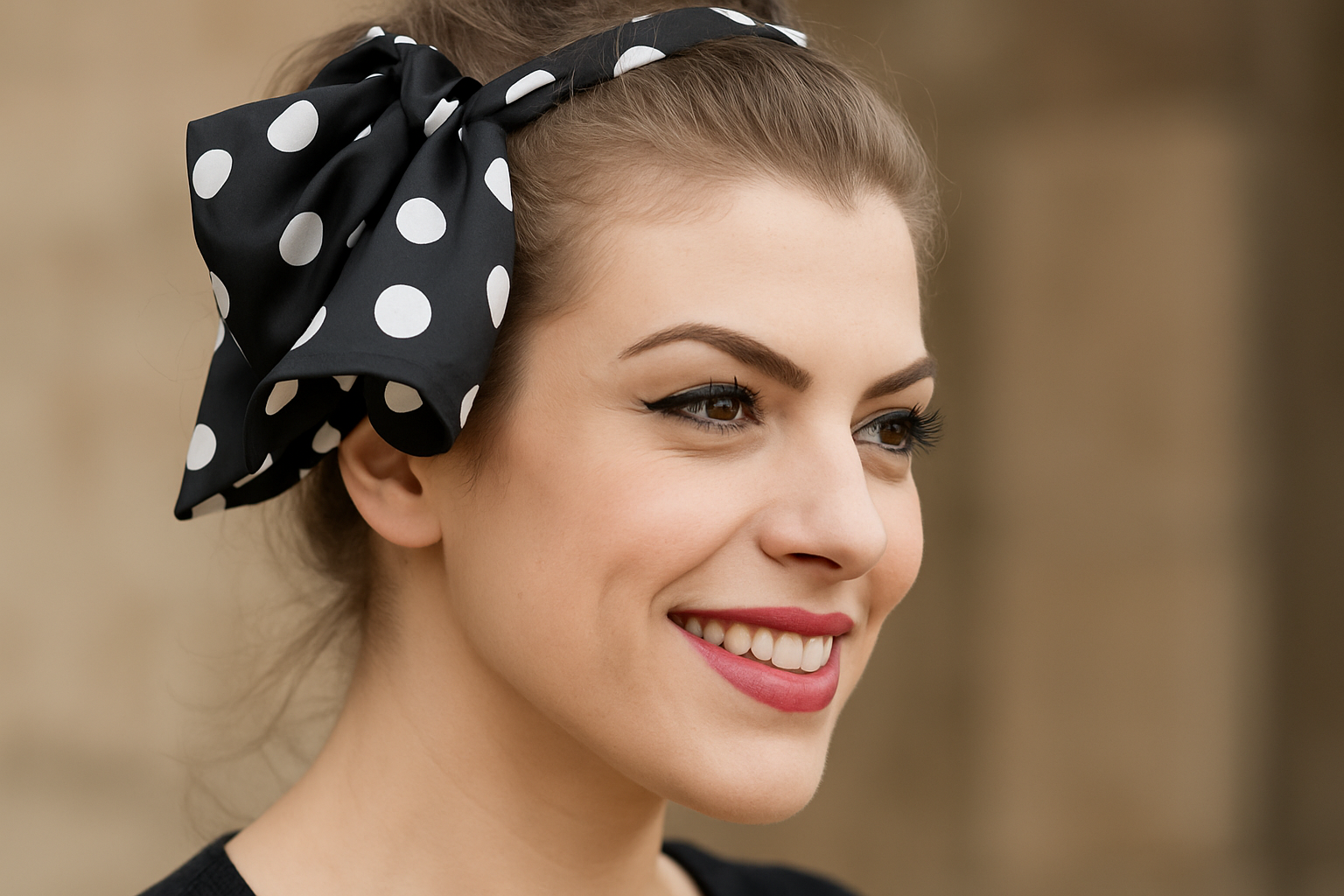
Dive Back in Time with Classic 8mm Effects
Ever wondered how to give your modern photos that nostalgic feel of vintage 8mm movie stills? Think sepia tones, scratches, and that unmistakable retro aesthetic. Whether you’re a Photoshop newbie or a seasoned pro looking to expand your toolkit, this guide will walk you through a technique that lets you morph your contemporary color photos into timeless 8mm movie frames. No time machine required!
Why Vintage 8mm?
Before diving into the technique, let’s talk about why the 8mm effect is all the rage. It’s not just about looking cool; it’s about the unique story the image tells. The graininess and lack of perfection in 8mm film bring a warmth and authenticity that resonate with audiences today. It’s the digital equivalent of vinyl records—which, let’s be honest, everyone is obsessed with.
The Elements of 8mm Magic
The magic of 8mm film comes from several key elements:
- Texture: Those scratches and film grain are essential. They add character and a sense of aged authenticity to any photo.
- Color: Muted tones and slight desaturation create that nostalgic feeling.
- Blending Modes: Using the right modes adjusts how your textures and colors interact.
Step-by-Step Guide to Achieve the Look
Here’s how you can transform your photos step-by-step:
- Unlock and Prep Your Canvas
Start by unlocking your background layer so you can move it freely in Photoshop. It’s the equivalent of lifting the needle before spinning your vinyl. - Place and Embed Your Photo
Go to ‘File’ and select ‘Place Embedded.’ This action lets you insert your chosen photo while providing the flexibility to make changes without permanently altering your original image. It’s like putting on a protective cover on a rare album. - Make Use of Smart Objects
The ‘Place Embedded’ option automatically makes your image a Smart Object, allowing non-destructive editing. Imagine it as a musical instrument: you can always tweak without losing the original tune. - Apply the Film Scratches Texture
Scratches bring character, so let’s dive into that part. Make sure your texture (available in the video description) is active, and then drag it over your photo. - Transform the Texture
To fit the texture perfectly over your photo, use the Transform Tool. A simple Ctrl+T (or Cmd+T on Mac) helps you adjust any side. More control, fewer surprises. - Blur the Photo Slightly
Under ‘Filter’, choose ‘Gaussian Blur’ and add a touch of blur—between 1 to 3 pixels. This softens the details, mirroring the imperfections of old film. - Adjust Hue and Saturation
Create a Hue/Saturation adjustment layer. Dial down the Saturation between -50 to -80, depending on your image’s original intensity. Your photo starts taking on that authentic, retro tone. - Layer the Magic with Blend Modes
Set your texture’s Blend Mode to ‘Multiply.’ This mode allows your scratches to meld seamlessly with your photograph, just like seamless harmony in a track. - Crop the Final Image
Final touches include polishing the edges. Ctrl-click (Cmd-click on a Mac) the texture thumbnail to select its boundaries, then crop the photo for a clean finish reminiscent of classic cinema frames. - Clear the Selection
Press Ctrl or Cmd + D to deselect. Voilà! You now have a photo that looks exactly like it leaped out of a retro movie reel.
Conclusion: Nostalgia Meets Digital Mastery
With these steps, you’ve got the tools to turn any mundane, modern photo into a beautiful slice of the past. Whether you’re looking to create something for Instagram to make your feed pop or for personal nostalgia, this technique will give any photo a unique flair worth bragging about.
Nostalgia is more than just a lens flare or a sepia overlay; it’s the details that make your creations feel authentic and evergreen, and with these Photoshop skills, you’re not just editing photos; you’re curating experiences.
So, fire up Photoshop, dig out your favorite modern snaps, and transform them into digital relics of the past. Your time-travel journey through the lens of 8mm effects waits!





