
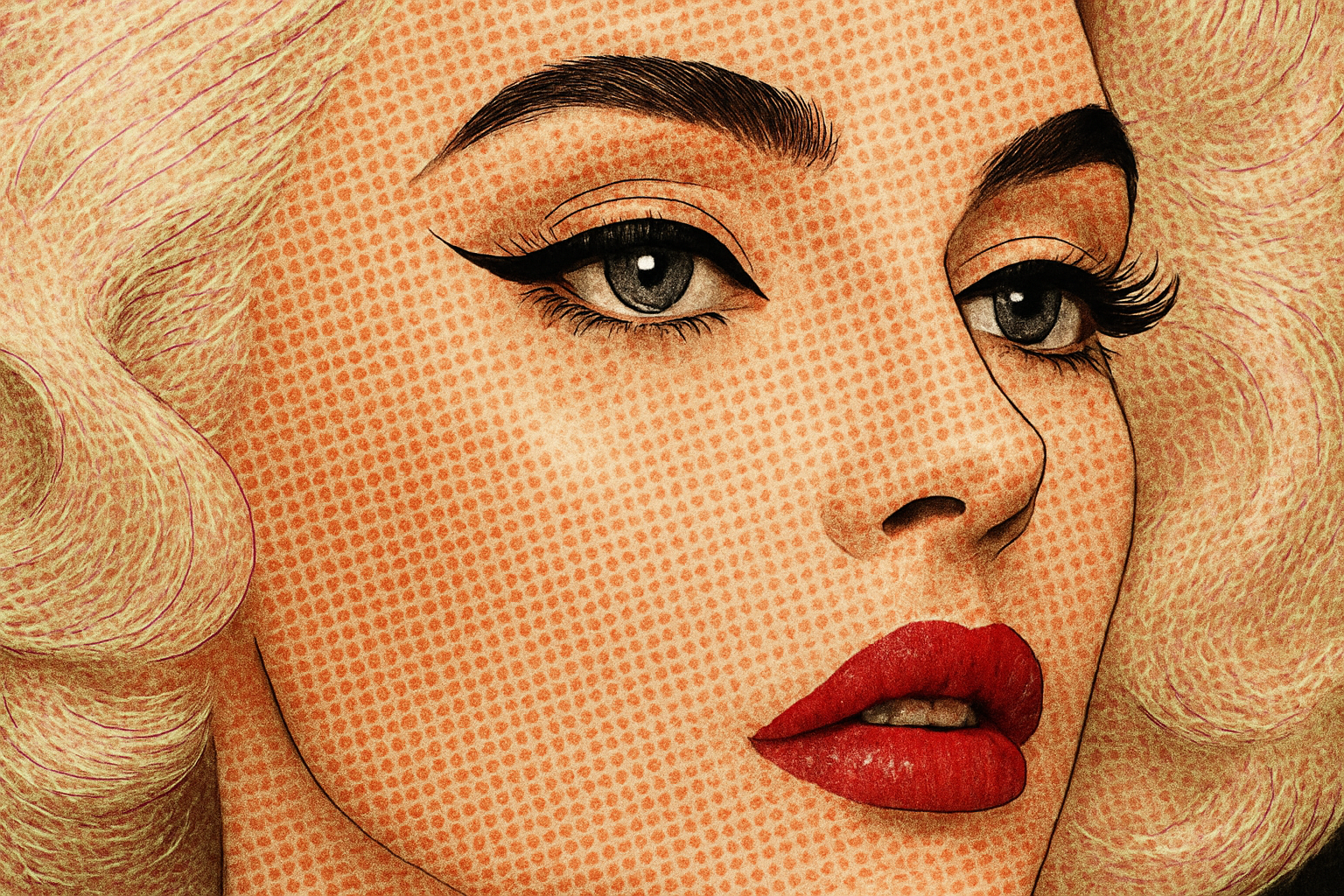
Unleash Your Inner Cartoonist with Photoshop
Creating a comic book-style cartoon from your photos can not only breathe new life into your cherished memories, but also give them a quirky, artistic flair. With a few Photoshop tricks, anyone can transform their regular photos into captivating comic art. Let’s dive into this artistic journey and learn to embrace our inner cartoonist.
Choosing the Right Photo
First off, you’ll need to select a photo. If you’re looking to purchase, platforms like Shutterstock offer a wide range of images to choose from. Remember, the dimensions and resolution of your chosen image will significantly affect the final outcome. A larger resolution results in a crisper finish, while a lower resolution provides a more pixelated, vintage comic book look.
Setting Up Your Image Size and Resolution
Step 1: Image Size
– Before diving into the transformation, start by adjusting the image size.
– Go to Image > Image Size and set your image to be approximately 1000 pixels in height and a resolution of 150 pixels per inch (PPI). While the width is less crucial, ensuring your height and resolution settings are correct will guarantee similar results to what we achieve here.
Step 2: Cropping
– If cropping is necessary, use the Crop Tool and adjust the parameters—you’ll set both width and height to 1000 pixels and the resolution to 150 PPI.
– After cropping to your liking, check the box or press Enter to apply changes.
Transformation Magic Begins
Step 3: Duplicating Layers
– Duplicate your image layer twice using Ctrl + J on Windows or Cmd + J on Mac. Name one “Color Halftone” and the other “Poster Edges” to keep things organized.
Step 4: Poster Edges Effect
– Hide the top “Color Halftone” layer by clicking the eye icon.
– Select “Poster Edges” layer, navigate to Filter > Filter Gallery > Artistic > Poster Edges.
– Adjust settings to Edge Thickness: 2, Edge Intensity: 1, and Posterization: 2 for a sleek, outlined look.
Adding Eye-Popping Details
For that quintessential comic book look, adding highlights to your subject’s eyes can make them pop.
Step 5: Draw Eye Highlights
– Create a new layer and zoom in on your subject’s eyes.
– Use the Elliptical Marquee Tool to draw small circles on the pupils. Fill them with white using Ctrl + Backspace on Windows or Cmd + Delete on Mac.
– Duplicate the highlight for the other eye and position it accordingly.
Step 6: Merge Layers
– Merge these eye highlights with the “Poster Edges” layer using Ctrl + E or Cmd + E.
Crafting the Cartoon Border and Vibrancy
Step 7: Cartoon Border
– Begin by adding a white stroke to the Poster Edges layer.
– Access this by double-clicking the layer thumbnail and selecting Stroke. Choose a size around 23 pixels with the Position set to Inside.
– Add an Inner Glow with black (Blend Mode: Normal) to achieve that striking cartoon outline.
Step 8: Enhancing Vibrancy
– Add an Adjustment Layer for Vibrance, and crank it up for vivid colors.
– Make the “Color Vibrance” layer visible and run Filter > Pixelate > Color Halftone with a radius of 6 pixels, blending mode set to Soft Light.
The Talk Bubbles Speak!
Step 9: Talk Bubble Creation
– Create a new layer named “Talk Bubble”. Utilize the Custom Shape Tool to draw a speech bubble.
– Customize it by choosing Talk Bubbles from the preset shapes, adjusting size, position, and orientation.
Step 10: Insert Text
– Select the Horizontal Type Tool and use a cartoon font like “Yikes Regular”. Adjust the font size and color to your liking.
– To finesse the words, open the Character panel via Window > Character and tweak the spacing and italics.
Step 11: Final Touches
– Add a stroke and drop shadow to your text via the Layer Style options, creating dimension and depth.
Your Comic Masterpiece Awaits
And just like that, you’re equipped with the tools and techniques to morph any photo into a vibrant comic book-style art piece. Whether it’s for a unique gift or a funky wall art project, the possibilities are endless. Go forth and transform your world, one photo at a time!





