
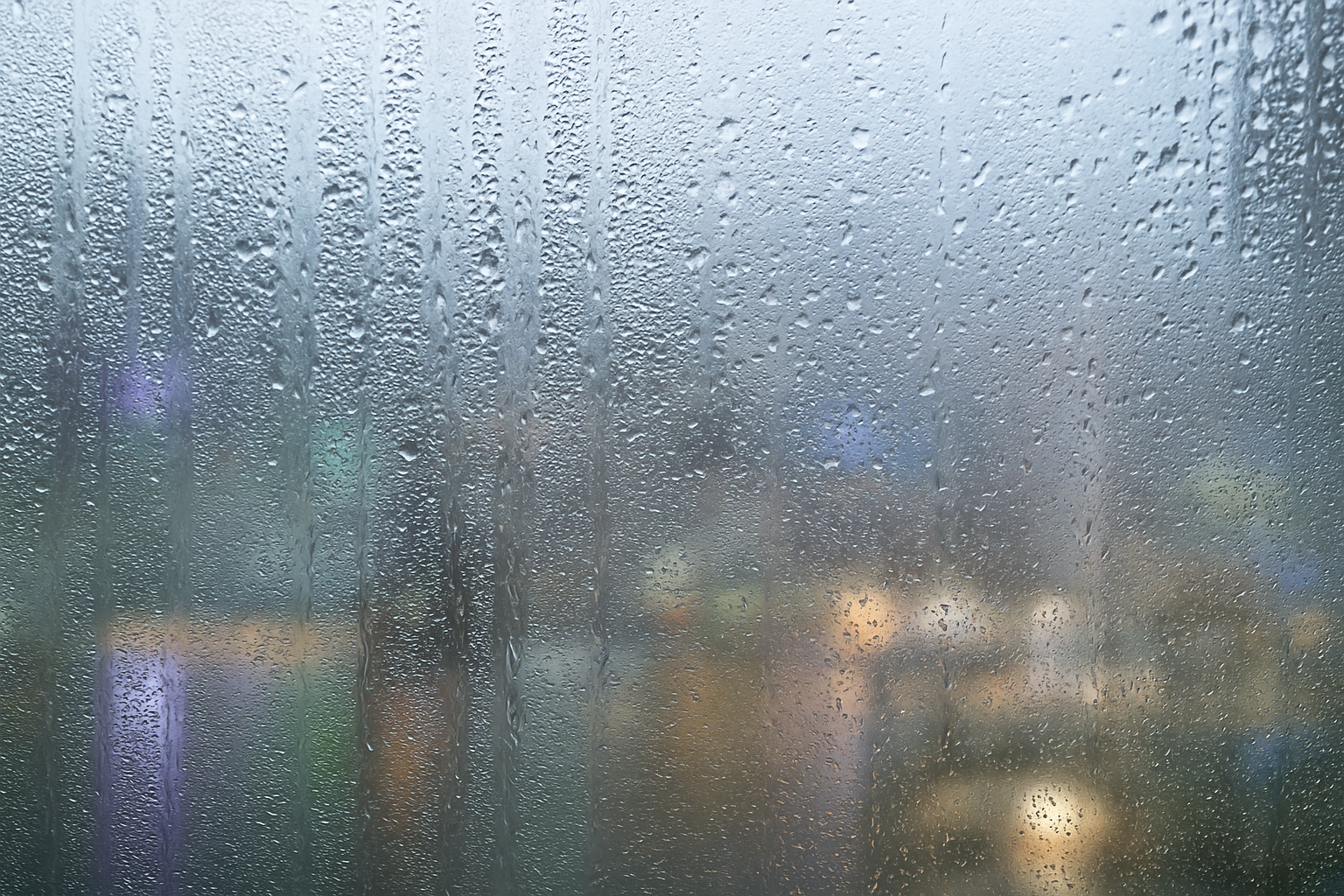
Embracing the Aesthetic of Handwritten Text on a Rainy Window
Who doesn’t love cozying up with a warm cup of something and watching the rain gently stream down a fogged-up window, and as it clears, revealing lovely handwritten messages? Now, imagine capturing that atmospheric essence in your design projects. In this guide, we’re diving into how to create the appearance of handwritten text on a foggy, rainy window using Photoshop. It’s like adding a dash of poetry and allure to your digital canvas. Let’s get into the details so you can add that authentic, misty mood to your designs.
Setting the Stage with Background Images
First things first, let’s set up the stage. You’re going to need a nighttime outdoor photo to sit behind your window pane. This background image adds a layer of depth, context, and vibrancy to your final masterpiece. It’s the vibrant glow through the droplets that sell the effect, so choose something with contrast and mood. You’ll want to open this image in Photoshop and prepare to position it behind your window pane placeholder.
The secret blend to baking this effect into your image starts with pure positioning magic. You’ll use Photoshop’s trusty Move Tool (shortcut V) to drag your background under your window’s layer. The magic sauce here is holding down Shift to keep everything perfectly centered. To tink about its size, Command + T (or Control + T for Windows) will activate Transform Tool, letting you size things up or down while maintaining positional integrity.
Non-Destructive Smart Object Formatting
Next, let’s talk non-destructive editing. Converting your background photo into a Smart Object ensures your layout maintains flexibility. Make this conversion by clicking the icon on the right of your layers panel and selecting Convert to Smart Object. This allows you to blur your photo later, which adds to the depth of field effect without sacrificing your original masterwork. Blurring our background with a Gaussian Blur of about 10 pixels suffices perfectly. Set the blend mode to Overlay for that refined touch of realism.
Crafting the Text That Sings
Here comes the artistic twist. Grab your Horizontal Type Tool and choose a font that paints the picture. We’re using Yellow Tail Regular in this tutorial—a delightful script that brings that personal touch—sized invitingly at 284 points. Once typed out, move your text to a sweet spot on your window using the Move Tool. A little tilt, a gentle rotation done with the Transform Tool, and you have text that whispers, Hey, I’m written by hand.
Adding Drips for Dramatic Realism
To go the full misty mile, let’s talk drips. You want those words written with cold fingertips to have character, don’t you? The Liquefy Filter tool does just that, offering a digital equivalent to a light finger smudge. With the Forward Warp Tool selected, expand on your type so it looks naturally drawn in the droplets of rain—because you know, it’s art imitating life.
If you’re prone to pacing your creativity like a virtuoso pianist, feel free to draw them manually with the Pencil Tool. Once the drips are up to your creative standards, change your text layer’s blend mode to Overlay for seamless text-on-glass integration.
Enhancing the Glow of Text
As a final flourish, let’s make sure your text pops against its ambient backdrop. Create a copy of your text layer and add a layer mask. A quick Command + I reverses the layer mask’s content, allowing us to paint our textual brilliance back into view. With the Brush Tool, bring that text’s top half to life. Brush settings are always customizable; here, a soft brush with an opacity of about 25% to 50% delivers a subtle, yet visible shimmer effect.
This delicate touch gives your type a glowing aura, as if it’s been further illuminated by the urban night beyond the glass.
Conclusion
You’ve now mastered how to craft atmospheric text on a faux-fogged window for your visual projects. This little Photoshop wonder not only enhances your design skills, but also lends your work that literary elegance and emotion that rounds out any message trying to convey warmth, nostalgia, or longing. Like rain on window panes during pensive, rainy evenings—subtle, calming, and transportive.
Armed with these tips, you can seamlessly integrate this technique into your creative toolkit, transporting your audience into an entirely new visual experience. Keep creating, keep exploring, and watch as the mundane moments turn into digital masterpieces.





