
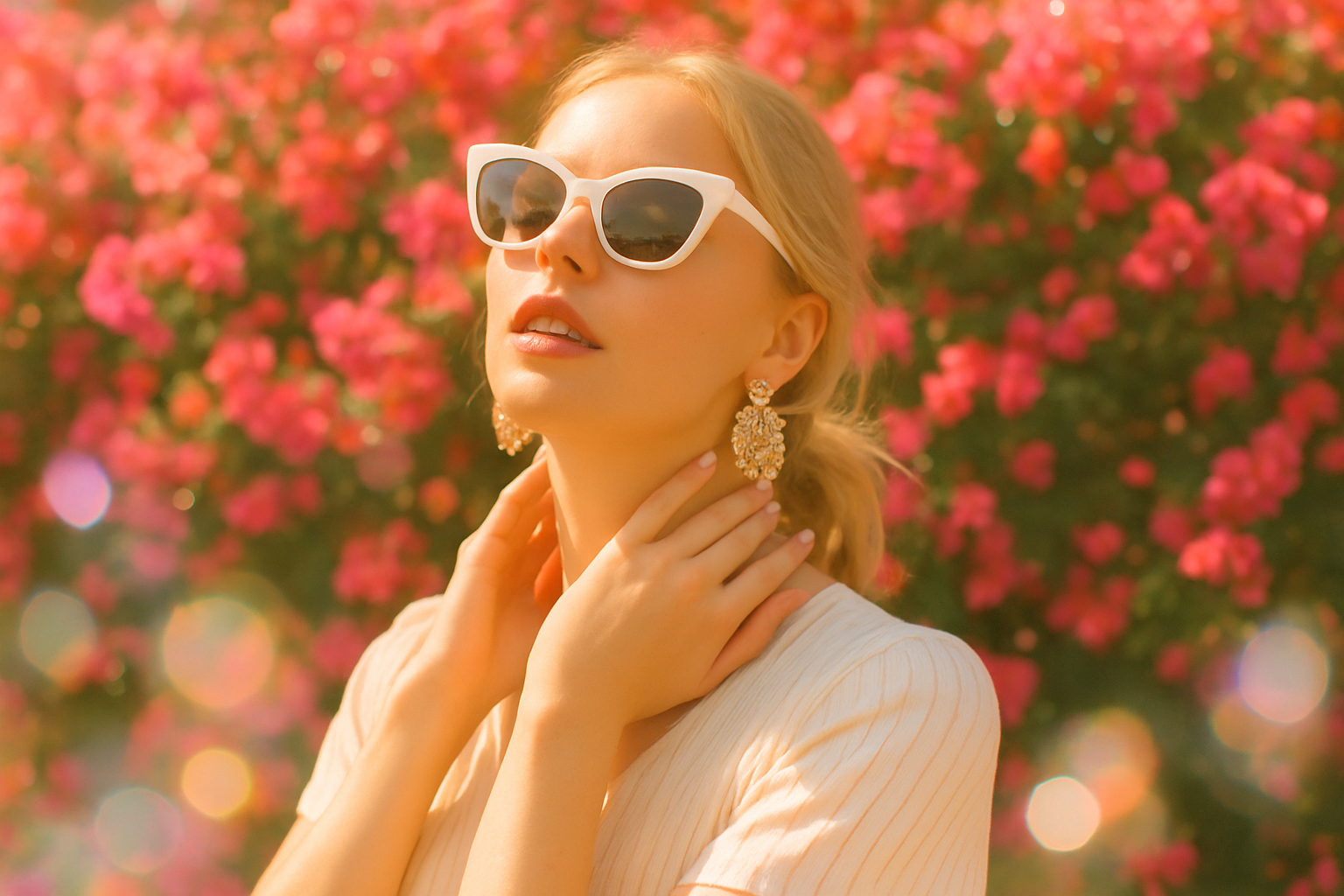
Transform Your Photos with a Stunningly Ethereal Look
Imagine transforming an ordinary photo into something magical, exuding warmth and romance. With a bit of Photoshop magic, you can create a dreamy, romantic effect that captures attention. Throw in some bokeh lights and personalized text, and you’ve got a masterpiece on your hands. This effect works particularly well on portraits, giving them a soft, glowing charm that’s hard to resist.
Getting Started with the Dreamy Effect
First things first—you need a photo to work with. For this tutorial, consider getting a high-resolution image. We’re working with one that’s 1550 pixels wide by 870 pixels high, downloaded from Shutterstock. The starting resolution is 150 pixels per inch.
Once your image is ready, open it in Photoshop and head over to the Layers panel to kick things off.
Applying a Gradient Map for a Romantic Glow
To initiate this transformation, add an Adjustment Layer and select “Gradient Map”. Changing the Blend Mode to “Screen” instantly adds a light, ethereal quality to your image.
Here’s the magic formula: select the Violet/Orange preset and customize it for a truly unique look.
- Left Stop Color: Type in color code 32224C.
- Right Stop Color: Type in color code F8A658.
Navigate through these steps in the Gradient Editor to inject romantic hues into your work.
Levels Adjustment for Depth and Light
With your gradient map set, incorporate a “Levels” adjustment layer next. Drag the input blacks slightly to the left, darkening the shadows and lending depth. The midtones’ position is adjustable to the left as well, effectively brightening them up for that dreamy glow.
Illumination with a Warm Brush
Adding soft illumination next to your subject’s face or shoulder really seals the deal on this effect. Select the Brush Tool and choose a large size—something around 800 pixels works well, but this depends on your image’s size and resolution.
- Ensure Hardness is 0%.
- Opacity: 100%
Tap the F5 key to verify that only the Smoothing setting is enabled before selecting a new foreground color using code FFD43D.
Locate the perfect spot next to your subject’s head to left-click once. Convert this layer’s Blend Mode to “Screen” for the ultimate soft lighting.
Magical Touch with Bokeh Lights
For that heavenly layer of fantasy, incorporate some bokeh lights. Prepared earlier in the video, the bokeh lights file is available for you to use.
- Copy and Paste: Select (Ctrl + A), Copy (Ctrl + C), and then paste it (Ctrl + V) into your project.
- Transform: Use Ctrl + T for adjustments. Rotate it, resize to fit, and ensure it envelops your image completely using Shift for proportional scaling.
- Blend Mode: Set it to “Screen” for that dreamy luminescence.
Final Flourish: Personalized Text
Personalizing with text adds sentimentality. Choose a hand-written style font like “Jenna Sue” (included in the resources if desired) to bring handwritten whimsy into play. Let’s set the text at 72 points for initial adjustment.
Complement your image’s hues by setting a dark color box with code 57062B.
- Main Text: Enter your captivating message.
- Heart Shape: Use Shift + 6.
Accent Text and Outer Glow
Ready to go further? Click the FX icon to add “Outer Glow.” The screen Blend Mode, paired with 75% Opacity and a Size of 27 pixels, ensures your text stands out. Create secondary text with ease, altering size and typography to mirror your vision.
- For a finishing touch, copy the Outer Glow to all text layers with Alt (or Option) drag.
- Customize Opacity to 50% for a softer aura around your secondary text.
Congratulations! You’ve successfully turned an average photo into an enchanting visual story. Whether you’re designing a gift or crafting digital art, this beautifully dreamy effect offers infinite possibilities. Why not dive in today and make something truly special?





