
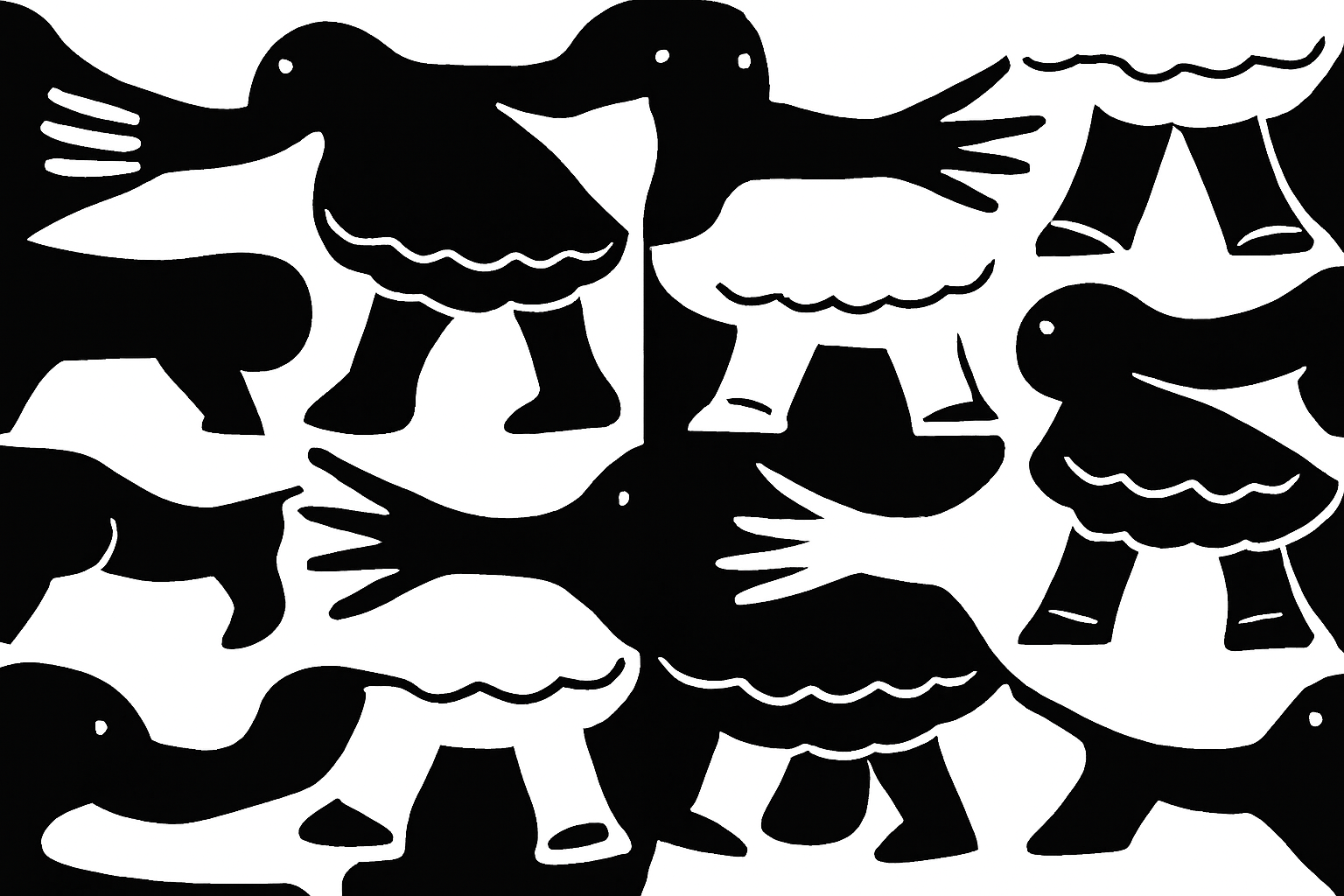
Unlocking the Art of Tessellation: A Simple Guide
Have you ever been mesmerized by those intricate, puzzle-like patterns where shapes fit together perfectly without any gaps? These are tessellations, a fascinating intersection of math and art. But creating them doesn’t have to be as challenging as solving a Rubik’s cube blindfolded. In this post, we’re diving into a simple but effective tutorial on how to make a tessellation pattern in Photoshop. So, if you’re ready to masterfully blend creativity with precision, let’s get started!
Getting Started: Setting Up Your Document
Before diving straight into the labyrinth of shapes and patterns, let’s set up your workspace for success. Begin by creating a new square document in Photoshop. For this tutorial, a 870×870 pixels canvas with a resolution of 150 pixels per inch works perfectly. Fill the background with black to ensure your shapes stand out. Simply use the shortcut Alt + Delete on Windows or Option + Delete on a Mac after confirming your foreground color is black.
Dividing and Conquering the Canvas
Next, we need to divide the canvas into nine equal sections using guides. This will provide a structured template for your tessellation pattern. Ensure ‘Rulers’ and ‘Snap’ are enabled in the ‘View’ menu. By setting horizontal and vertical guides at 33.33% and 66.66%, your canvas will be divided into a grid that looks a lot like Tic-Tac-Toe, but way cooler!
With these guides in place, select the central square using the Rectangular Marquee Tool—it’ll snap neatly to those guidelines you just set up, making Photoshop your best friend in precision design.
Creating the Core Shapes
Now for the fun part: creating the shapes that will dance around your canvas. Isolate that center square by cutting it from the background onto its own layer. Then, using any drawing tool of your choice—like the Pencil Tool with a hardness of 100%—craft two shapes within the square. Ensure they are distinct and non-overlapping for best results.
With your shapes defined, use the Paint Bucket Tool to fill them with white. This stark contrast against the black background will make your tessellation pattern pop when replicated.
Duplicating and Repeating Patterns
To achieve the mesmerizing repeat pattern of tessellations, you’ll need to make selections of your filled shapes using ‘Color Range’ found under ‘Select’. Extract these selections onto new layers and drag them to opposite edges of your grid. This is where the magic of tessellation truly begins, as shapes that fit neatly in one section will seamlessly transition to another.
After positioning, you can fill these shapes with white on a new layer, and say goodbye to the unnecessary original layers by sending them to the digital recycle bin.
Expanding Your Tessellation
To extend your tessellation pattern across the canvas, duplicate your tile design and arrange it in a repeating sequence. As a pro tip, inverting some tiles (using Ctrl + I or Cmd + I) can add an eye-catching level of complexity and an aesthetic twist to the design. Merging these layers into a unified pattern gets you that much closer to tessellation nirvana.
Finishing Touches and Customization
Feeling like you want to step beyond the basic black-and-white? Give your tessellation some texture or color variations for added depth and personality. Even simple line work added at the end can transform a basic tessellation into a stylistic masterpiece that would give M.C. Escher a run for his money.
And there you have it—a tessellation pattern created with ease and flair using Photoshop. Whether you’re looking to use it for a digital project or simply expand your artistic skill set, this approach to tessellation design is a gem for any creative toolkit.
Now, what will you design next with this newfound prowess? The possibilities are infinite, just like the charming patterns of tessellations themselves!
If you’re ready to embrace the world of tessellations even further, make sure to watch the tutorial and practice your design skills. No two patterns you create will be the same, which is exactly the beauty of the tessellation technique. Remember, happy designing!




