
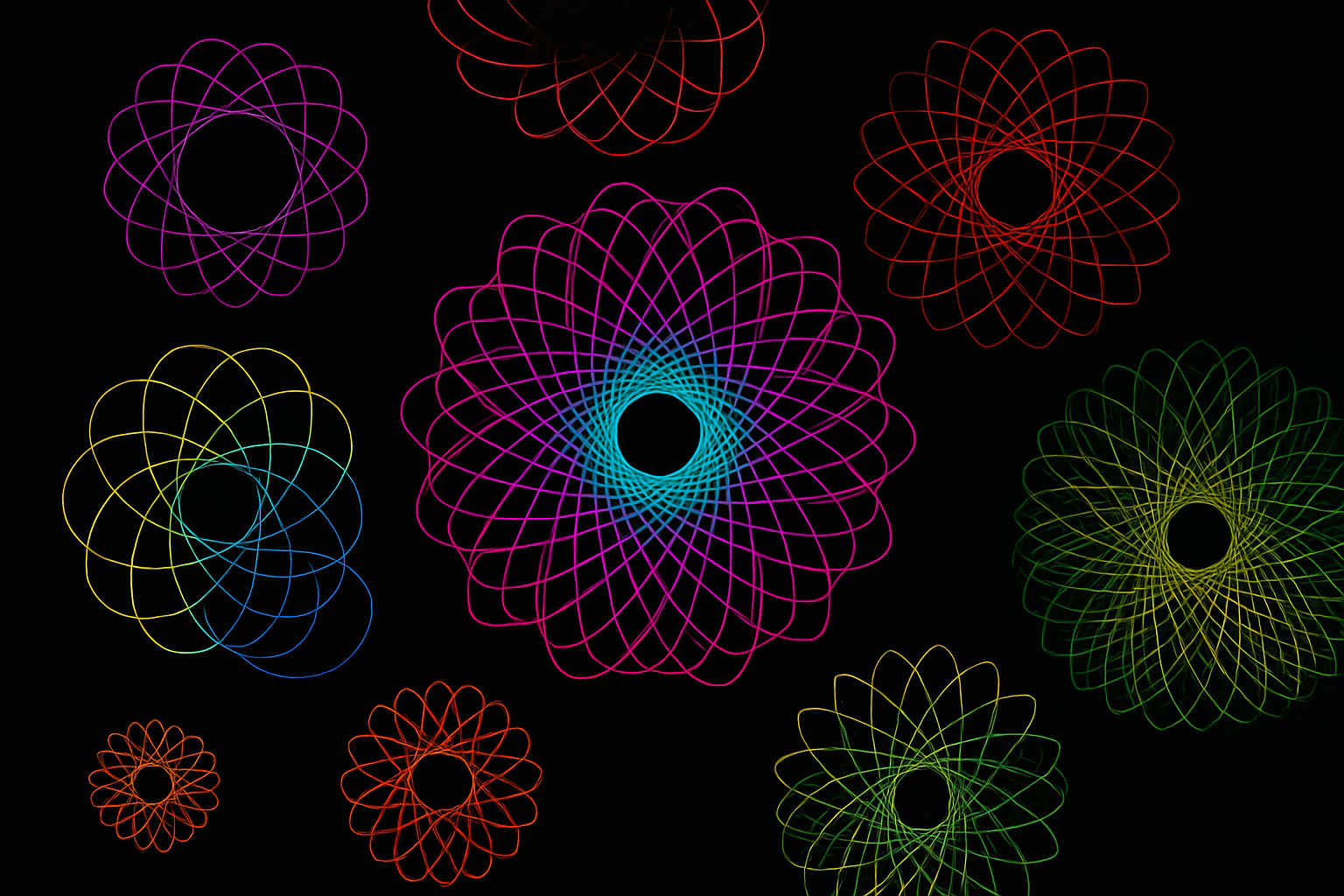
Exploring the Intersection of Art and Automation
Ever wanted to bring an explosion of color and geometry into your digital creations? Perhaps you pondered the intricate beauty of Spirographs as a child and dreamt of crafting them with your own signature touch. Allow us to introduce you to a Photoshop technique that fuses personal nuances with vibrant creativity: turning your very own signatures into mesmerizing Spirographs. But wait, there’s more! Leverage Photoshop Actions to automate this seemingly complex task. It’s not just a tool; it’s a playground for your creativity.
Creating Your Masterpiece in Photoshop
Imagine this: Your signature—something uniquely yours—transformed into a burst of colorful artistry. Pretty cool, right? It all begins with scanning your signature or experimenting with different fonts. Both work brilliantly, paving the way for a Spirograph that reflects your personality. Let’s dive into how you can bring this idea to life with Photoshop.
Step 1: Setting the Stage
First off, you need a fresh canvas. Fire up Photoshop and achieve this by pressing Ctrl + N (or Cmd + N on Mac). A square canvas of 870 pixels by 870 pixels at a resolution of 300 pixels per inch will do the trick. Go bold with a black background—a perfect contrast against the upcoming explosion of lines and colors.
Step 2: Prepping the Signature
If you’re working with scanned signatures, open the file in Photoshop and tweak the Levels (Ctrl/Cmd + L). Adjusting the Input Levels to make areas more starkly black or white is key in eliminating those pesky specks. Alternatively, for font lovers, type your name using white to work beautifully against the black canvas.
Step 3: Selection and Inversion
Next, invoke the ‘Select’ menu and opt for ‘Color Range.’ Go for ‘Highlights’ to create a selection from the stark white of your signature. To see your selection, toggle the quick mask with Q, then invert it with Ctrl/Cmd + Shift + I.
Step 4: Bringing It To Life
Moving on, create a new layer and fill your inverted selection with white. The magic trick here is to then place your white-on-white signature onto the dark canvas. Scale and position it to your liking using the Transform Tool (Ctrl/Cmd + T), ensuring it harmonizes with your visual masterpiece expectations.
Photoshop Actions: Automate Like a Pro
Now comes the game-changer: Photoshop Actions. This handy feature lets you record your steps and replay them on demand—saving you from the monotony of repetition.
Step 1: Recording the Action
Navigate to the ‘Actions’ tab (or find it under ‘Window’ if it’s hiding). Kickstart a ‘New Set’ called “Spirograph” and within it, a ‘New Action’— “Spirograph 1”. Hit ‘Record’, and now Photoshop documents every move you make without recording the time taken between steps.
Step 2: Transforming the Signature
Begin by duplicating your signature layer. Choose your Transform Tool and decide on the anchor point, critical for defining the Spirograph’s eventual pattern during rotation. Calculate angles like a geometry wizard: divide 360 degrees by any number for your desired level of detail.
Step 3: Unleash the Automated Magic
Once set, press Ctrl + Shift + Alt + T (or Cmd + Shift + Option + T on a Mac) to duplicate and rotate until your unique Spirograph is complete. Gather the layers into a group (Ctrl/Cmd + G) to manipulate them in unison, centering the entire composition beautifully within your canvas.
Colorizing for Aesthetic Flare
The Spirograph is more than just grayscale lines; it’s about vibrant aesthetic beauty. Get vivid by adding a color gradient adjustment layer. Choose from an array of presets by clicking the gear icon and selecting something striking— maybe a spectrum gradient for that rainbow pop. Set the blend mode to ‘Multiply’, and voilà!
The Grand Save and Redo
The final steps mirror the satisfaction of crossing a finish line. Flatten your completed Spirograph image, duplicate it into a new file, and save it as a JPEG. Your creation is now immortalized in digital form.
But here’s where efficiency truly shines: Use the history panel and our recorded action to craft more Spirographs. No need to start from scratch! Load up a new signature and hit play on your action for instant replication—tweak the size, position, and anchor placements for an endless array of designs.
In our digital world, where time is currency and creativity is king, leveraging tools like Photoshop Actions to automate sophisticated, nuanced workflows is the key to unleashing your full potential. So go ahead; paint your world with Spirographs using your signature style. It’s not just about making art—it’s about making it personal, bold, and incredibly fun.





