
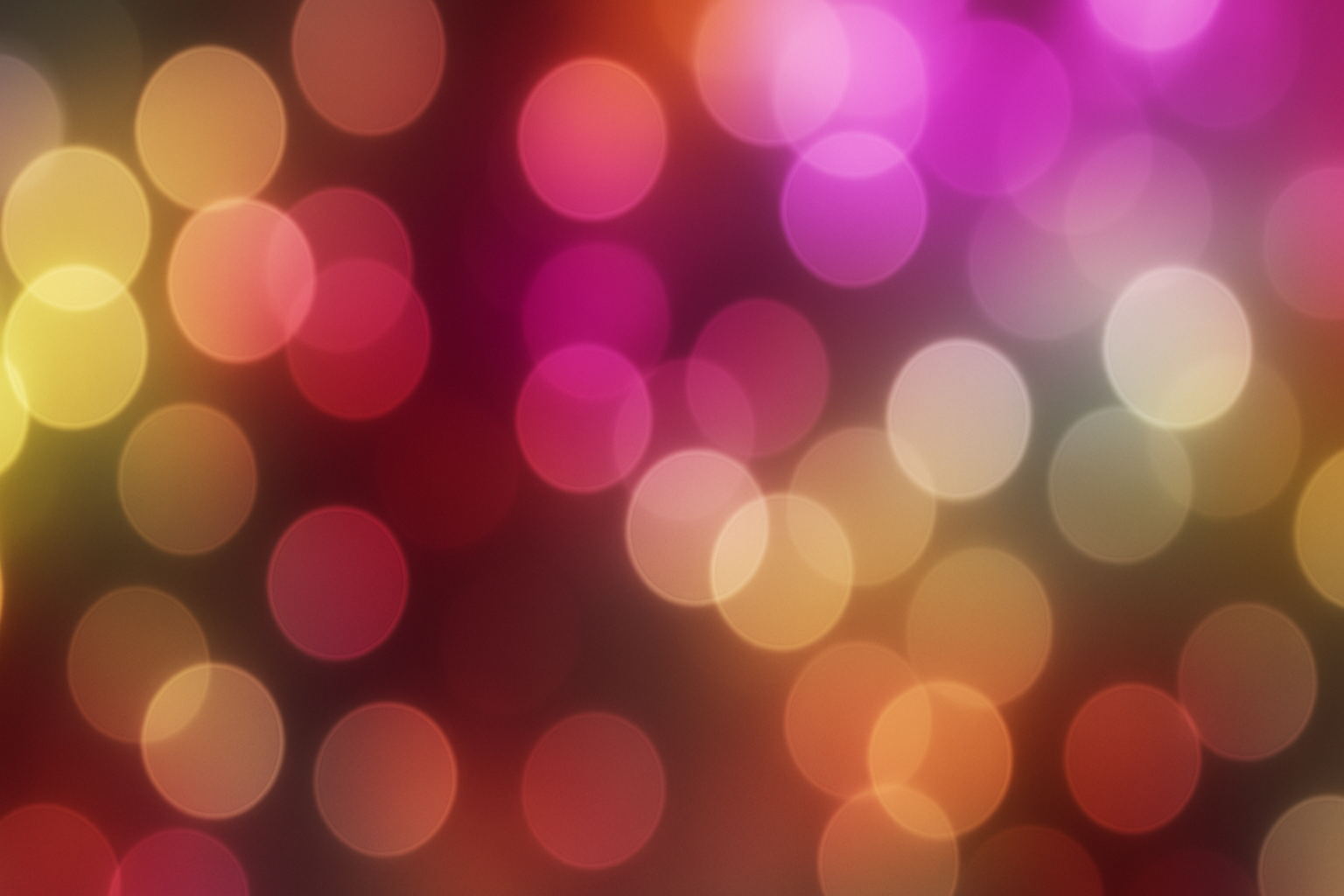
Mastering the Art of Bokeh in Digital Design
Ah, Bokeh. It’s not just a fancy word artsy photographers throw around to sound knowledgeable—or maybe it is. Originating from the Japanese term meaning “blur” or “blur quality,” Bokeh describes how a camera lens renders out-of-focus points of light. Today, we’re diving into how you can replicate this dreamy effect using Photoshop. And before you start muttering about Photoshop being all smoke and mirrors, trust us—this is where some magic happens.
The Aesthetic Appeal of Bokeh
Bokeh isn’t just about blur; it’s about crafting a visual language that emphasizes certain elements while sending others into a beautifully obscured realm. The scattered orbs of light lending a touch of whimsy to your image can evoke emotion and add depth. Whether you’re using Bokeh to enhance a portrait or add a magical touch to a serene landscape, this effect is sure to add layers to your creative storytelling.
Getting Started: The Basics
Let’s roll up our sleeves and get our pixels in order. First off, open a colorful photo that will serve as your canvas. But here’s a pro tip: make sure its resolution is 150 pixels per inch, or it won’t hit that sweet spot when it comes through in print.
Would you like to follow along with the same image used in our video? Check the description for the download link. Stick to the recommended dimensions of 1560 by 900 pixels to ensure consistency.
The Process: Something Magical This Way Comes
Okay, you’ve got your image? Great! Now press Ctrl + J (Windows) or Cmd + J (Mac) to duplicate it. To start the magic, head over to Filter > Blur > Gaussian Blur and set it at 65 pixels. This is the fog through which our lights will gleam.
To enhance the drama, we need to darken those mid-tones. Click the adjustment layer icon and choose “Curves.” Drag the curve slightly down and to the right. It’s like you’re playing a shadow whisperer in your very own digital opera.
Brush Up on Your Photoshop Skills
Time to turn your Brush tool into a Bokeh wand. Head to the Brush panel (F5 key) and set up your brush: Size at 125, Hardness at 100%, and Spacing at 80%. Under Shape Dynamics, make the Size Jitter 50% and set Fade at 1. Attention to detail is key, and these settings will guide your scattered lights.
Randomly brush over your canvas, shifting the Blend Mode to “Overlay” and reducing the Opacity to 50%. It’s like sprinkling magic dust—just way cooler than anything a fairy has to offer.
Achieving Layered Depth
Get into the rhythm: make a new layer, set the Blend Mode to “Overlay,” and reduce the Opacity to 50%. Brush your canvas, and then send it through another Gaussian Blur—this time at 16 pixels.
Repeat and reduce the blur: layer two at 12 pixels, layer three at 8 pixels. Layer magic is all about finesse, and now, your Bokeh effect should look like a dreamscape of illuminated bubbles.
Add a Bokeh-inspired Twist to Your Text
Now, for a stylish spin, let’s bokeh-fy your text. Choose a font. We heartily recommend “Dosis Extra Light.” Choose a size around 190 but hey, do what feels right. To make your text pop, increase the spacing between characters (keyboarding aficionados will know this as ‘kerning’). Alt + arrow key works on Windows and Option + arrow key on Macs.
Set your text, and don’t panic—it will transform. Use the Move tool for positioning before hopping over to the Paths panel. Convert your text’s shape into a sublime path.
The Final Flourish
Time to wield your brush along your new path, cranking the final touches to 25 pixels in size and “Color Dodge” blend mode for your strokes. It’s like wrapping neon lights around your words!
Copy your text, double-click for the Layer Style panel, and indulge in an Inner Glow set to Color Dodge with a smoothed Opacity of 50%. End this tour de force with a gentle 4-pixel Gaussian Blur.
The Creative Community Awaits
Ta-da! You’ve just added the Bokeh effect to your arsenal of design tricks, all from the cozy confines of Photoshop. Your viewers will be drawn to the artful play of light and texture in your work. So go ahead, create, and infuse your projects with that ethereal sparkle. Don’t forget to share your creations with the community that’s eagerly waiting to see the gleam of your newfound craft.
Curiosity piqued? Then launch Photoshop, channel your inner Bokeh-savvy designer, and let the creative expressions run wild. See you on the next creative adventure (that doesn’t really exist, because we’re all just pixels and illusions).





