
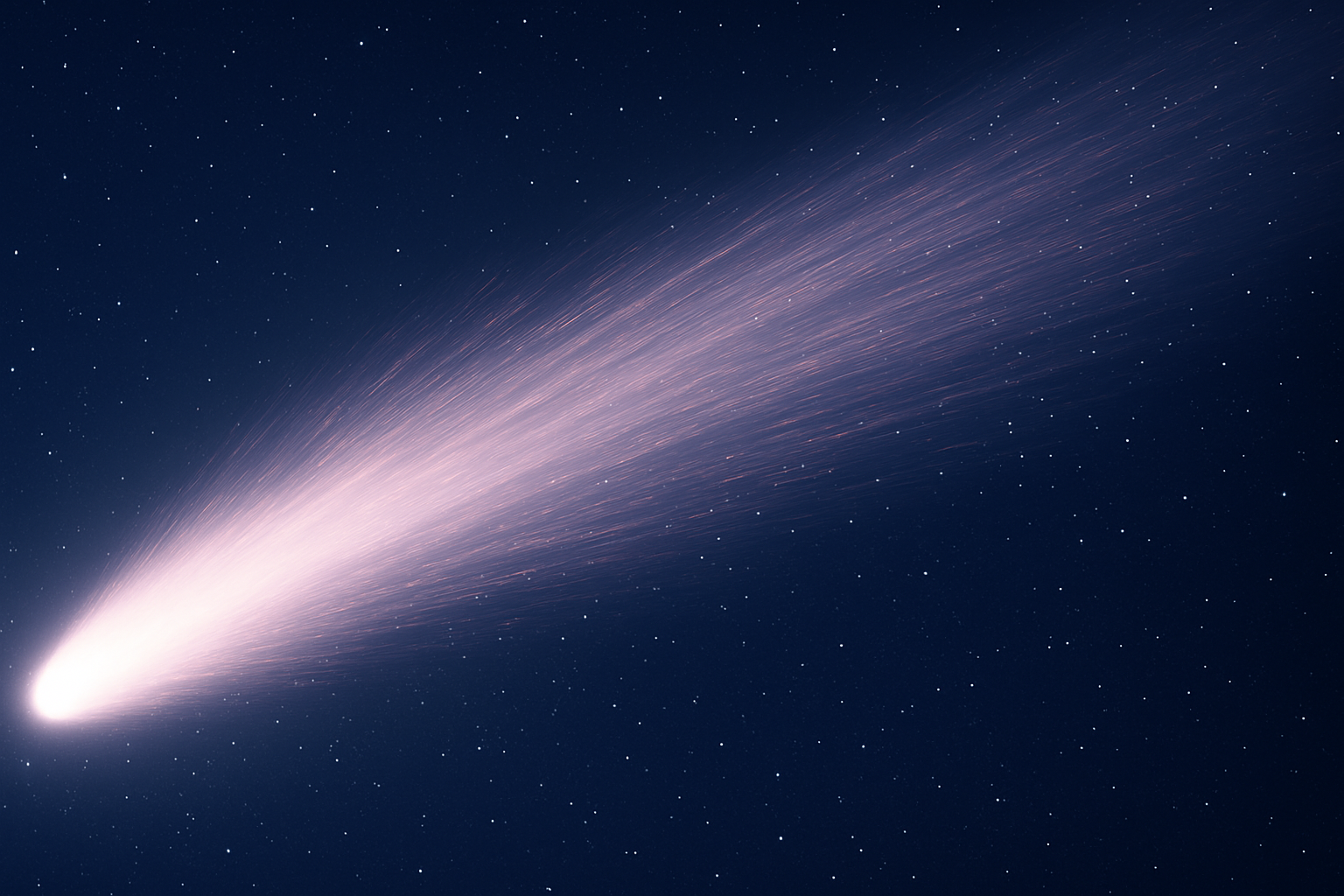
Unleash Your Creativity with a Comet Effect
Ready to take your photo editing skills to the stars and beyond? Creating a cosmic comet effect in Photoshop can be your ticket to crafting stunning, futuristic visuals that leave your viewers in cosmic awe. This step-by-step guide will walk you through creating a dazzling comet using only Photoshop’s powerful suite of tools. Transform your cosmic making skills from humble Earthling to an interstellar visual artist—let’s blast off!
Create a Black Canvas
First things first—let’s lay the groundwork. Open Photoshop, and conjure a new document. For this cosmic endeavor, set your width to 1550 pixels, height to 870 pixels, and resolution to 15 pixels per inch. Filling your universe with black, either by setting the foreground and background colors to basic black and white or by pressing `D` to reset colors and `Alt + Delete` to jump-start the filling process.
The Starfield Effect
Now we’re getting to the fun stuff—stars! Access the “Filter” menu, open “Noise,” and pump in 80% Gaussian noise in your monochromatic black space. Blur these stars gently with a Gaussian Blur set at a radius of 3 pixels. It’s not quite the Milky Way yet, but it’s the crucial start of our space journey.
Crafting the Comet
Hold onto your brush tools because it’s time to get graphic! Create a new layer, invert those colors by pressing `X`, and make your brush a star of its own by setting the size to 175 pixels with a hardness of 80%. With a few clicks and a bit of smudging (200 pixels, 0% hardness), drag your brush into a dramatic, elongated teardrop shape, setting the stage for the comet’s pathway with epic radial blur effects—a zoom blur at maximum 100 and optimal quality.
A Touch of Glow and Magic
Our comet now needs its magical glow. Delve into the outer glow effects, setting your glow color to a galactic shade of light-blue by punching in `#0036FF`. With the finesse of screen blend mode and opacity at 75%, your comet will blaze through with pixel mesmerizing beauty.
Adding Tales and Trails
With our comet tail blazing, it’s time to sprinkle in those soft trails of energized gas. Switch up the blend mode to dissolve for a scatter of stardust effect, seamlessly merged with additional layer copies. Edge the blur into our cosmic journey by using magnificent motion blur techniques, and create electrifying trails that make the comet tail distinct yet authentically ethereal. A warm-colored glow effect (easy peasy, just type in with `#FFFFF`) adds that last touch of space traveler sophistication.
Finishing Touches: Clean and Blend
Time to give our cosmic traveler’s body a bit of cleanup. Utilizing the smooth stroke of the eraser tool, polish the comet, erasing the watermark of dust beyond its radiant glow. Master blending techniques in Photoshop by employing layer masks, intertwining layers, and adjusting opacity—this crafting of pixel precision ensures seamless transitions connecting our star-studded effect with an illuminated cosmic reality.
Direct the Comet’s Path
Final adjustments transform our once static celestial body into a meteoric masterpiece with directional prowess. Employing the transformative powers (Ctrl/Cmd + T for you shortcut magicians), realign the comet’s cosmic trajectory, setting it on a deliberate pathway through that mesmerizing universe you’ve so artfully crafted.
And voilà! In just a few light-speed steps, you’ve tethered Photoshop’s galactic power to craft a stunning comet, adding a celestial vibe to your visual creations. Whether it’s art, design, or part of a larger cosmic vision, this skill adds a new dimension to your creative toolkit. Keep practicing, adjust your settings for fresh perspectives, and soon, your digital art will be lighting up the digital—and maybe even interstellar—canvas.





