
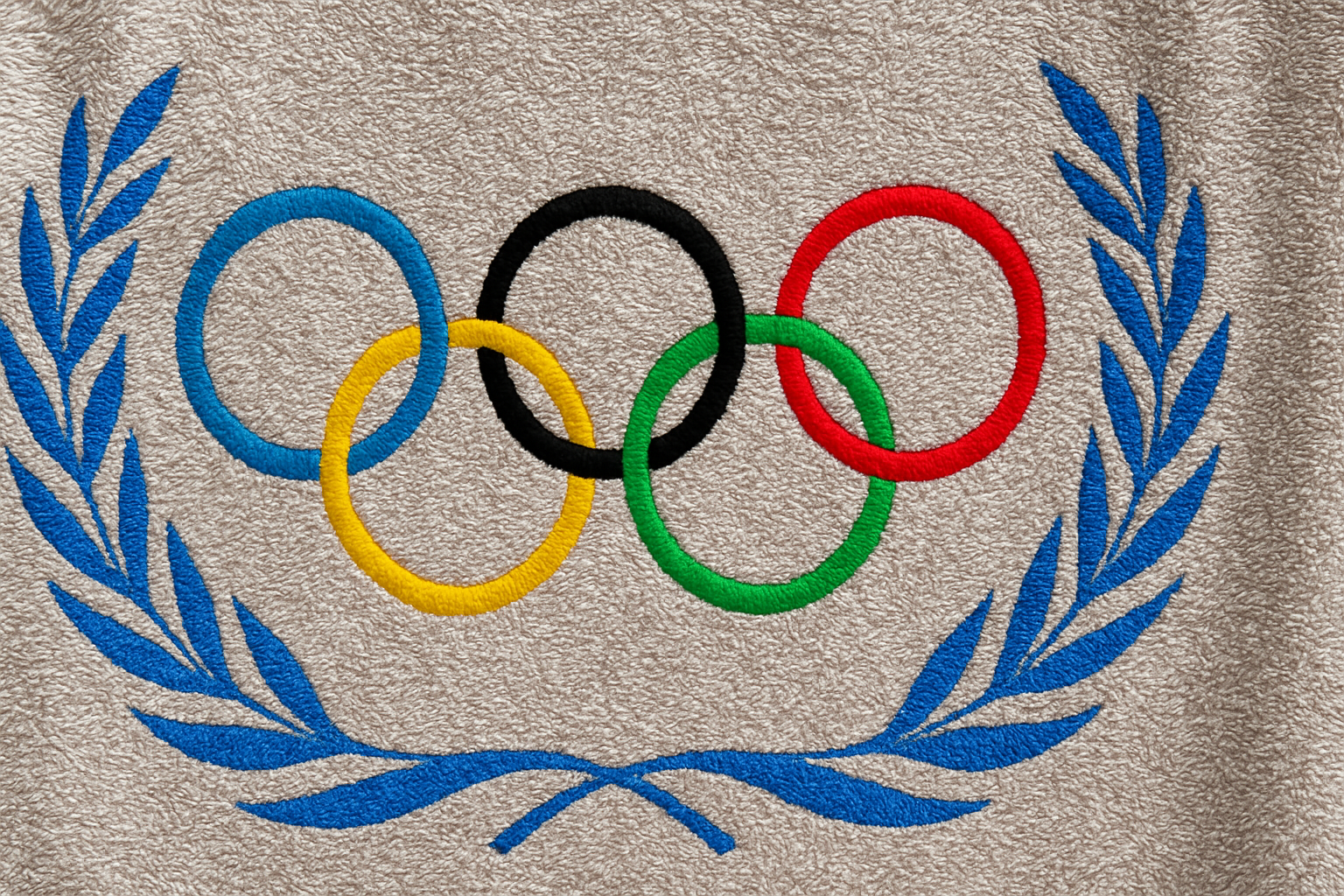
Personalized Towels with Style: A Creative Photoshop Journey
Are you ready to add a splash of personal flair to your standard towel designs? We’ve entered the realm of personalized creativity with tools like Photoshop, making it spectacularly simple to spruce up mundane items with our unique designs. Today, we’re diving into the world of displacement maps, where you can wrap your bespoke graphics and snazzy text around the contours of a towel. No more sifting through generic aisles—welcome to custom design paradise!
Prepping Your Toolkit: What You’ll Need
Before embarking on this creative venture, ensure you have the necessary files ready for action. You’ll need a file of your towel image—it’ll act as your canvas—and any chosen graphics, like the Olympic rings (or anything that tickles your fancy). Fear not if you’ve yet to gather these, as strategic downloads from the project files or video’s description simplify everything. Let the graphic magic unfold!
Step 1: Setting the Scene with Displacement Maps
Displacement maps are like the magic cloaks of the digital graphic world—they perfectly contour your design to any surface. Begin by slightly blurring your towel image to ensure the map displaces smoothly around the cloth’s contours. Aim for a blur of roughly 1.5 pixels using Gaussian Blur found under the Filter menu.
After blurring, save this smoothed image as a Photoshop file dubbed “displacement.” This will become the bedrock for creating that realistic wrap-around look.
Step 2: Unleash the Graphics
Next, crack open your chosen graphic file. (Let’s use those Olympic rings as an example.) Want to go rogue and use another symbol? Just ensure you can neatly snatch it from its background using selection tools like Magic Wand or Quick Selection. Set your tolerance wisely (32 is a sweet spot) and avoid leaving borders by ensuring anti-alias is on, and contiguous is off, for a clean cut.
In the absence of a pair of crafting scissors, invert your selection to isolate your graphic and seamlessly copy it over by pressing Command/Ctrl + J. Like a culinary delicacy, it’s all about the delicate transfer—drag this graphic onto the tab of your towel image and release it there.
Step 3: Refine and Reposition
Next up is resizing and positioning. Open the Transform tool (Command/Ctrl + T) to manipulate its size—this takes your graphic from shrunken to sublime. Hold Shift and Option (or Alt on a PC) as you drag a corner, ensuring that perfect proportion remains intact.
Step 4: Text-tastic Additions
Text, text, text—it types the tales your towel will tell. Select the Horizontal Type Tool to jot down your witticisms or heartfelt messages. A font like Cafete (find the link in the project files—you’re welcome!) sets a suave tone with a smooth finish. Center align all written content for aesthetics and set them in colors echoed from the rings.
Step 5: Bring It All Together
With text and graphics neatly positioned, it’s time to align everything into one cozy composition. Highlight all elements you wish to shift and adorably angle them together by pressing Command/Ctrl + A, followed by clicking on Align Horizontal Centers within the Move tool’s options.
The final flourish? Use the selection tools to boldly remove anything graphical that envelopes your precious text, ensuring legibility and polish.
Final Flourish: Blending and Bragging Rights
Your design isn’t wrapped until it’s wrapped in realism. Slightly blur the united items further, adding the final blend factor. Return to the Displacement dance with a little horizontal and vertical tweaking using Displace under the Filter menu.
Lastly, embrace the magic of Layer Blend Modes. Switching it to Multiply will seamlessly fuse your creation onto the towel’s fabric, converting words and images into tactile textures.
Now that you’ve tout-ally crushed this technique, flaunt away, dear designer. Whether you’re creating whimsical gifts or personal keepsakes, the world is now your customizable oyster. Here’s to dazzling designs with each fiber fantasizing about how you turned a towel into an artwork!
(Note: Some links and resources mentioned can be browsed appropriately through Google’s almighty search powers or mightily—and quite possibly miraculously—be found within the video’s description. Wield your internet prowess wisely!)




