
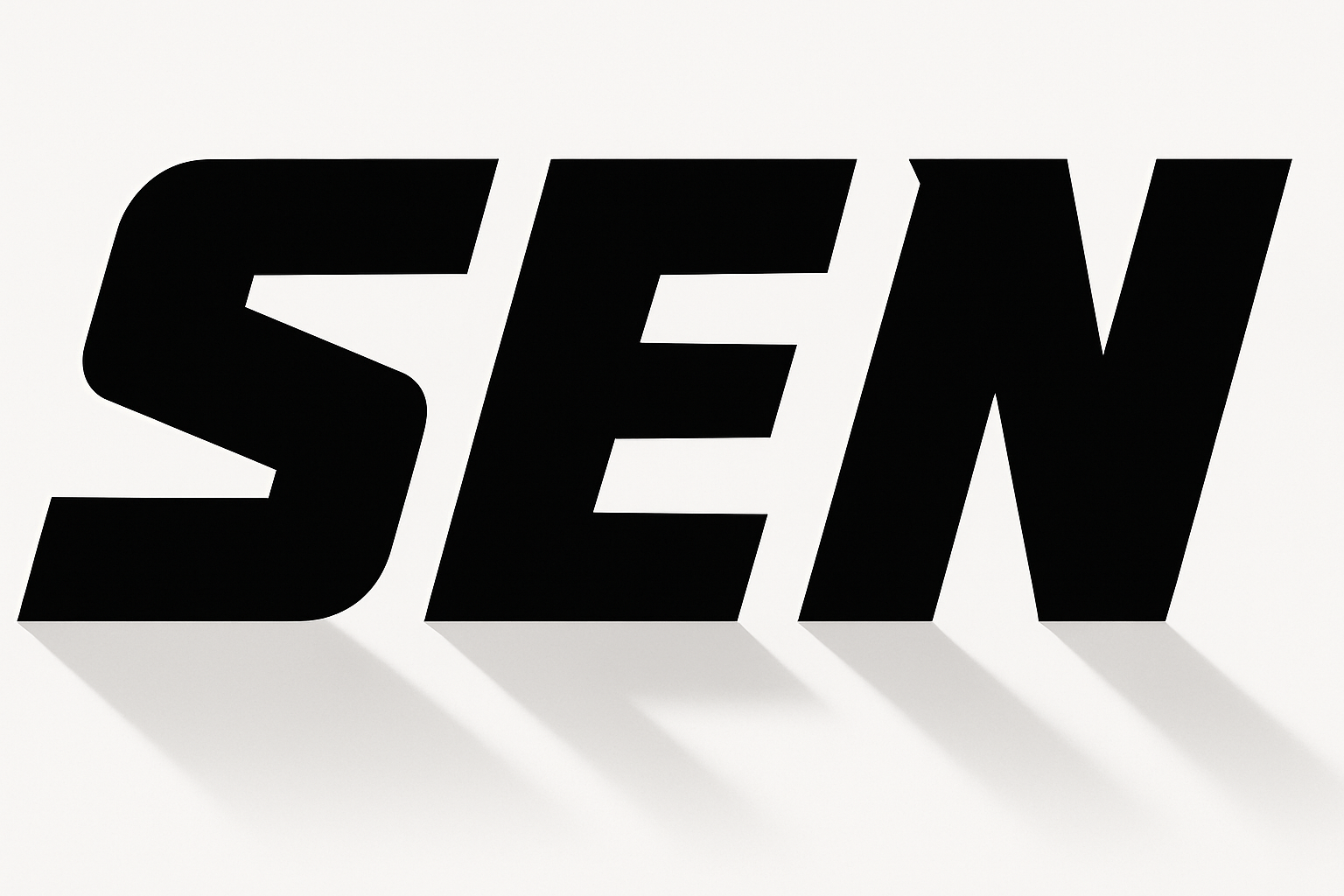
Mastering Logo Design with Letters and Negative Space
Crafting a memorable logo doesn’t always require complex designs or intricate illustrations. With the clever use of positive and negative space within letterforms, you can create compelling black and white logos that command attention and exhibit creativity. In this post, we’ll guide you through the process of turning simple letters into a striking, monochrome logo using Adobe Photoshop. This technique can be applied to any odd number of characters—whether three, five, seven, or more—allowing you to explore endless creative possibilities.
Starting with a Blank Canvas
To begin, you’ll want to set up your workspace by creating a new document in Photoshop. Adjust the dimensions to 1280×720 pixels with a resolution of 150 pixels per inch. This setup ensures your project fits comfortably on your screen, making it easier to manipulate and refine your design.
Next, you’ll fill your background with a medium grey tone. This is accomplished by pressing Shift + F5, selecting 50% grey, and confirming your choice. Ensuring ‘Rulers’ and ‘Snap’ are enabled under the ‘View’ menu makes aligning elements much simpler as you proceed with your logo design.
Choosing the Right Font and Layout
Typography is key when creating a type-based logo. Opt for a thick and heavy font, which helps the logo stand out and accentuates the use of negative space. For this tutorial, the font “Air Cruiser” is highly recommended and can be found on AbstractFonts.
Set your font size to around 225 points, align the text to the left, and ensure the anti-aliasing is set to none for crisp edges. Begin by typing your first letter, then create two copies to form the basis of your logo’s lettering. Use the snaps provided by the rulers to align your letters perfectly on the canvas.
Creating and Refining the Logo’s Shape
Central to this method is utilizing the curves and intersections of your chosen letters to define the logo aesthetically. First, alter the middle letter’s color to white to start playing with the positive and negative spaces. Adjust the letters so they overlap slightly—this overlap is where you’ll define the essential curves providing the articulation of your final logo.
Use the Rectangular Marquee tool to draw a selection around your lettering, then switch to the Pencil tool. Select white as your foreground color to fill in any grey areas within the black curves of overlapping letters. This step ensures that your design elements appear to flow seamlessly into one another.
Finalizing the Logo Design
After painting your negative and positive space, make a selection of your logo using the Channels Panel. Invert the colors and create a separate layer to isolate the text design, keeping it distinct from your guide elements.
Now, you can hide your grey and guide layers to focus on your design. If desired, use transformation tools to skew or resize your logo, giving it additional flair.
To add depth, apply a drop shadow. Make a selection of the logo’s shape and fill a new layer with a dark color, then use Gaussian Blur to soften it. Manipulate this layer’s position and opacity to achieve the shadow effect you desire. Feather either side to blend the shadow smoothly into the background.
Exploring Alternate Designs
For a more dynamic look, consider reducing the logo’s size using the Transform tool, holding down Shift and Alt (or Option on a Mac) to maintain proportions. Add an embellishing element, like an ellipse, for a stylish finishing touch. This highlights the flexibility and versatility of your design, showcasing how simple text manipulation can evolve into an elegant logo.
Conclusion: The Beauty of Simplicity
These techniques harness the power of typography and negative space to craft black and white logos that are not only visually captivating but also practical for a variety of applications. It’s a testament to how simplicity, when carefully considered, can be both functional and artistic.
Through this exploration into typography-driven logo design, you will gain a deeper understanding of how to convert basic letter shapes into professional-grade logos with minimalistic charm. Happy designing, and let your creativity lead the way in redefining text into art.





