Turn Simple Text into Dramatic Shards
Ever wondered how to transform mundane text into eye-catching, shattered shards? Photoshop’s powerful toolset allows artists, designers, and creatives to do just that—all it takes is a few clever techniques. Today, we will dive into the world of breaking text apart into splintered fragments using textured backgrounds and Photoshop’s transformative tools, giving your designs a kick of drama and flair.
The Resources You Need to Start Shattering
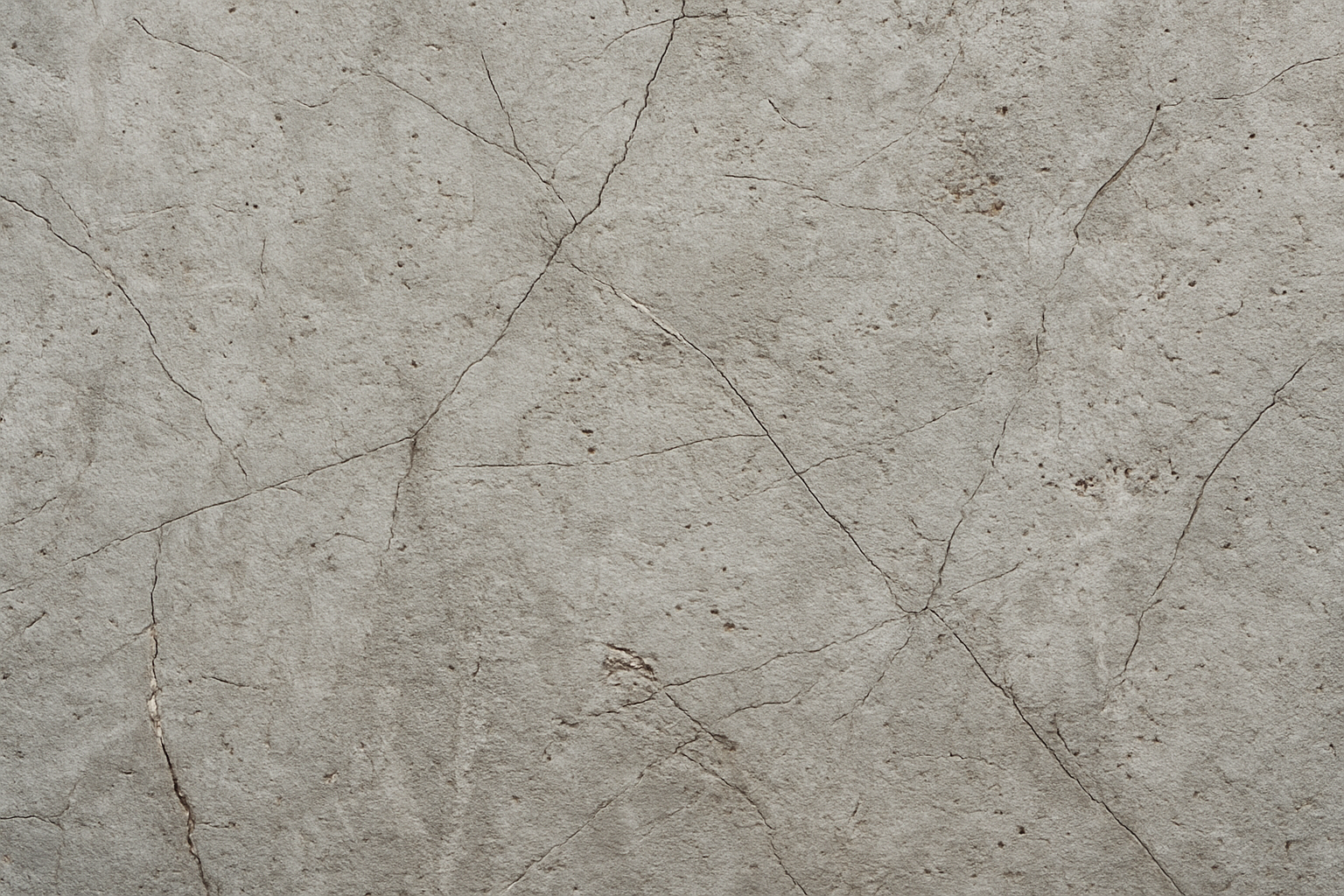
Before we get started on our journey to fragmentation, make sure to download the provided PSD file linked in the video’s description—or as digital artists like to call it, your golden ticket. Inside, you’ll find two rich-textured backgrounds: one that mimics broken concrete and another that resembles bare metal. These textures will serve as the perfect backdrop for your demolition work.
Setting the Stage with Concrete Texture
To spark the process, start by masking the bare metal texture by clicking off its visibility ‘eyeball.’ With the gritty concrete sole in view, jump to the ‘new layer’ button in your layer panel and create a new layer above it. This will be your workspace as you build your text’s transformation.
Make sure the color of your foreground is set to black. If it isn’t, simply click the double-box icon—as easy as flipping on a lightbulb in Photoshop terms. Hit ‘Alt + Delete’ on your PC or ‘Option + Delete’ on a Mac to fill the layer with blackness, setting the groundwork for the spooky text shattering to follow.
Crafting Your Text for Demolition
The key to this spectacular effect lies in the choice of font—opt for something big, bold, and unshakeable. This tutorial uses ‘American Captain,’ a heavyweight champion that stands tall at point size 230, with center alignment smooth as polished marble. Why not kick it up a notch with an obscure or eerie font? The white color ensures that your text will contrast crisply against the dark backdrop.
Position this text to your liking using the Move Tool, dragging it to align it in the spotlight of the composition.
Slicing and Dicing Your Text
The real fun begins now—let’s get surgical. Engage the Polygonal Lasso Tool, which allows you to craft jagged shapes around parts of your text with surgeon-like precision. This tool metaphorically hands you the scalpel to cut out pieces of your text, shifting them onto new layers for safety while respecting their individual existence.
Once you’ve drawn the shape to slice and dice, press ‘Control + Shift + J’ on your PC or ‘Command + Shift + J’ on a Mac. Voilà, the selected area jumps onto a new layer like a piece of fabric snipped from the roll. Repeat this exercise until your main text lies in a shattered heap—each line and letter piece vying for attention.
Organizing the Chaos
To keep your shattered pieces from becoming a disorganized mess, it might be wise to drop them into a folder—call it your ‘Fragment Container.’ Highlight all the pieces like you’re selecting tracks on a playlist, and bundle them up using ‘Control + Command G.’ Give your folder a creative name, maybe something like “Text Rubble” to encapsulate the chaotic energy within.
Add Shadows for Depth
Your sacrosanct disbandment is incomplete without a touch of gritty realism. Open the Layer Style window and apply a “Drop Shadow” effect to your folder. Multiply that blend mode, retain your blackout of color, and finagle the opacities and spreads to craft the illusion that your letters cast ominous shadows upon your digital floor. Tweak the distance, spread, and size to achieve the desired moody visuals.
Revamping Backgrounds and Adjustments
With your textual chaos fully embraced, give the background a little facelift. Reactivate that bare metal texture and shift the blend mode into “Multiply.” This nuanced act infuses the material’s texture into the whole piece, deftly grounded in the design.
To really make the text pop against this textured horizon, fiddle with the Brightness/Contrast settings of your background. Pull the brightness slider to the dim and the contrast toward concern until the setting feels juxtapositional to those concrete pieces of text, which dare step out of line.
Embrace the Shattered Aesthetic
By following these steps, you’re not merely breaking text—you’re pioneering destruction with style. With just these simple techniques in your back pocket, flipping ordinary fonts into jagged chards and placing them against materials like stone, concrete, marble, or any robust substrate becomes as effortless as pouring coffee in the morning.
So venture forth and create with purpose as you harness the gravitas of fragmented text. Your audience—ranging from ardent fans to first-time onlookers—will be left in awe of your shattered masterpieces aching for attention.
Be sure to explore more of our tutorials at Blue Lightning TV, where creativity and digital wizardry meet at the crossroads of inspiration and aspiration.