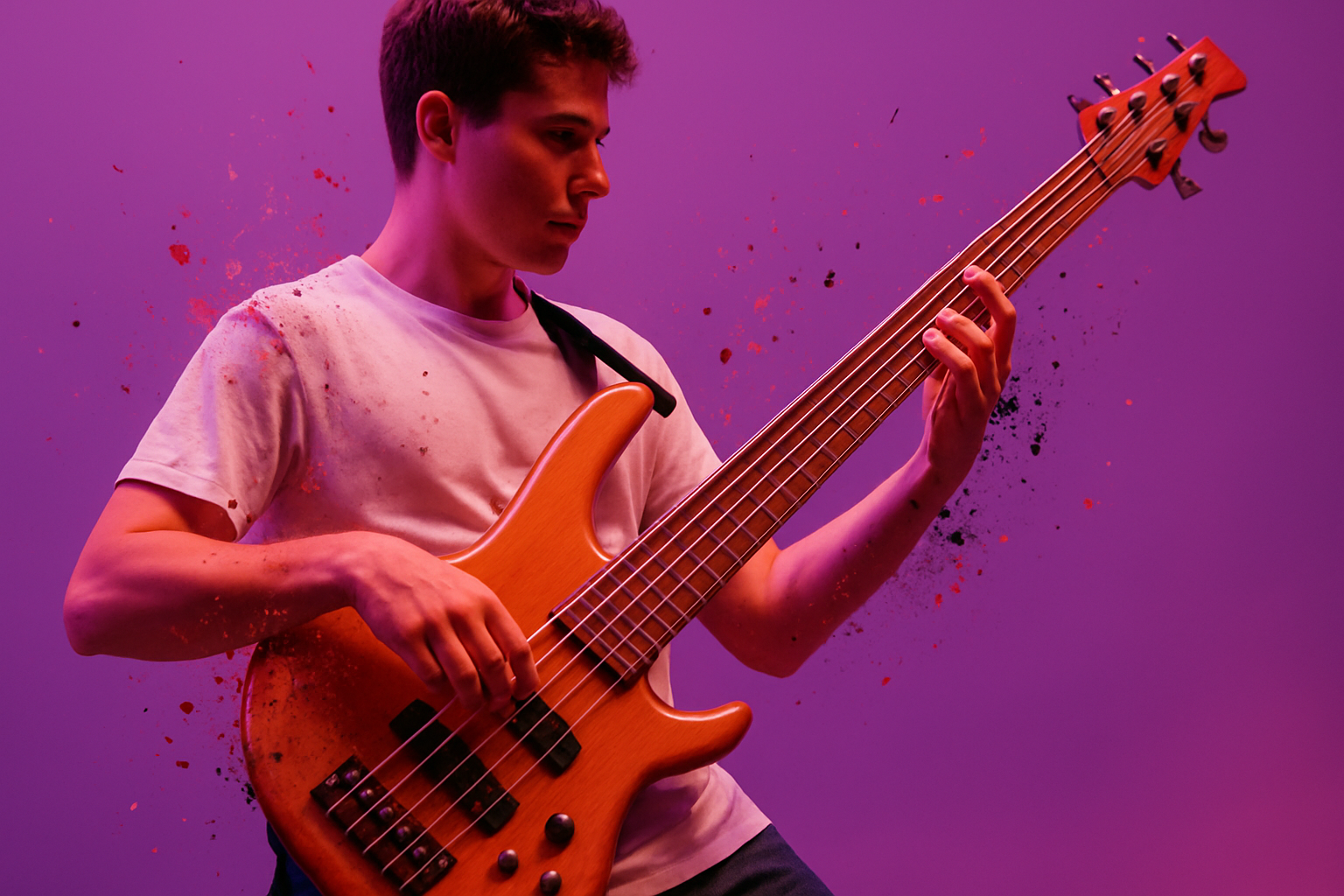
Dive into the World of Graphic Transformation with a Splatter Effect
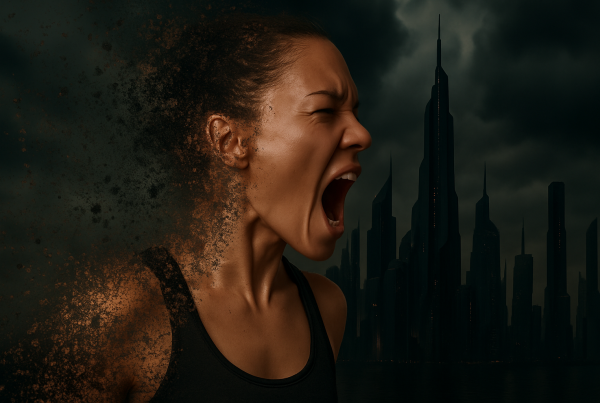
In the ever-evolving realm of digital art, one effect continues to capture the attention of artists and designers alike: the splatter effect. This eye-catching technique transforms ordinary images into dynamic, energetic masterpieces. Whether you’re looking to add a vibrant twist to a musician’s portrait or inject some life into an athlete’s shot, the splatter effect opens a realm of creative possibilities. And guess what? You don’t need to be an Adobe Photoshop wizard to achieve it. With a little patience and some know-how, you’ll be all set to create a burst of energy in your artwork.
Setting the Stage for Our Splatter Effect
Before diving in, it’s essential to start with the right canvas. To achieve optimal results, begin with an image sized at 2600 x 600 pixels and set at a resolution of 150 pixels per inch. Whether it’s a photo of your favorite musician, athlete, or a candid moment, the splatter effect is versatile enough to adapt and enhance any subject.
First Steps: Making Your Selection
- Kick things off by isolating your subject from its background; this is crucial for applying the splatter effect effectively.
- Using Photoshop’s Quick Selection Tool, drag your cursor over your figure to select it. For any unwanted areas, press ‘alt’ on a PC or ‘option’ on a Mac to fine-tune the selection.
- Once satisfied, trust the good old “ctrl/command + J” shortcut to copy your selection onto a new layer—effectively cutting it away from the background.
- Make two duplicates of this layer, naming one “Original” and the other “Liquify.”
Creating the Energetic Background
- Transform the background into a canvas bustling with energy by applying a Radial Blur.
- To do this, head to Filter > Blur > Radial Blur and set the amount to 20%, with the method set on ‘Zoom,’ and ensure the quality is at ‘Best.’
- This will create an effect as if the subject is bursting out from the center, adding depth and dynamism to your image.
Sculpting with Liquify
- Now it’s time to play with the “Liquify” layer. Go to Filter > Liquify, and from the window that pops up, choose the ‘Forward Warp Tool.’
- Alter the sizes using the bracket keys and drag the outer sections of your subject outward. These manipulated areas will soon stand out as captivating splatters in your artwork.
- Next, mask it! Create a layer mask on your liquify layer and invert it using “ctrl/command + I.”
Let the Splatter Begin
This is where the magic happens. With splatter brushes at your disposal, courtesy of the downloadable preset linked in the video description, you’re primed to add those signature splatter strokes. Load up your brushes, adjust their size with the bracket keys, and play around by clicking at different areas of your masked artwork to reveal intricate splatter details. Every click adds a unique expression.
Feel like tweaking the angle? Press F5 to open the brush settings. The options for brush tip shape, angle, and roundness are your creative playground, adjusting to accentuate the spontaneity of paint splatters.
A Splash of Color
It’s not just texture—color can also play a pivotal role. Replace original splatter colors with vibrant hues by selecting different foreground colors and simply clicking on the areas you wish to transform. This not only diversifies the overall aesthetic but introduces a fresh pop that accentuates your subject.
Bringing It All Together
If certain splatters are outshining your subject, never fear! Adjust your layer masks and use your foreground color to paint over those areas, reclaiming the visibility of your primary subject. This balance is crucial to ensure that the splatter effect enhances rather than overwhelms.
The splatter effect isn’t just about applying random blobs of paint in Photoshop; it’s about breathing new life into your photos, whether it’s capturing the rhythmic energy of a musician or the explosive power of an athlete. Each stroke and color brings about a sense of action and vitality that transforms a static image into a dynamic visualization.
Now, go ahead and let your imagination run wild. Splatter your way to stunning visual stories that express more than words can say. Let’s face it, sometimes the best art is a little bit messy, and a whole lot of fun!