
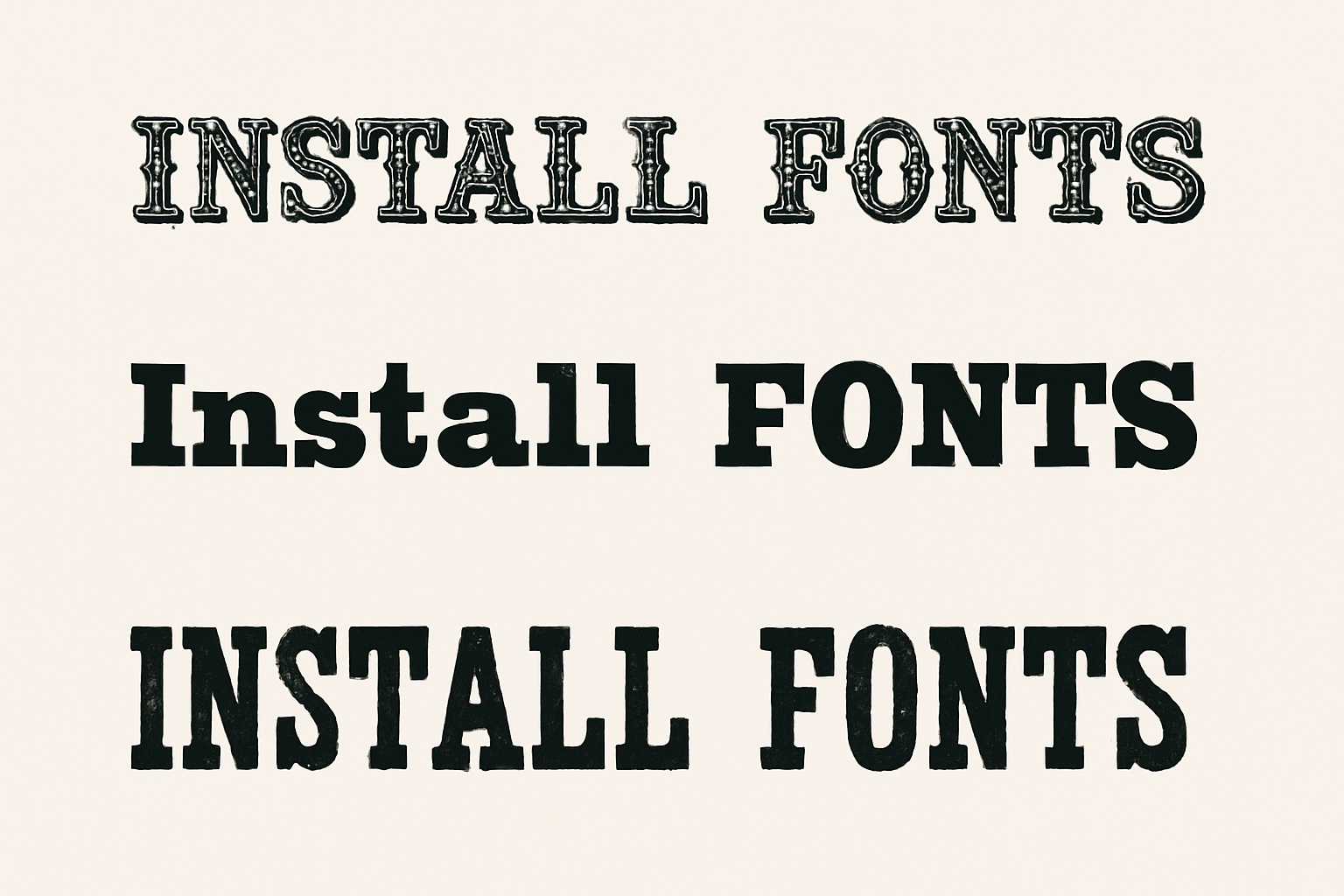
Fonts: They’re Everywhere, and Now They’re Yours
In the digital age, typography is everything. It’s that seasoning that sets the mood, speaks volumes without uttering a word, and gives your design the personality it deserves. Whether you’re designing a sleek website, crafting an elegant invitation, or simply enhancing your Instagram graphics, the right font can make—or break—your creative project. So what happens when you stumble upon that absolutely perfect font? Panic not, dear creatives; installing it on Windows is effortless and immensely satisfying. Here’s how you do it.
The Font Odyssey Begins
Before we get into the nitty-gritty of clicking, dragging, and dropping, ensure that your Adobe Photoshop application is closed. That’s right, close it before you embark on this epic font quest, because applying a new font whilst it’s open might cause some glitches in your creative force.
Font Websites—Your New Best Friends
There are countless websites for free fonts just waiting for your artistic eyes to find them. For the purpose of this lesson, let’s venture to DaFont, a treasure trove of typographic wonders. One of its many hidden gems, “Gunslinger,” will be our chosen font. Don’t fear the quirky-sounding names—each font is as unique as the last.
The Download & Extraction Dance
Once you’ve set your sights on a font and clicked that beautiful download button, you’ll notice these files are often zipped. No, they’re not keeping secrets from you, they just need a little unzipping love. Make sure you have a reliable file extraction software. Sure, digital life is a guessing game sometimes, but aim your fingers toward trusted applications like WinRAR or 7-Zip.
- Step 1: Click “Download.”
- Step 2: Choose “Open With” alongside your extraction software.
- Step 3: Click “OK” to extract, like a creative professional opening a newfound treasure.
If you’re a Windows 7 user, ensure you’re the captain of the admin team, as these fonts can be a touch possessive.
It’s All About That [TTF] Life
Peek inside your unzipped font folder. You’ll typically find files ending with either .ttf (TrueType) or .otf (OpenType). These are your fonts, ready to take you on a typographic journey. Click on either, and what you’ll see before your eyes is what designers call font heaven—a window displaying the beauty of each character in varying sizes. Want it? Click “Install.”
When All Else Fails, Go Manual
Suppose you’re not greeted with an installation window. Don’t worry, manual is your backup dance move. Navigate through the depths of your computer by making your way through:
- Start
- Computer
- Local Disk (C:)
- Windows Folder
Within these digital corridors, there lies a magical folder creatively named “Fonts.” Drag and drop your .ttf or .otf file into this realm and see your font flourish!
Bringing Textural Tales to Life in Photoshop
Now it’s time to reopen your Photoshop. Eagerly go to “Window” and choose the “Character” option. Sift through your font list, and, behold—there it is, the “Gunslinger” font you just installed, awaiting your creative storytelling. Select your type tool, draft your words, and let your typography run wild.
As designers, artists, and creators, we live for these small victories. Adding a new font to your collection isn’t just adding letters to your digital arsenal; it’s embracing a new way to express styles, emotions, and narratives. So go forth, bold designers, with your fresh fonts and let your creative juices flow with typographic mastery.
Want more typographic tips, tricks, and possibly some playful sass? Of course, you do! This isn’t just about fitting letters onto a page; it’s about transforming them into art. Dive deeper into our font-filled ocean; who knows what else you’ll uncover? Thanks for joining our journey through the land of fonts!
Conclusion
There it is—your comprehensive guide to becoming a font-installing virtuoso on Windows. Whether you’re branding, designing, or just having fun with typography, embrace the vast world of free fonts and design to your heart’s content! Turn snippets of code into sweeping visual narratives, and share your typographic triumphs with fellow creatives. After all, in the world of design, fonts aren’t just characters; they’re the plot twists that keep us all coming back for more.





