
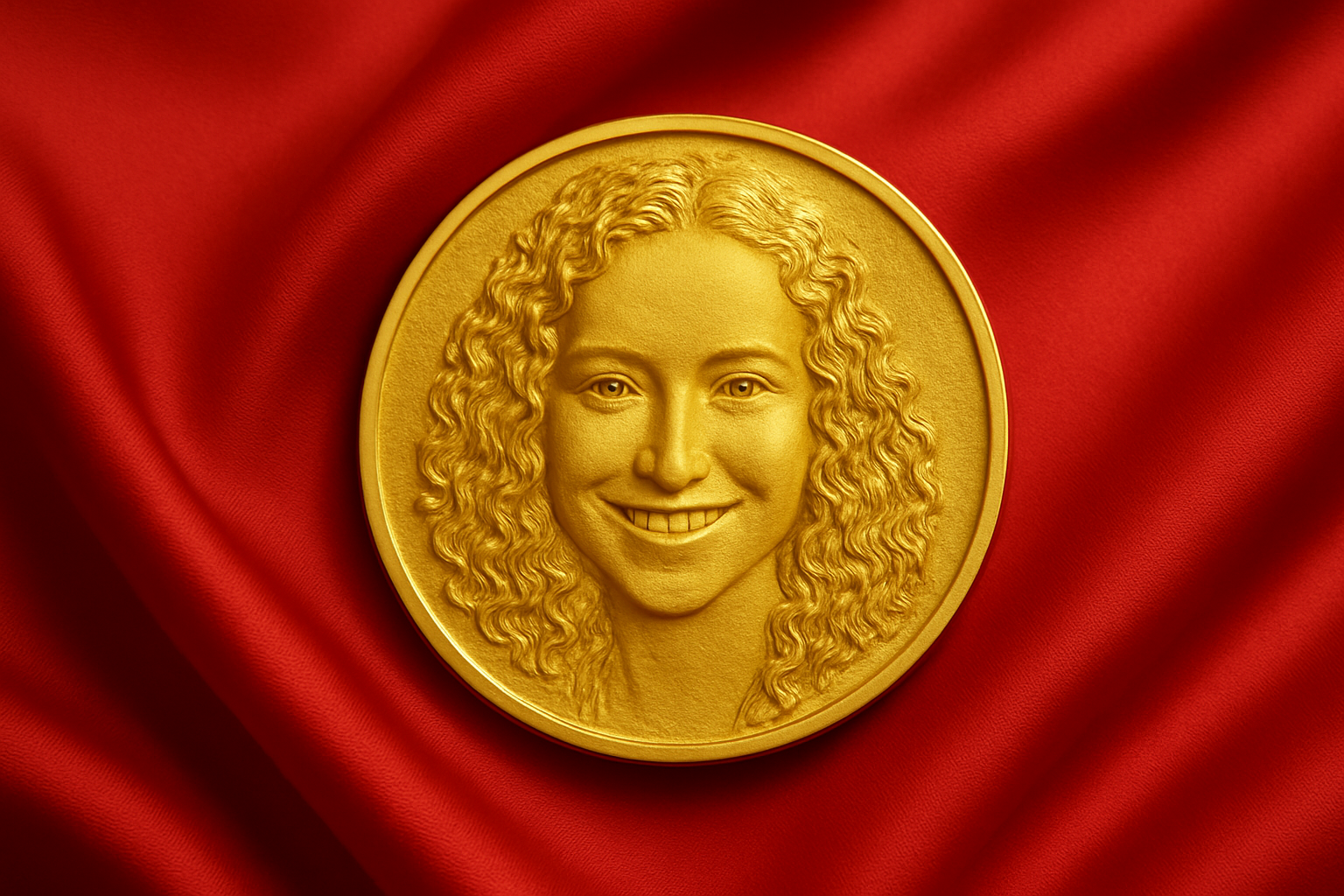
Create Your Own Custom Gold Medallion
In the ever-evolving world of digital design, the quest to create something unique and captivating is relentless. One of the more intriguing digital endeavors is crafting a lifelike gold medallion. This tutorial will show you the steps to transform a simple photo into an embossed golden treasure that feels as timeless as it is digital. Whether you want to honor someone special or just want to hone your Photoshop skills, creating a gold medallion could be the creative project you’re looking for.
Preparing Your Canvas
The first step in this Photoshop odyssey is setting up your document. Start with an 8×8¾ inch canvas at a resolution of 300 pixels per inch. Remember, high resolution and good lighting in the photo are essential for achieving a stunning final look. If your photo is in color, desaturate it using Ctrl or Command + Shift + U. Ensure your image has a plain background to make the later steps in the process more straightforward.
Cropping to Perfection
Using the Elliptical Marquee Tool, create a circular selection over your image by starting at the center and dragging outwards while holding Shift and Alt (or Option on a Mac) to ensure a perfect circle. Once your selection is made, use Ctrl or Command + J to cut the selection and paste it onto a new layer. This technique ensures precision while creating the base for your medallion.
The Black Canvas Effect
Next, fill a layer below your image with black. Make sure black is your foreground color and press Alt or Option + Delete to do the fill. This step sets the foundation for creating a richly detailed bas-relief effect.
Making it Shine
Dive into the details with the Filter Gallery. Open your sketch folder and select “Bas Relief.” Adjust the levels to Detail 12, Smoothness 1, with light coming from the top left. Modify these settings depending on your photo’s specific size and resolution to get that perfect etched metal look.
Adding the Midas Touch
Transform your image truly, into a golden spectacle by using Color Balance. Apply midtones and adjust cyan, magenta, and yellow levels to craft that warm, golden hue. Then, employ the same adjustments on shadow and highlight tones to ensure a consistent metallic sheen throughout the image. Using the clipping mask icon ensures the effects apply only to the medallion, preserving its pristine form.
An Element of Depth
Enhance the look further with Bevel and Emboss effects to give your medallion substance and a three-dimensional feel. Use settings such as an inner bevel style with a smooth technique, depth at 52%, direction down, and a size of 90 pixels. These settings help mimic the physical properties of metal and light interaction.
Finishing Touches
With a medallion complete, placing it on a red velvet background can augment its elegance. Make sure to move this new background outside of the adjustment layer to maintain its rich, original hues. Convert your medallion shape into a smart object, then you can use layer masks and smart filters to refine and decorate your masterpiece further.
Reflective Qualities and Final Adjustments
Revisit your inner ring effects to adjust depth and size, allowing you to cultivate even grander reflective qualities. Consider adding text or cropping your image to honor the aesthetic balance of your creation.
Crafting a gold medallion in Photoshop might sound like just another project but its applications—gifting, digital artwork, personal achievements—are as real and tangible as the physical item itself. So, take a step into this golden realm and transform your digital imagination into reality with this delightful Photoshop venture.




