Create a Digital Gas Giant: Channel the Majesty of Jupiter
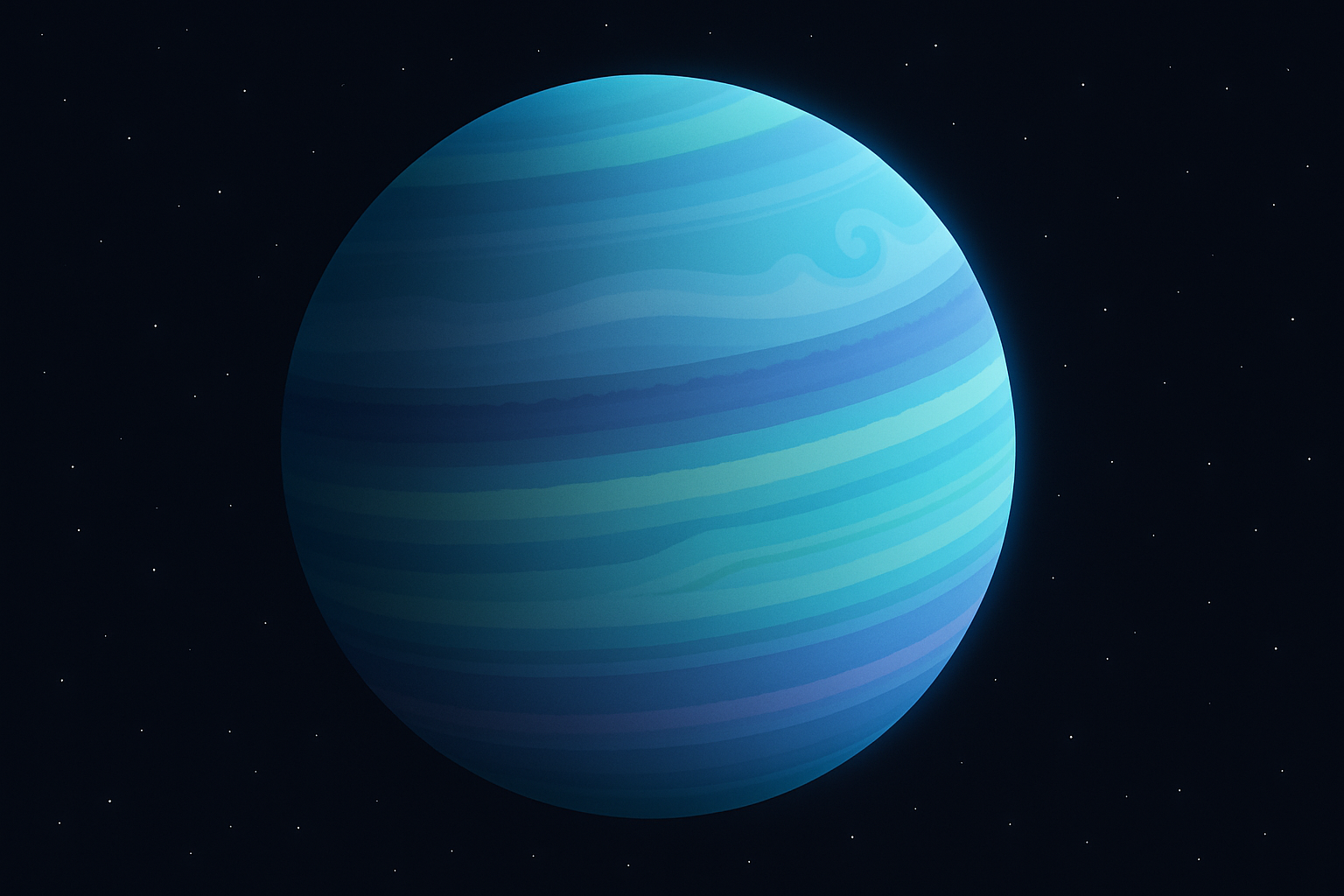
Ever looked up at the night sky and wondered, “How do I bring that colossal gas giant Jupiter into my art?” Well, buckle up because we’re diving deep into the swirling, tempestuous beauty of planet creation with Photoshop. Turn mere pixels into a mesmerizing planet boasting dynamic, colorful bands of gas and formidable storms. From layering gradients to custom brushwork, let’s harness the power of creativity and Photoshop to engineer celestial bodies of our own making.
Setting the Scene: Black is the New Black
Start with setting up your canvas in the vast darkness of space, or in Photoshop terms, a black background. Begin with a 1000×1000 pixel document at 72 ppi. If your digital painter’s palette isn’t already set to black, hit ‘D’ and follow up with Alt (or Option if you’re Apple-inclined) + Delete for a quick color fix.
The Surface Layer: Where the Magic Happens
Create a new layer aptly named “Surface”. The structure of this planet starts with a gradient foundation. Engage your gradient tool, dig into the noise samples under the gradient presets, and choose a base that screams, “I am the core of a gas giant!” Click on “Blue” if you’re yearning for that quintessential space luxury.
The control doesn’t stop there. By using the Ripple effect, set to a spirited 125% with medium size, your surface begins to ripple in space-bending magnificence.
Distorting Reality with Purpose
Let’s talk about drama, darling. Head back to the world of filters, choose “Distort,” then “Wave”. The choice is yours to manipulate wave frequency and amplitude to generate your desired planetary undulations. Your imagination is the limit here.
To bring life to this canvas, utilize the Liquefy tool for that delicious turbulence effect. Curve the gas trails at oblique angles and introduce the esteemed Twirl, a tool perfect for manifesting cosmic storms. Feel free to cut loose with the Pucker tool for enhanced textures—after all, Jupiter isn’t calm, and neither should you be.
Spherize: Or, How to Fake the Perfect Globe
Your planet deserves to be spherical—just a quick visit to Filter > Distort > Spherize, and adjust to 100% will do the trick. Let’s put the Marquee to work; an Elliptical one, drawing a border of planetary proportions to extract your bespoke planet from the confines of a rectangular realm.
Shining Through: Outer and Inner Glow
Imagine dusted halos of light surrounding Jupiter. With a new layer hosting your artwork, activate the FX icon for glows both outer and inner. Both layers need the blend mode shifted to “Normal”, and their presence accentuated through pixels ranging from 50 to 75 for depth and opacity finesse.
Expanding the Universe and Stars: Texture is King
Want more room in this cosmic theater? Adjust your canvas by 220% in width and 125% in height as a nod to dramatic vistas. The universe isn’t complete without stars, so sprinkle 400% noise (Gaussian and Monochromatic unless pixelated rainbows are your thing) with a 1-pixel Gaussian Blur, before tweaking shadow levels to reveal a cosmos fit for your masterpiece.
Color it Your Way: Infinite Palettes
Should the mood strike to experiment, adjust hues to imbue the celestial body with different emotional tones. Beautiful blues, rebellious reds, maybe calming purples—the sky isn’t the limit here, because we’ve gone beyond it. For now, we’re keeping things familiar with true-to-Jupiter hues.
Composite and Flare: The Final Touches
In conclusion, invoke a composite snapshot with the shortcut (Ctrl+Shift+Alt+E or Command+Shift+Option+E) and crown your planet with a lens flare for dramatic effect. A 75% brightness with a generous 105mm Prime lens filter should ensure your vision shines in the infinite darkness.
Creating these gargantuan gaseous spirits is not just a Photoshop exercise, but a glimpse into the stars and beyond, summoning massive planets with unique vibrancy and grandeur. So throw on some late-night lo-fi, open Photoshop, and let’s make the universe a smaller place, pixel by pixel.
As always, the creativity is yours to explore, and we hope this walk-through tangles you in an enthusiastic orbit! Keep reaching for the stars, and until next time, happy creating.