
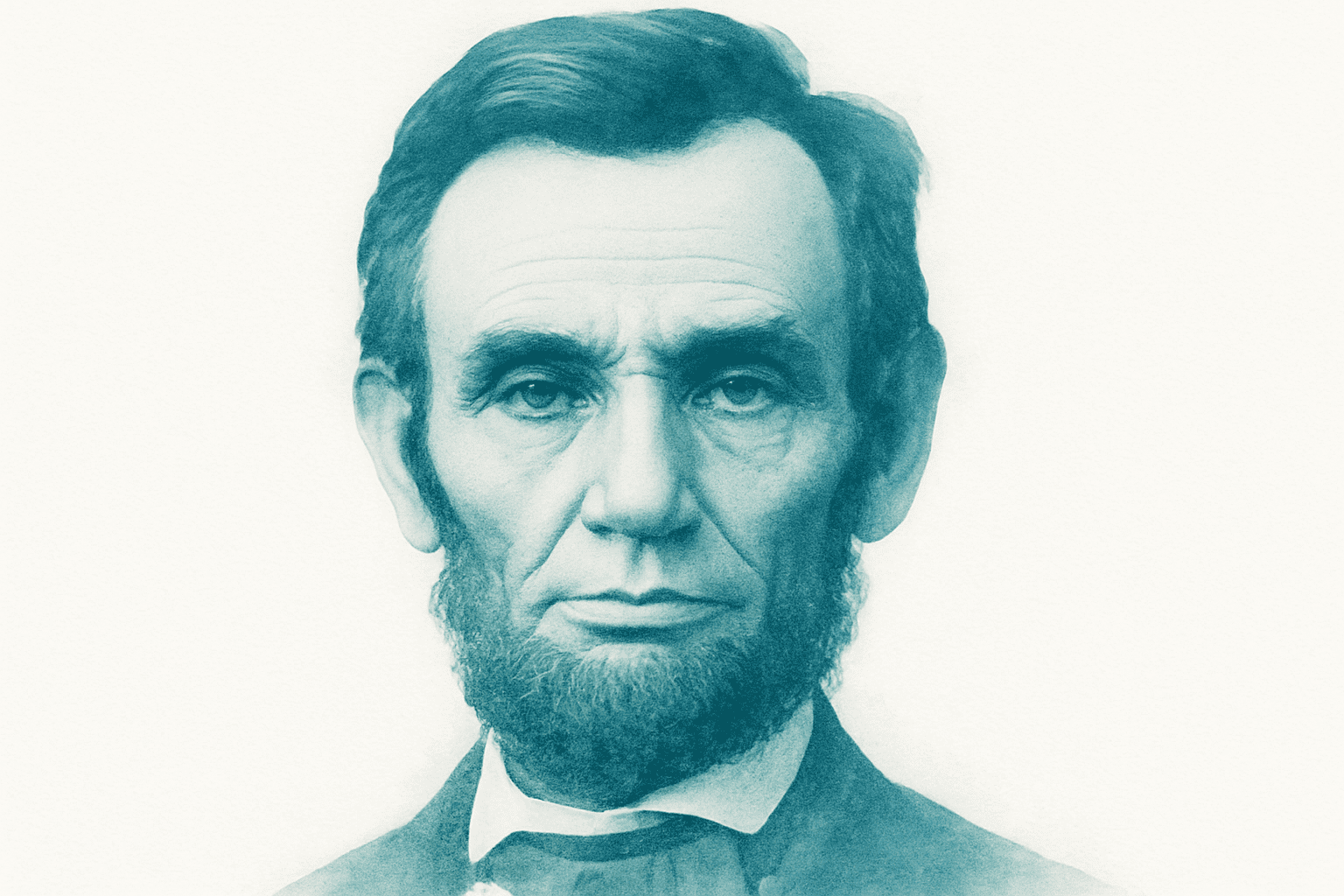
Transform Images with Text for an Artsy Twist
If you’ve ever wandered the vast corridors of online graphic design and thought, “I wish I could turn a photo of myself into an artsy text masterpiece,” you’re in luck. Today, we’re diving into creating stunning portraits using text in Adobe Photoshop—a technique that seamlessly meshes the visual art of photography with the typographic beauty of font. Forget those lackluster grayscale versions; we’re exploring a method that maintains the vibrancy and detail of your imagery with black text across all shades, including midtones. Get ready to manipulate fonts, sizes, and even colors without losing an ounce of your image’s essence.
First Steps: Preparing Your Image
Before you transform your image into a text-based visual feast, some basic prep work is needed. Use an image with the dimensions of 800×800 pixels and a resolution of 300 dpi for optimal results. If you’re starting with a colored photo, desaturate it to a grayscale image. This helps establish a powerful base that will accommodate the textual overlay. Simply press Ctrl + U (Cmd + U for Mac users) and drag the saturation down to zero.
You’ll want to ensure a clean separation between your subject and the background by selecting the portrait and placing it on its own layer. This tutorial is all about efficiency, so let’s bypass those steps and get right into the meat of things.
From Shadows to Midtones: Mastering Tonal Selection
The transformation begins by using Photoshop’s color range selection tools. Head to Select > Color Range and choose “Shadows” first. This action allows you to isolate the shadowy areas you’ll fill with bold, thick text. Create a new layer for these areas and fill them with black.
Next, select the “Midtones.” This layer will differentiate itself from the Shadows layer by using a lighter-weight font. Again, fill the selected areas with black on a new layer. You should now have both your shadow and midtone outlines set and ready for text application.
The Text Effect: Creating Your Typography Artwork
Now it’s time to let your creativity take the wheel. We’re producing a textual tapestry confined within defined areas—a process called text blocking. Begin by selecting the text tool and dragging it across the canvas from corner to corner to create a text area.
For those gibberish lovers, feel free to fill that space with some good ol’ “Lorem Ipsum” using a generator. Otherwise, personalize the art by drafting a meaningful block of text that aligns with the essence of your subject.
Choose fonts appropriately: use a weighty font like Arial Black for the shadow layer, and a lighter counterpart like Arial Regular for the midtones. Be sure to set the alignment to justify on both sides for a professional look. Copy over the selected text into these blocks, and watch your portrait start taking shape as text.
The Font Whisperer: Fine-Tuning Text Layers
Once your text is in position, you’re in the realm of endless possibilities. This technique lets you keep your text layers live and editable. This means you can change fonts, sizes, and any aspect of the text without undoing any hard work. Adjust the point sizes, and if it doesn’t look right, simply Ctrl + Z (Cmd + Z on Mac) to reverse it.
Adding Some Splash: Coloring Your Creation
Amplify your textual portrait with color. Start by capturing a composite snapshot of your work using Ctrl + Shift + Alt + E (Cmd + Shift + Option + E on Mac). Color can be applied non-destructively using the color mode with the brush tool—perfect for enhancing black text without impurifying the white canvas.
Alternatively, explore the vibrant world of gradients and bathe your canvas in a rainbow spectrum. It’s as simple as selecting the gradient tool, picking a color theme, and dragging it across the canvas. Ensure your mode is set to color to engage properly with text layers.
Final Thoughts: Artistry at Your Fingertips
As you navigate the craft of turning photos into text-based visuals, remember that creativity holds the crown. This technique offers not just a chance to showcase your intricate typography skills but a way to breathe fresh life into photographs. Let the vibrant combination of text, tones, and color unleash your inner digital artist. Have fun composing pieces that speak volumes—literally! And always remember, with Photoshop at your fingertips, the only limit is your creativity.





