
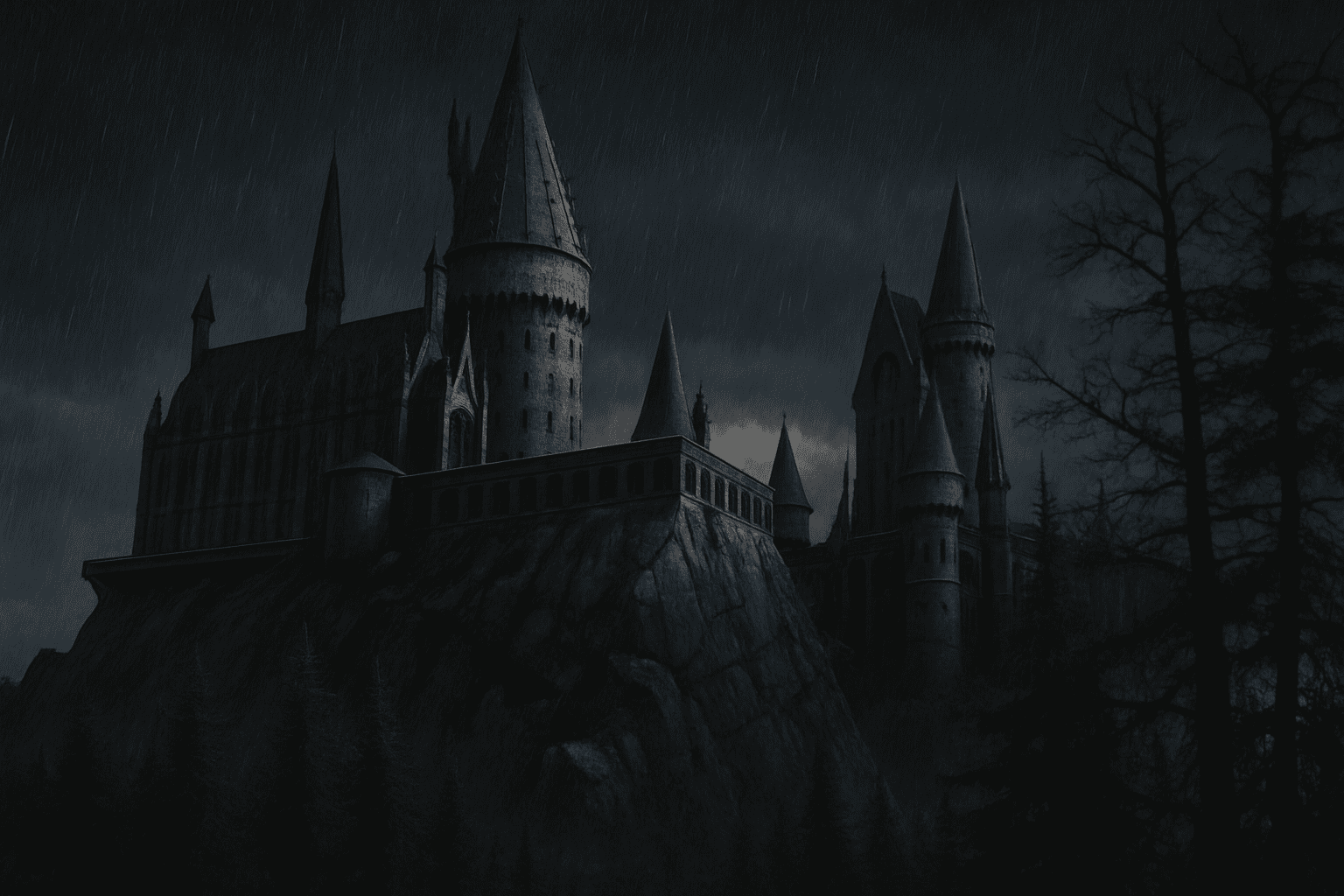
Conjure the Magic of Hogwarts with Photoshop Wizardry
Ever looked at a photo and thought, “This could use a little more drama?” If you’re a digital artist, photographer, or creative enthusiast, you know the power of visual transformation. In today’s exploration, we’re diving into how you can turn a mundane photo into a bewitching scene straight from the world of Harry Potter. Whether you’re a fan of fantastical imagery or just keen to elevate your Photoshop skills, this guide has you covered. And after a few magical tweaks, we’ll have your Hogwarts looking stormier than ever before.
Begin with the Right Foundation
To set the stage for your spellbinding transformation, start with a well-composed photograph. For our project, we began with a snap of Hogwarts Castle from Universal Studios in Florida. However, feel free to experiment with any evocative architecture you fancy. The core lesson here is about enhancing what’s already present and dramatically reshaping it to fit your creative vision.
Step into Smart Sharpening
A good image begins with clarity. When dealing with detailed architectural shots, sharpening can define elements that might otherwise get lost in the shadows. In the Photoshop toolkit, ‘Smart Sharpen’ is your first wand of choice; this tool allows you to adjust the amount and radius of sharpening for a bespoke touch to your photo.
- Amount: 500%
- Radius: 0.5 pixels
Banish Unwanted Elements
Let’s talk about a little cleaning magic. Sometimes, there are pesky elements—like a stray pole—that disturb the aesthetic of your scene. That’s where Photoshop’s content-aware fill steps in to save the day. Use the lasso tool to encircle the offender, then let content-aware fill seamlessly replace it with believable background textures.
Consider it your digital Obliviate spell.
Extract and Refine with Precision
To draw viewers into an alternate reality, only the essential elements should remain. Utilize Photoshop’s selection tools to isolate key features. Use the Quick Selection tool to broadly mark out Hogwarts and its trees.
Next, click ‘Refine Edge’ to fine-tune your selection’s boundaries, ensuring it’s as clean-cut as Mad-Eye Moody’s glare. As we say in the digital world, “Be vigilant, always.”
- Smart Radius: Adds extra refinement for those intricate edges.
- Decontaminate Colors: Removes color fringes at the margins, maintaining purity in your colors.
Dramatic Skies for Dramatic Tales
Creating an effective mood is all about the background. For a foreboding atmosphere, you want the kind of sky that spells “something wicked this way comes.” Add your stormy backdrop by dropping a pre-prepared sky image layer beneath Hogwarts. This sets the tone for stormy nights and other eerie adventures.
Sculpting Rain and its Perspective
What’s a stormy castle without the patter of rain? Create a new layer and add noise via ‘Filter > Noise > Add Noise’. Adjust settings to mimic the density and flow of rain:
- Amount: 100%
- Distribution: Gaussian
- Monochromatic: Checked
Then, give it direction: apply a ‘Motion Blur’ filter to simulate rain, with a dramatic angle to align with the castle perspective. Drops of water coming down wait for no one!
Hue Adjustment and Saturation Mastery
With your composition taking shape, it’s time to color correct. The final hues determine emotions and depth. Photoshop’s ‘Hue/Saturation’ adjustments are key to setting this right. This wizard-approved tool lets you tweak the whole image’s ambiance, from otherworldly blues to gloomy, overcast grays:
- Hue: 225 (A deep, stormy blue)
- Saturation: Reduced for that aged look
Final Touches for Digital Sorcery
A few layers and adjustments later, your photo is miles away from being just a snapshot at a theme park. Now, with its forbidden allure, the majestic Hogwarts stands majestically amid swirling tempests. The final enchantment on your canvas requires reducing opacity a bit for that ethereal, magical aura.
Voila! You’re done. Your mystical creation can serve as inspiration for your followers, wallpaper, or a beautifully twisted artwork to hang beside your real-world photos.
Photoshop might not be real magic, but with the right techniques, it can work spells that are nearly indistinguishable. So give these steps a try and see how you can transform your projects into masterpieces worthy of a place in any wizarding world. Fly high, creative maven, and remember: as always, creativity is the limit.
Whether you’re an adept Photoshop sorcerer or just dipping your toes into this magical realm, each step opens a pathway to mastering your craft in ways you hadn’t imagined. Keep exploring, keep creating, and see where the magic takes you next!





