Revisiting the Classic: Etch A Sketch Meets Modern Art
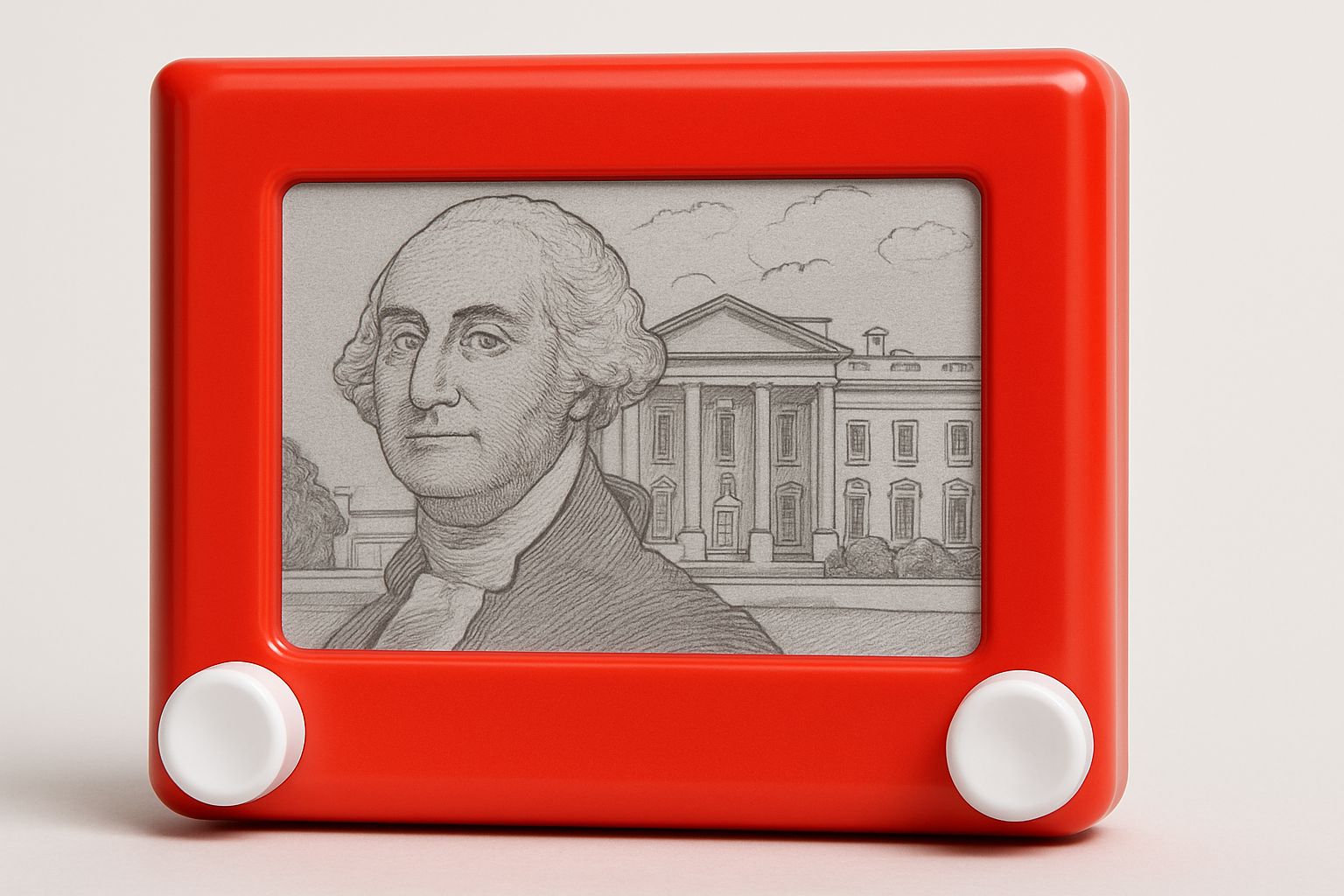
Remember the simple joy of turning the knobs on an Etch A Sketch and watching lines magically connect to form a picture? Transforming those childhood memories into digital artworks is a journey filled with nostalgia and creativity. In this post, we’ll explore how to use Photoshop to transform any photograph into a unique piece of Etch A Sketch art, merging faces, backgrounds, buildings, and text.
The Magic of Etch A Sketch Recreated
In 1960, the Etch A Sketch toy was introduced to the world, quickly becoming a symbol of creativity and fun. While using an actual Etch A Sketch might require patience—especially when your masterpiece is just a wiggle away from being erased—digital craftsmanship allows for endless innovation without the fear of accidental shake-induced destruction.
Step-by-Step: Crafting Your Digital Etch A Sketch Art
Here’s how you can recreate that iconic look using Photoshop:
1. Gathering Your Assets
To start, you’ll need a Photoshop file that includes an Etch A Sketch template and a channel for the layer mask. This foundational setup is crucial to making your artwork look authentic. Once you have your base file, it’s time to delve into more detailed preparations.
2. Preparing Your Image
Choose the photograph you wish to transform, ideally a portrait, to keep things reminiscent of classic Etch A Sketch art. The real charm is in the simplicity, so even the most complex photographs can be stripped down to their bare essentials while retaining character.
Extracting Details
If your image has dark areas, you can tweak these details using the “Shadows/Highlights” adjustment in Photoshop. This will help ensure that the final output isn’t dull or overly shadowy—a crucial step for images that must retain clarity through the conversion process. For a balanced adjustment, experiment with shadows by setting the amount to approximately 35%, a tonal width of 50%, and a radius of 30 pixels.
3. Creating a Selection and Mask
For isolating the focus, create a clear selection of the person (or object) in your photograph. The Pencil tool is great for drawing sharp selections around the edges. Once your selection is precise, invert it and seamlessly integrate it into your Etch A Sketch template. This might sound complex, but the more fluid your selection, the sharper your final piece!
4. Transforming and Refining
With your essential artwork in place, nudge it into position using Photoshop’s transform tools. Adjust size and orientation to fit within the Etch A Sketch bezel. Remember, it’s all about getting that bespoke look as if the knobs were in your hand.
5. Monochrome Magic
Etch A Sketch is all about black and white contrast. Eliminate color through a quick desaturation (Control + Shift + U on Windows or Command + Shift + U on Mac). This step channels the authentic monochrome look, readying your art for the next stage, which is elevating its sharpness and borders.
6. The Final Etch A Sketch Touches
Apply pixelation and effects like Mosaic to give the impression of lines connecting in that classic Etch A Sketch style. Filter by stylization, finding edges that mimic the effect used by the toy. Not forgetting those iconic connecting lines—draw these out using the Pencil tool again to connect segmented areas of your image.
Completing the Piece: Adding Text and Styling
You can take your artwork one step further by incorporating text. Adjust your font’s size, style, and alignment to ensure it blends seamlessly with the piece. Rasterize, apply the Mosaic filter, and stylize as needed to maintain that sketched aesthetic.
Merging and Layer Love
Conclude by merging your artwork layers, ensuring each element is cohesive. Adjusting blend modes to Multiply can enhance the authentic look by allowing only the linework to be prominent against any background you choose.
Why This Technique is a Creative Game-Changer
Channeling the nostalgic essence of Etch A Sketch art, this Photoshop technique bridges the gap between old school and new school, delighting those who treasure the memories of tactile art creation. Beyond just appealing to those craving nostalgia, it serves as a unique creative tool allowing modern-day enthusiasts to craft timeless digital pieces.
So, go ahead and experiment with your favorite images, turning them into quirky, sketched renditions that celebrate simplicity and nostalgia. Have fun sketching your own digital masterpieces!