Big thanks to Artlist for sponsoring this tutorial. You can explore their full creative platform here: Artlist.
Crafting Epic 3D Logo Animations with AI Technology
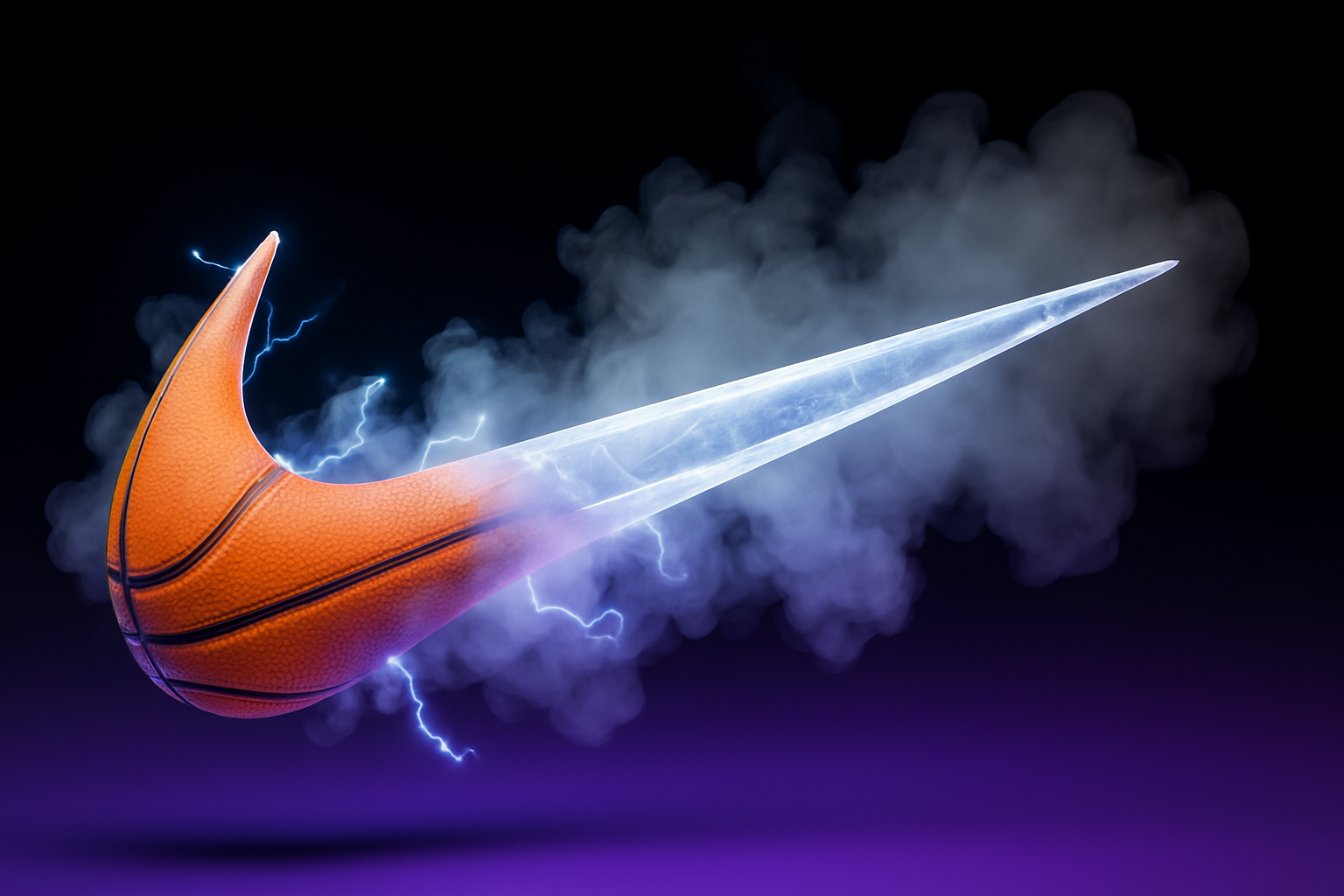
Are 3D logo animations just for the big companies with their big budgets? Not anymore. With the power of AI at your fingertips, you can create dazzling 3D logo animations that will make your brand look as slick as Nike’s, without breaking the bank. Armed with tools like Artlist and Chat GPT, you or anyone with a creative itch can make high-quality animations for intros, commercials, social media posts, and more. So buckle up, because we’re diving into the world of AI-crafted 3D logo animation.
Why this workflow works (and what Artlist adds)
Artlist’s new AI Toolkit pulls three creative superpowers into one browser tab: AI images (for look frames and style worlds), AI video (for motion from text or images), and AI voiceover (for polished narration), plus built-in licensing and credits so you can ship. You’ll generate scene-by-scene imagery, turn those into motion, and finish with sound, all in one place.
- One workspace: image, video, and voice tools live together.
- Creative speed: model picks, aspect ratios, and pro controls tailored for creators.
- Production-minded: plan-based AI credits and a clear license for commercial use.
To explore the Toolkit, start here: Artlist AI Toolkit.
Think of Artlist as your AI studio: concept, generate, voice, and deliver, without hopping across five apps and a dozen licenses.
Setting Up Your Workspace
Before jumping into crafting animations, it’s essential to have a clean logo ready. Start by prepping your logo using Adobe Photoshop or your choice of design tool. Here are basic steps to gear up:
1. Prepare Your Logo: Create a 4K document in Photoshop. Black out the background and place your logo in white for maximum contrast when you prompt “emissive” or reflective scenes later.
2. Save it: PNG with transparency is ideal. This becomes your blueprint in image-to-video steps and gives you clean edges for transitions.
Source file tips that save you time
| Source | Best for | Why it helps |
|---|---|---|
| SVG | Shapes, flat marks | Infinite scale; crisp edges for clean “3D” illusions |
| PNG (transparent) | Most workflows | Preserves edges; easy compositing and glowing edges |
| High-res JPG | Backup option | Usable, but less flexible for transparency and compositing |
Next, head over to your prompt helper—ChatGPT or your favorite ideation tool—to draft cinematic scene beats. Treat it like a director’s notebook: camera, light, mood, motion, transition.
Entering the Artlist Dimension (generate your scenes)
Artlist’s AI Toolkit can generate stills to define the “world” around your logo and then animate them. The goal is consistency across shots so your mark feels like it’s journeying through one cohesive space.
- Select AI Toolkit: Enter the AI section and choose the tool you need—image first, then video.
- Generate Images: Upload your logo (transparent PNG preferred) as a reference and prompt the environment (studio, neon city, cosmic tunnel, liquid metal lab, etc.).
- Go Scene by Scene: Use your prompt notes to craft distinct yet cohesive sequences: “dark studio reveal,” “light sweep pass,” “chrome ring orbit,” “hero hold with particle bloom.”
Prompt like a director: subject, light, lens, motion. The more concrete the cue, the less random your output.
If you want a deep dive on image prompting and consistency inside Artlist’s ecosystem, we’ve covered stronger prompt recipes in this guide: Nano Banana Pro on Artlist: Best Prompts.
A prompt framework that keeps shots consistent
16:9, cinematic logo journey. Scene 1 (0–2s): moody black studio, soft rim light from camera left, 50mm lens, shallow DOF, subtle haze. Scene 2 (2–5s): camera dolly forward through volumetric light, logo gains reflective chrome edges, anamorphic flare crossing frame. Scene 3 (5–7s): orbital move, particles sweep around edges like magnetic dust. Scene 4 (7–10s): hero hold, spotlight bloom, clean space for tagline.
Pro note: Keep each pass specific. If a shot drifts, isolate one variable (lighting, camera, or texture) and iterate rather than rewriting everything.
Stitching the Scenes Together with Style
You’ve got your scenes; now it’s time to piece them together like a virtuoso. Each scene will build upon the last, constructing a compelling narrative as unique as your brand.
- Scene Consistency: Reuse your logo and previous outputs as references to reduce visual drift.
- Motion Logic: Think “cause and effect.” If light sweeps left-to-right in one shot, continue that energy in the next transition.
Transitions that sell the illusion
| Transition | Prompting cue | When to use it |
|---|---|---|
| Light sweep | “A bright flare crosses frame L→R to white” | Hide cuts; great for sleek, modern brands |
| Orbital blur | “Fast radial motion blur into next scene” | Momentum between two dynamic shots |
| Particle wipe | “Glittering particles fill frame and settle” | Premium feel with a moment of magic |
| Simple dip | “Dip to black/white for 4–6 frames” | Clean resets; adds punch to the hero reveal |
Rendering and Voiceover Wizardry
After you render the scenes, bring them into your editor. CapCut is a fast, free option with surprisingly deep features for beginners and pros.
- Import all shots, trim to your beat map.
- Add motion easing on cuts if needed (subtle zooms or push-ins).
- Lock timing around the logo reveal; leave room for a stinger hit.
Grab CapCut here: CapCut official site.
For narration, try Artlist’s AI Voiceover inside the same workspace. Draft a tight script (one sentence hook, one-line benefit, one-line CTA). Pick a voice that fits your brand tone—clean, warm, energetic—and generate. Because VO lives in the same environment as your visuals, timing tweaks are quick.
Sound that feels cinematic (in minutes)
Great motion without sound feels unfinished. Build a quick sound bed:
- Underscore: Choose a minimal, percussive track that won’t fight the VO.
- Hits and sweeps: Add a sub hit on the logo reveal and gentle risers before transitions.
- Space: Leave a breath before your CTA so the logo and tagline land.
Strong alternative: If you prefer scratching SFX quickly outside libraries, you can seed timing with a few simple whooshes, low rumbles, and twinkles, then replace with licensed assets at the end.
Audio is emotion. Even a 10-second logo sting deserves a riser, a breath, and a tasteful hit.
Bringing It All Home
1. Arrange Your Timeline: Build your sequence in order, lock the hero reveal.
2. Preview & Polish: Adjust beats to the music; trim any “AI jitter” frames on cuts.
3. Voice + Mix: Level VO around –3 to –6 dBFS peaks; duck music under VO by 4–6 dB.
4. Export with Flair: Use high bitrate exports and match platform formats.
Quick export guide (by platform)
| Platform | Aspect | Resolution | Notes |
|---|---|---|---|
| YouTube | 16:9 | 3840×2160 (4K) or 1920×1080 | High bitrate; add a clean 1–2s logo hold at end |
| Instagram Reels/TikTok | 9:16 | 1080×1920 | Center-safe text; avoid heavy edges for captions UI |
| IG Feed | 1:1 | 1080×1080 | Reframe hero; keep logo and CTA in central 60% |
Plans, credits, and licensing (so you can ship)
Artlist runs on a straightforward credits system for AI tools, with plan tiers that scale from solo creators to teams. Each generation shows the credit cost before you run it, and outputs are covered under Artlist’s commercial-use framework, so you can use, modify, and monetize across social, web, and broadcast.
- Know your credits: test at lower settings, finalize at higher quality.
- One license, many assets: music, SFX, images, and video under one roof.
For how credits and plans work, Artlist’s official explainer is here: AI Suite explained.
Troubleshooting common hiccups
- The logo warps in motion: Use your clean PNG as a reference every time you switch scenes; prompt “preserve logo geometry, no warping.”
- Lighting continuity breaks: Define your light direction (“soft key from camera left, cool rim from right”) in every prompt.
- Transitions feel abrupt: Add micro “between frames” with a flare sweep or fast dip to white; match SFX to glue the cut.
- VO sounds too robotic: Slow the read slightly and add a gentle room tone under VO; keep music sparse during lines.
Reduce chaos by locking three things across every shot: camera angle, primary light direction, and background depth cue (fog, haze, parallax).
The big picture
With AI, creating 3D logo animations is no longer the future, it is the present. The integration of tools like Artlist (image, video, voice) and fast editors like CapCut turns time-consuming tasks into swift sprints of creativity, saving hours while expanding what’s possible on a small budget. If you want great-looking “3D” results without 3D software, this pipeline is your shortcut.
- Start with a pristine logo.
- Prompt scene worlds with intention.
- Animate with continuity in mind.
- Layer tasteful audio and tight VO.
- Export for the platform you’re shipping to.
Your logo animating dream is not only achievable, it might just be your next click away. Now go ride the digital wave and transform your brand into a moving work of art!