Bring Some Sparkle Into Your Typography with Photoshop
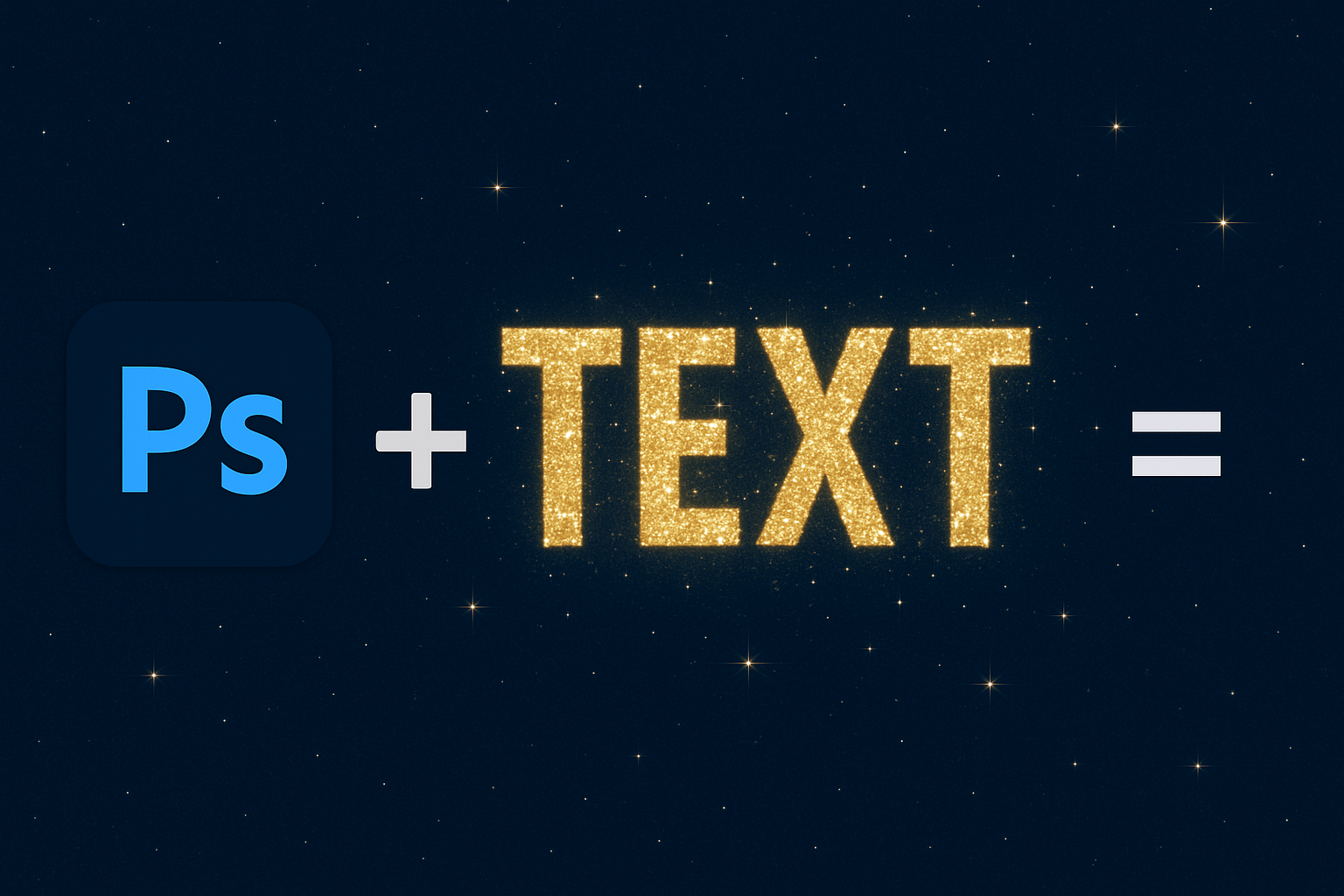
If you’re looking for a way to add some pop and sparkle to your text in Photoshop—whether for a digital art project, a fun social media post, or just to up your graphic design game—dive into this captivating tutorial. You’ll learn to create a colorful text effect brimming with glittering stars and vibrant starbursts of light. Your project will size up at a crisp 1280 by 720 pixels, setting you off on a cosmic journey through design.
Setting the Stage with a Galactic Background
Before you can sprinkle in those sparkling text effects, you’ll need the perfect stage: a dark, deep-space-inspired background. Start by filling your document with black. Depending on your keyboard shortcuts, you can hit Alt or Option + Delete if black is your foreground color—or you can press Shift + F5 to bring up the Fill window and select Black. Easy peasy, right?
Duplicate the starry realm by making a copy of the background layer (Ctrl or Command + J). With your canvas set, what better way to dive into design than by summoning the Gradient Tool and creating a linear gradient from black at the bottom to white at the top? Filter your path through some Photoshop effects, such as ‘Distort’ and ‘Wave’, to bring a rippling starburst feel into the frame.
- Number of Generators: 10
- Wavelength: 10 to 120
- Amplitude: 5 to 35
- Scale: 100%
From Rectangular to Stellar
By applying the ‘Polar Coordinates’ filter, turn the ripples into an eye-catching starburst. With the option Rectangular to Polar, the ordinary coordinates shapeshift into something stellar, laying the groundwork for an ethereal light effect.
Next, venture into the realm of ‘Lighting Effects’. Opt for an ‘Omni’ Light Type with a shimmering Gloss: Shiny and a ‘Material: Plastic’ to introduce those glossy highlights that imbue your design with depth.
Layering in Colorful Explosions
Create a new layer to prepare for coloring. Utilize preset gradients by choosing a noise gradient like ‘Blues’, after appending them to your palette. Paint a spectrum on your starburst: un-check Restrict Colors and apply the gradient from the heart of your effect to its edge.
Engage ‘Gaussian Blur’ to diffuse the gradient softly, lending a misty, colorful touch. With this bit of magic, you’ll witness a stunning tapestry of radiant light that would put any sunbeam to shame.
Typographic Twinkle Magic
Here comes the star of the show—adding your text. The font choice? DecoTech—a fitting typeface you can easily nab from Dafont. Want to reposition the celestial text? Use your trusty Move Tool to dance your letters into position.
Slide the fill down to zero, then bring out the ‘FX’ menu to choose ‘Inner Glow’ and ‘Bevel & Emboss’ for multi-dimensional pizzazz. Dial-in specific settings for a luminescent finish that epitomizes a flash of inspiration.
Duplicate & Perfect the Glow
It’s time to replicate that text (Ctrl or Cmd + J) and double the irresistibly shiny fun. Adjusting the glow dimensions allows a personal touch on how bright and expansive you want your effects to shine, punctuated by turning on ‘Outer Glow’.
Twinkle, Twinkle Little Text
To add that final dazzle, sprinkle in some twinkle. A new layer aptly named “TWINKLES” will house these glittering brush effects. Don’t have the twinkle brush handy? No problem, you’ll want to download the twinkle preset from the video description. Once set, bring those sparkles to life on your text edges.
Amp up the spectacle by multiplying and blurring these twinkles: set one version for a ‘Horizontal Blur’ and another for ‘Vertical Blur’ in the ‘Motion Blur’ filter. Voila, you’ve spun a web of magical stardust.
Turn Up the Color Saturation
Bring your color layer to the forefront of the cosmic party, bathing the entire creation in your choice of hue. Surrounded by luminous starbursts, your text effect now possesses that distinct, jaw-dropping flair—perfect for grabbing attention in any digital space.
Experiment & Embellish
For those bold, adventurous creatives, experiment by switching up the background’s gradient. A few simple clicks can dramatically modify the vibe and drama of your piece. Test out various gradients and see how it transforms your celestial canvas into something uniquely you.
By weaving these steps together, you can now craft dazzling text effects that dazzle with every pixel. Your audience won’t just read your text—they’ll feel it in their universe. Surf the stars, shine brightly, and as always, stay curious.
Let your creativity take flight with starbursts, twinkles, and ombré hues. Have fun experimenting and creating something uniquely cosmic!