Igniting Your Creativity with Fiery Text Effects
Have you ever wanted your text to jump off the screen in a blaze of glory? Well, you’re in luck! Today, we’re diving into a fun and effective Photoshop technique to create smoking hot text that can add that extra zing to your digital art projects. Whether you’re designing logos, creating eye-catching headers, or just having fun with typography, this fiery text effect will make your work stand out.
The Art of Creating Hot Text
Creating sizzling hot text is not just about slapping on a bright red color and calling it a day—it’s about understanding the layers and filters that make your text look like it’s ready to ignite. Here’s a step-by-step overview, from setting up your canvas to the final smoke effects.
Step 1: Preparing the Canvas
Starting with a blank canvas is akin to having a blank slate of endless possibilities. For this exercise, we’ll be working with a canvas that’s 1280 by 720 pixels and a resolution of 72 pixels per inch. Begin by setting your foreground color to black and filling the background layer with this color to create a dark backdrop. This sets the stage for the drama that’s about to unfold.
Step 2: Choosing and Setting Your Text
Select a font that captures your creative vision. For our tutorial, Sakal Maala is the font of choice. Download it directly from FontZone. Choose white as your text color and then position your text centrally by using the move tool. Merging this text layer with the background creates a crisp contrast essential for our fiery effects.
Step 3: Unleashing the Wind
Now, let’s add some dynamics to our text by applying a wind filter. Head over to Filter > Stylize > Wind and choose ‘Wind’ from the left. For added texture, duplicate this effect, apply it from the right this time, and duplicate it once more. Rotate your canvas 90° clockwise, reapply the filter, and rotate back to enrich the directional wind effect around your text.
Step 4: Ripples and Roughness
To make the text appear rugged and raw, apply a ripple effect. Go to Filter > Distort and select Ripple with an amount set to 100% and medium size. Transition through grayscale and index color modes to sharpen the overall visual impact—these subtle changes are invaluable in crafting the sizzle effect.
Step 5: Enhancing with Colors
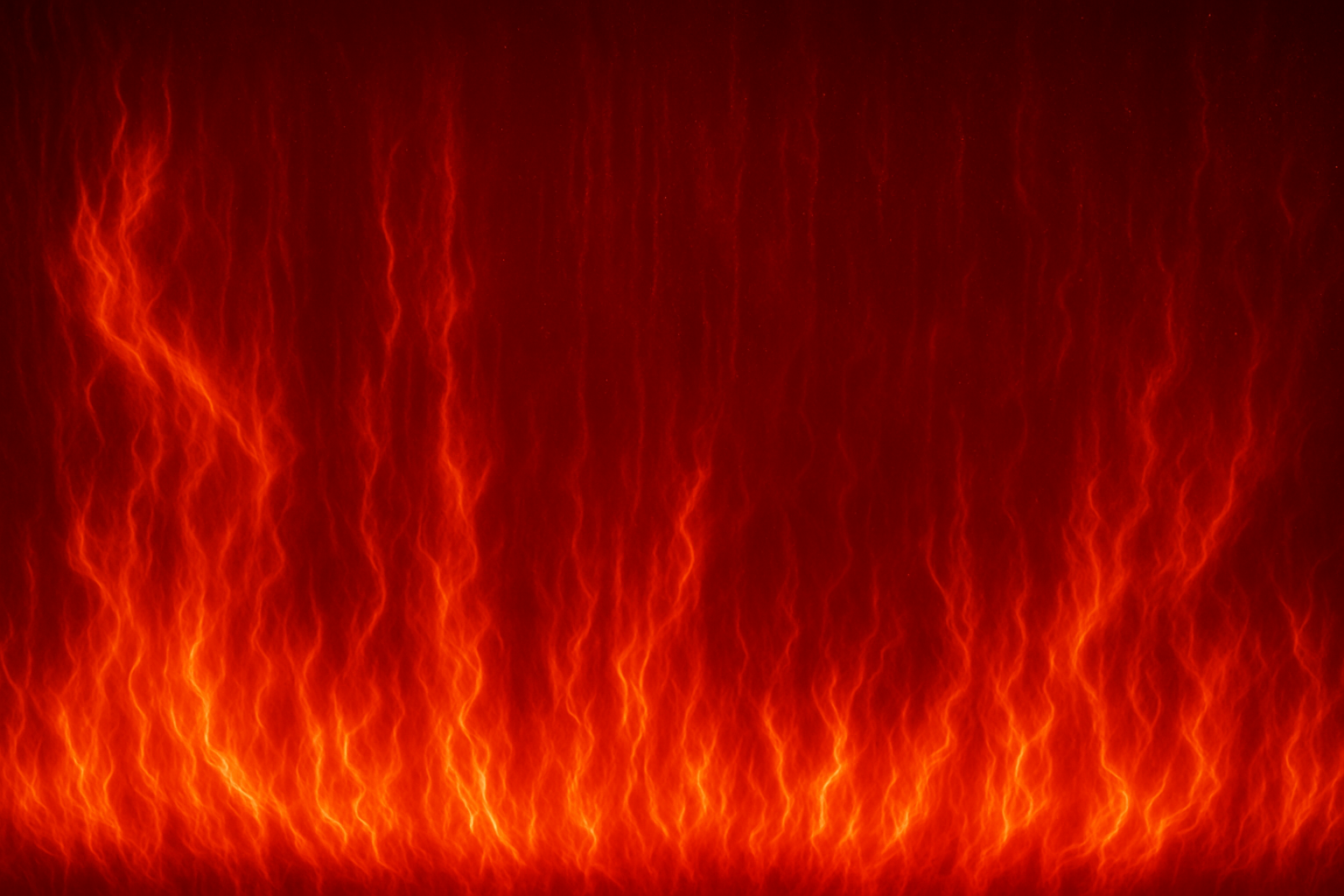
Switch your document back to RGB mode after adding vibrancy with color mode adjustments. Choose a bright color table preset, such as ‘Black Body’, to give your text an illuminated feel. This step ensures that while the text remains in the spotlight, the fiery hues give the illusion of burning embers.
Step 6: Crafting the Background
To create a hot and steamy backdrop, render clouds by firing up Filter > Render > Clouds, and play with levels to bring out the best in your smokey canvas. Introduce a bright red adjustment layer setting the blend mode to Overlay for that intense, fiery ambiance that’s as bold as it is beautiful.
Step 7: Final Touches – Inner and Outer Glow
Enhance your text with the finishing touches—these are what make the effect come alive. Implement Inner Glow using a bright red, set to 18 pixels size and 75% opacity. Use the dissolve blend mode to give the text a charred and eroded appearance. Outer Glow adds that last bit of glamor, giving an effervescent halo effect, ensuring your text sizzles with authenticity.
Step 8: Adding Smoke
Finally, nothing says hot quite like a touch of smoke. Render difference clouds and invert a layer mask to add smokey emanations rising from your text. Use a brush to fine-tune where the smoke should appear, keeping the dissolved blend mode factor for the best results.
Enjoy the Sizzle!
And there you have it—a text effect that will leave others wondering if they can feel the heat. Through combining layers, filters, and creative manipulation of tools, Photoshop enables endless potential for creative expression. So dive into this effect, and unleash the fiery designer within you.
Explore the possibilities with this sizzling effect, perfect for projects where you want to grab attention and not let go.
Use these techniques, and have fun torching your own sizzling hot text creations. Thanks for spending your creative time with us, and remember, in the world of pixels and creativity, the heat is always on.