
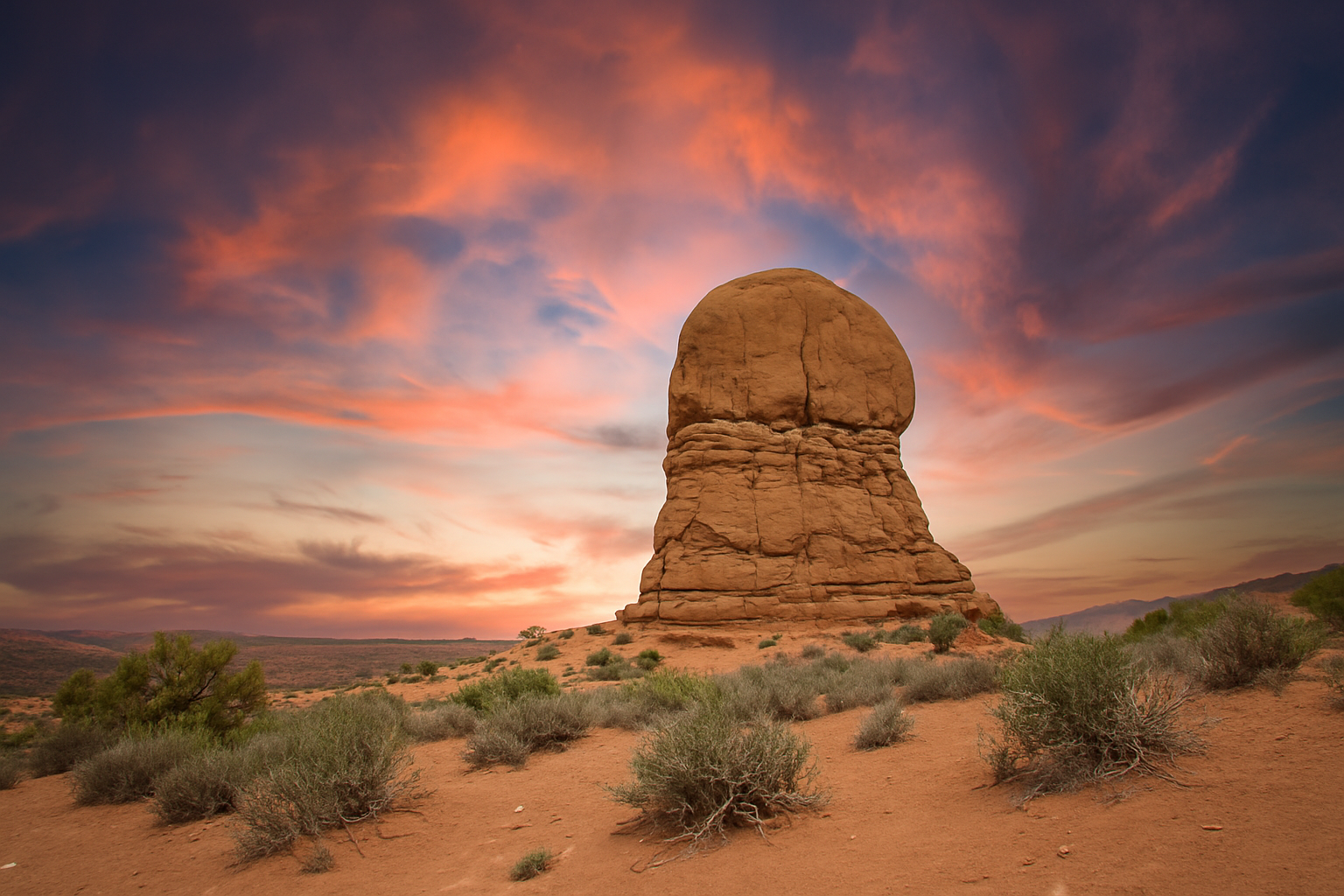
Mastering the Art of Seamless Photo Merging
In the world of digital artistry, creating a panoramic masterpiece by merging two separate photos is not just reserved for the pros. With Adobe Photoshop’s powerful features like Generative Fill and Sky Replacement, even budding creatives can achieve professional-like results. Today, we’ll explore a method to craft seamless panoramas by merging two photos into a cohesive image that narrates a more compelling story.
The Magic of Generative Fill
Generative Fill is one of Photoshop’s shining stars when working with fragmented images. Imagine having the power to extend your canvas effortlessly by synthesizing missing parts of your photo through AI-driven technology. It’s like having a paintbrush that knows exactly how to fill in the blanks with breathtaking accuracy. We begin our journey by leveraging this tool to seamlessly extend our initial photo and prepare it for merging.
Step 1: Preparing Your Canvas
The first step in our process involves expanding our canvas. You can achieve this by:
– Navigating to Image > Canvas Size.
– Clicking the right-facing arrow to expand your canvas to the right.
– Setting your canvas width to twice the photo’s height. For instance, if your photo’s height is 1440 pixels, set the width to 2880 pixels.
This gives you ample space to incorporate the second photo into a singular, cohesive canvas.
Strategic Photo Integration
Now that your canvas is set, it’s time to bring in the second photo. Switch to the Move tool, a trusty companion for shifting layers fluidly. Drag your second photo onto the newly expanded canvas, positioning it relative to the first photo. Resize it with the Transform tool (Ctrl/Cmd + T) if necessary, although sometimes the initial size fits just right.
Step 2: Executing Generative Fill
After positioning, it’s showtime for the Generative Fill:
1. Use the Rectangular Marquee tool to select the areas around both photos ensuring a bit of overlap.
2. Click the Invert Selection and choose Generative Fill from the toolbar.
3. Hit Generate to let Photoshop’s AI work its magic.
Relish the visuals as Generative Fill conjures up options for your image blending. Choose your favorite outcome and marvel at how naturally the skies and landscapes mesh together.
The Unbeatable Sky Replacement Tool
While Generative Fill makes a strong case for AI creativity, when it comes to sky adjustments, Photoshop’s Sky Replacement feature shines even brighter. It keeps the integrity of your landscape intact, allowing meticulous control over the final look of your skyline.
Step 3: Replacing the Sky
Here’s how to give your sky a refreshing makeover:
– Convert your merged image into a Smart Object to ensure non-destructive editing (Shift-click all layers, then select Convert to Smart Object).
– Access Edit and then Sky Replacement.
– Choose from a multitude of sky options or insert your own customizable celestial views by clicking Get more skies.
Fine-tune the sky’s position, color temperature, and scale to align with your creative vision. Whether you lean toward warmer sunsets or cooler twilight hues, control rests at your fingertips.
Finalizing Your Masterpiece
Once satisfied with the seamless merger and sky aesthetics, apply your adjustments by clicking OK. Remember, creativity thrives when technology empowers it. Adobe Photoshop brings to life the concept of merging narratives through flawless photo integration, all while safeguarding your artistic essence.
A Quick Recap for Creative Reference
– Canvas Extension: Double your canvas width for scalability.
– Photo Placement: Integrate the second photo using the Move and Transform tools.
– Generative Fill: Render seamless transitions between images.
– Sky Replacement: Consciously tailor sky elements without disrupting landscape harmony.
And there you have it! A dazzling panorama that tells two stories in one seamless frame. The art of photo merging is no longer a mystery—practice it and soon you’ll craft images worthy of any digital gallery. Embrace these Photoshop superpowers to elevate your storytelling and wow your audience.
Stay inspired, and until next time, keep creating incredible art!





