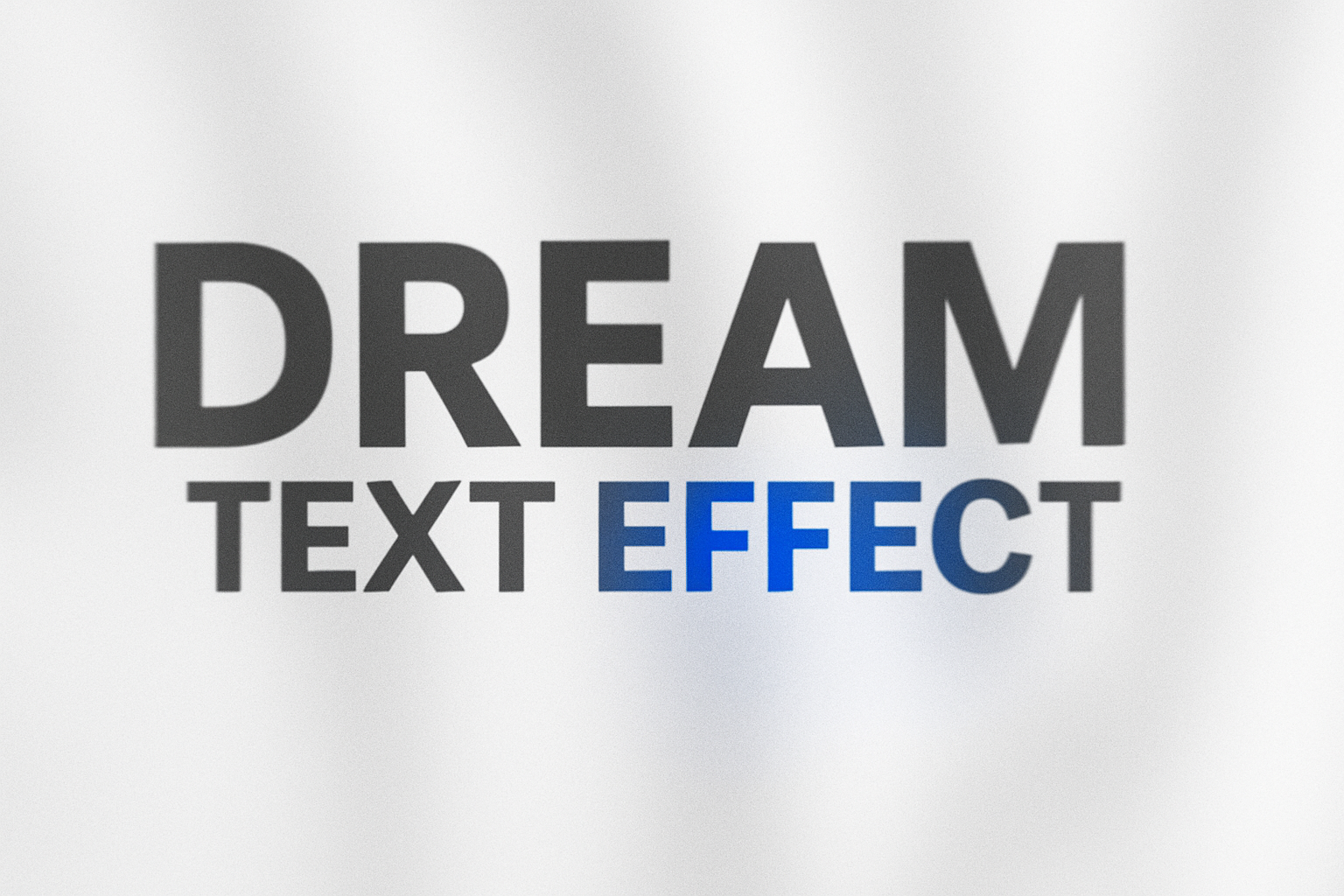
Unlocking the Dreamlike World of Photoshop Text Effects
Are you ready to infuse your designs with a touch of dreamlike elegance? Dive into the world of Photoshop with us and explore how to create an ethereal, dream-like text effect that’s as mesmerizing as it is unique. Perfect for capturing attention in a world saturated with visuals, this effect is your ticket to making your text truly stand out. Let’s unwrap this magic hidden in the depths of Photoshop’s capabilities for versions CC 2014 and later.
Getting Started: Setting Up Your Canvas
Before we get to the artistic magic, let’s lay down the foundational canvas. Start by creating a new document (Ctrl or Cmd + N) with the dimensions of 1920×1080 pixels and a resolution of 150 pixels per inch. Opt for an RGB color mode with 8 bits per channel. Think of this as your ethereal blank slate. If the background isn’t white, you can easily change it by navigating to the Background Contents list and selecting “white”.
Choosing The Right Font
Your font choice is crucial for this effect. Using the Horizontal Type Tool, select a font that ranges from medium to heavy. This will enhance the ethereal effect, making your text appear more tangible. Set the font size to 220 points, but feel free to tweak it according to the font’s shape and the length of your message. Aligning it to the center and ensuring its color is set to black will provide optimal contrast.
Positioning & Preparing Your Text
Once you’ve laid your text, optimize its positioning. Click near the text, drag to center it on your document, and click the checkmark to accept the positioning. Next, convert this text into a Smart Object. This allows for non-destructive transforms, letting you change the text without redoing all effects—talk about a time saver!
The Magical Blurs: Adding a Dreamlike Quality
To achieve the dreamy aura, we delve into the blur effects in Photoshop. Go to Filter > Blur Gallery > Field Blur. Field Blur allows you to build a sophisticated blur effect across various text areas, creating a gentle wave of softness.
Incorporating Iris Blur
Though primarily for depth-of-field effects, the Iris Blur offers a blanket of smooth blur over your text. Adjusting the blur pin helps in spreading the effect selectively, giving your text an embrace of blurriness that enhances its ethereal nature. Set the initial blur to around 20 pixels for optimal effect.
Layering and Adjusting Blurs
Navigate back to Field Blur to refine the effect further. By strategically placing additional blur points and adjusting their intensity, you can create a text effect that seems to ebb and flow across the canvas. Set blur handles to around 40 for a more defined dreamy detailing. Once satisfied, confirm the settings.
Enhancing Depth with Opacity and Layer Masks
After crafting your initial blur layer, create a duplicate of your text layer (Ctrl or Cmd + J) and conceal it momentarily. Focus on applying layer masks and reducing opacity to your original text to around 80%. Introducing gradients with the Gradient Tool can add layers of visual intrigue to your design.
Stacking Layers and Refining the Overlap
Reappear your copied text layer, drop its opacity down to around 20%, and resize it using the Transform Tool for exciting overlaps. This layering creates a cascading shadow effect that enhances the depth and softness of your overall design. Experiment with blur adjustments on these overlapping layers to polish the desired look.
Coloration and Finishing Touches
Now is the time to splash your text with color to complete its transformation from mundane to ethereal. Begin by adding a new layer for applying colors with a soft, round brush at full opacity. This colorful splash brings liveliness and adds a personal touch to your design.
Applying Solid Colors and Clipping Masks
Select and apply a captivating hue using the Color Picker. Make the color layer a clipping mask to ensure it stays inside the bounds of your existing design. This technique helps focus the colors precisely where you want them, without unintended spillage over your gorgeous text effect.
Finalizing with Lens Correction and Noise
Wrap your masterpiece in a Smart Object for final tweaks. Head to Filter > Lens Correction for any subtle adjustments, and wrap up by adding a whisper of noise—5% Gaussian is a golden rule of thumb. This final adjustment underpins your design with a cohesive vintage flair.
This step-by-step guide is your artistic passport to creating vivid, dreamlike text effects in Photoshop. Elevate your next design project with newfound skills and watch your visions come to life in stunning ethereal fashion. Dive into your creative toolkit and let the magic begin!