
Unleash Your Inner Comic Artist
Photoshop isn’t just about adjusting brightness or adding the occasional filter. For those in the know, it’s a ticket to creating imaginative, whimsical worlds—worlds where your favorite selfies can turn into comic book panels worthy of a superhero storyline. Today, we’re diving deep into this magical transformation. Get ready to witness how your everyday photos can metamorphose into stunning comic book art. And the best part? No magic powers required—just a touch of Photoshop wizardry.
The Art of Comic Book Transformation
Transforming a photo into a comic masterpiece isn’t about slapping on some flashy filters. It’s an art form that takes careful layering, thoughtful adjustments, and an eye for detail. While the actual image size and characteristics may differ, the steps remain the same. You’re not just turning a photo into a comic; you’re crafting a story.
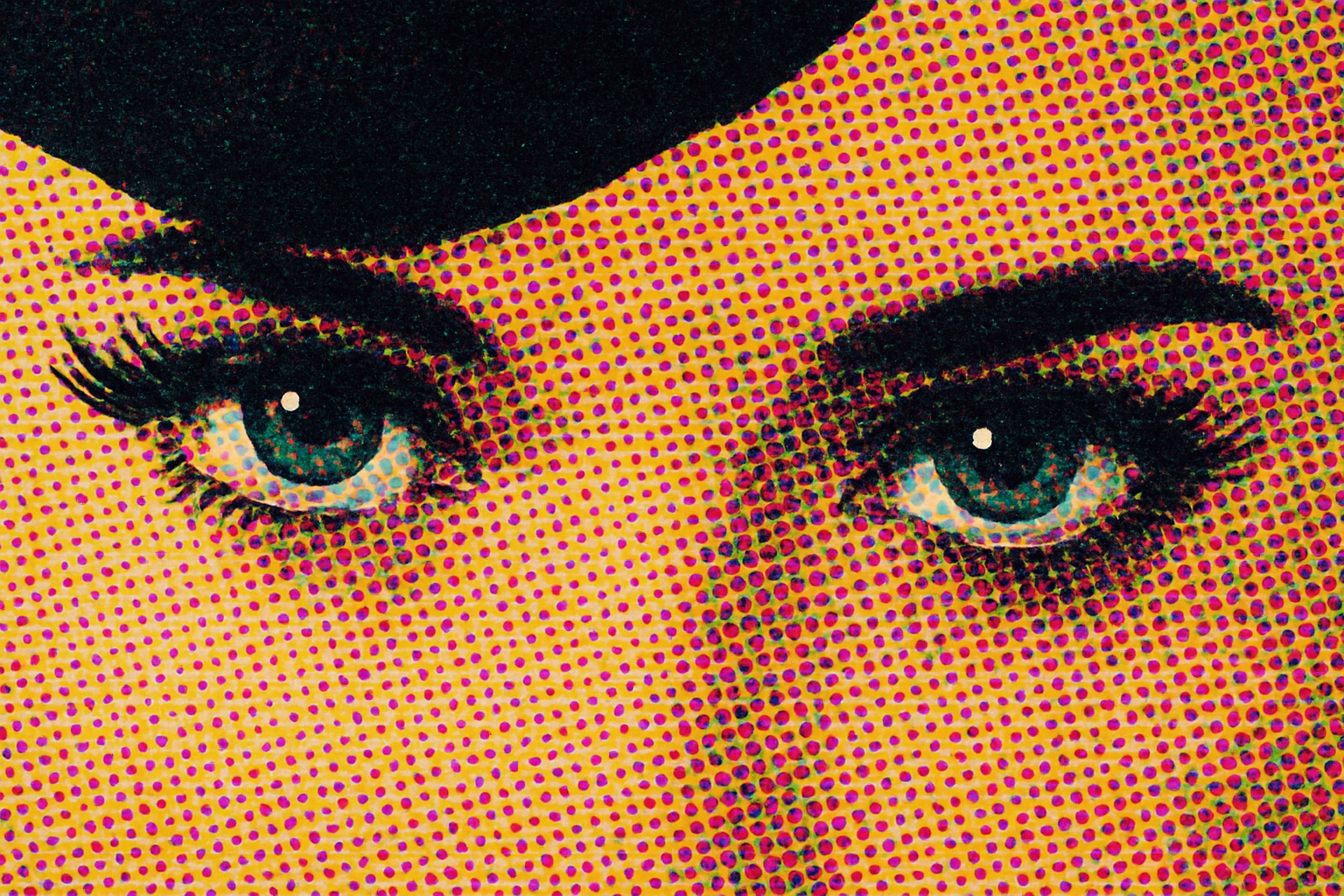
At the heart of it all, this transformation begins with Photoshop’s filters and layers. For example, poster edges bring out those pleasing thick outlines while color halftone mimics the vintage printed dot effect—think of Marilyn Monroe’s pop art but with more pizzazz!
In the Studio: Let’s Create
1. Duplicate Your Layer: Start by making a copy of your original image layer (Ctrl/Command + J). This ensures your original photo remains untouched.
2. Add Poster Edges: Navigate to Filter > Artistic > Poster Edges. Here, adjust the edge thickness, intensity, and posterization to fit your photo’s vibe. Remember, subtlety is key!
3. Copy and Pixelate: Make a duplicate of your posterized layer and go to Filter > Pixelate > Color Halftone. Set a maximum radius for the pixels—around 4 pixels should hit that vintage mark.
4. Merge and Brighten: Merge your layers (Ctrl/Command + E) and then head to Image > Adjustments > Shadows/Highlights. This step will fine-tune your image’s lighting, like popping a retouch filter on a selfie.
Adding Bold Captions & Borders
What’s a comic without captivating captions and bold borders? Photoshop lets you add these with style:
- Stroke and Shadow: Using the FX options, add strokes to layers for bold borders—a nice touch for comic panels.
- Caption Crafting: Use the Type tool with creative fonts like “Bada Boom” from DaFont or “Red State Blue State” from Blambot for added flair.
- Make It Pop: Apply bright colors to your text and accompany them with outlines and shadows for that three-dimensional effect. The idea is to ensure even the quietest of whispers in your comic shout out loud!
Creating a Rustic Paper Texture
Comics aren’t just flat digital panels. To imitate the tactile experience of flipping through pages, adding a paper texture is essential. Websites like CGTextures offer great freebies to give your comic that authentic feel. Place a texture layer above your image and set its blending mode to Darken, drizzling your comic with a vintage paper charm.
Final Touches for that Authentic Look
Last but definitely not least, enhance the micro-details. Missed the glint in your character’s eyes? No problem. Use the Marquee tool to dot in those minuscule details. It’s these small nuances that transform a good comic into a great one.
Why Go Comic?
In a world flooded with images, standing out can be as daunting as battling the villain of the week. But turning a photo into a comic? Now, that’s how you leave an impression. Whether it’s creating unique art for your loved ones, spicing up your social media, or just indulging in some playful creativity, the potential is limitless.
With these Photoshop techniques, from poster edges to playful text, you’re armed with the power to create entire comic strips—or even entire graphic novels—using just your photos. So, what tale will you spin next?
Conclusion
And there you have it! A dazzling blend of colors, styles, and detective-worthy details, ready to teleport your photo into the legendary world of comics. Your photos are no longer just memories—they’re stories waiting to be told. Head to your Photoshop layer palette today; who knows what kind of superhero—or super-villain—you’ll create!





